Guides

  • iOS App Installation
  • How-to: Review Action Statuses for Action Lists
  • How to: Create A Reflection from Action View
  • Giveback Process
  • Solution Overview
  • Location and Action Review Training
  • Location Action Status Review
  • Action Status Training
  • Action Compliance Review Training
  • How-to: Review Action Statuses for a Location
  • How To: Create a Reflection from Reflect View
  • How-to: Login
  • How-to: Reset Password
  • How-to: Change Password
  • How-to: View location action list status by date range
  • How-to: Use Location action status report
  • iOS App Installation

    RealCADENCE™ for iOS is an Apple Enterprise app. Installation can be performed via MDM or manual installation. For more information, see Apple’s support link:

    https://support.apple.com/en-us/HT204460

    Your account representative will have instructions for any specific installation procedures for your team.

    (Excerpted from Apple support page)

    If you install an app by Mobile Device Management (MDM), trust is automatically established. If you manually install an app, you must also manually establish trust.

    Apple recommends that you use an MDM solution to distribute the apps. This method is secure and doesn’t require user interaction. You can also install custom apps from a secure website that your organization operates. If you don’t install apps from your organization, download and install apps only from the Apple App Store. This is the best way to protect your iPhone, iPad, or iPod touch.

    Manually install and trust an enterprise app

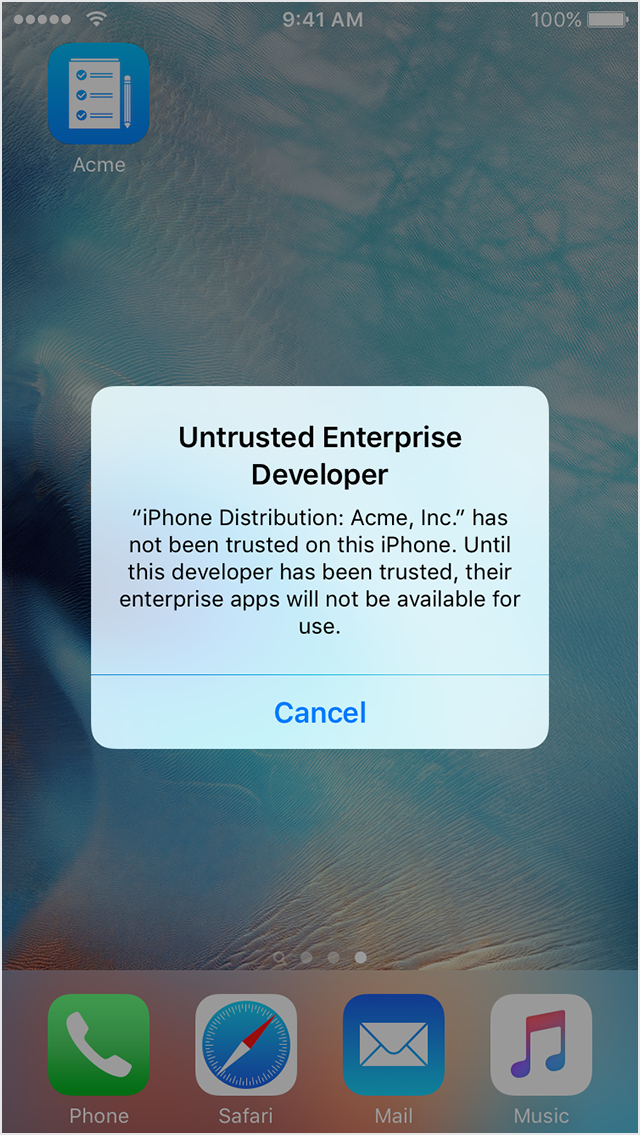
    When you first open an enterprise app that you’ve manually installed, you see a notification that the developer of the app isn’t trusted on your device. You can dismiss this message, but then you can’t open the app.

    Manually install and trust an enterprise app

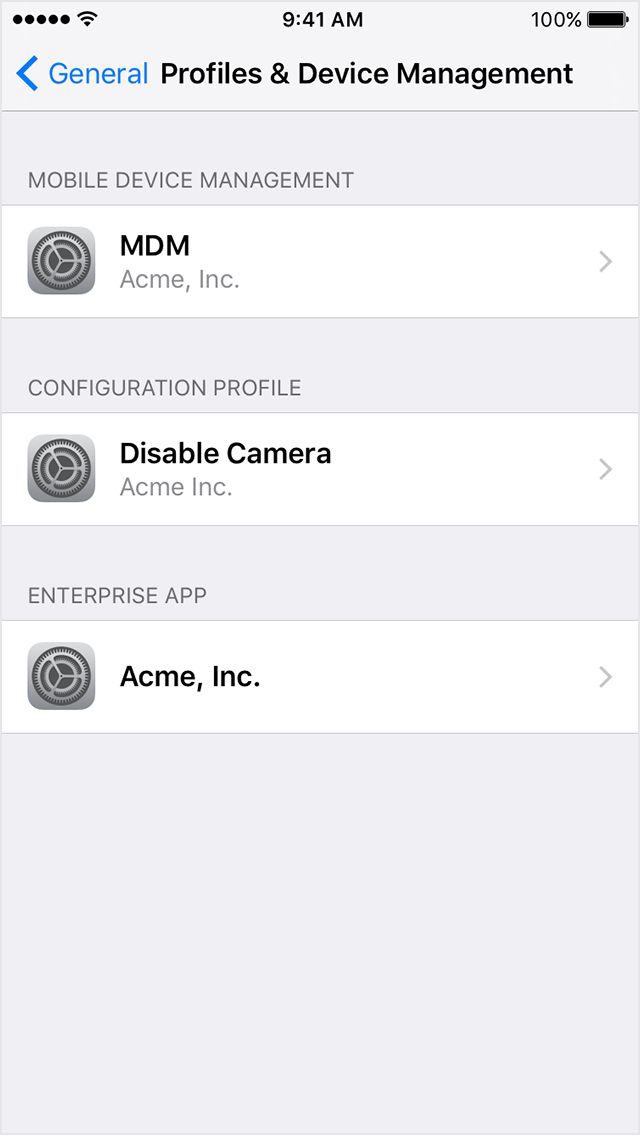
    After you dismiss this message, you can establish trust for the app developer. Tap Settings > General > Profiles or Profiles & Device Management. Under the “Enterprise App” heading, you see a profile for the developer.

    Profiles & Device Management

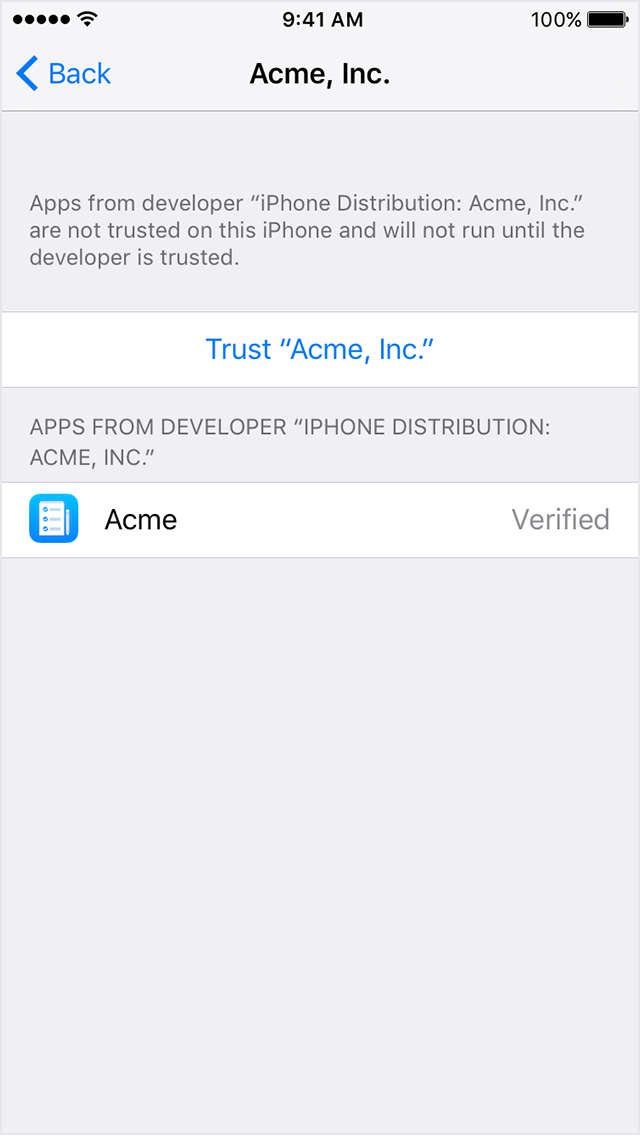
    Tap the name of the developer profile under the Enterprise App heading to establish trust for this developer.

    Enterprise App heading to establish trust

    Then you see a prompt to confirm your choice. After you trust this profile, you can manually install other apps from the same developer and open them immediately. This developer remains trusted until you use the Delete App button to remove all apps from the developer.

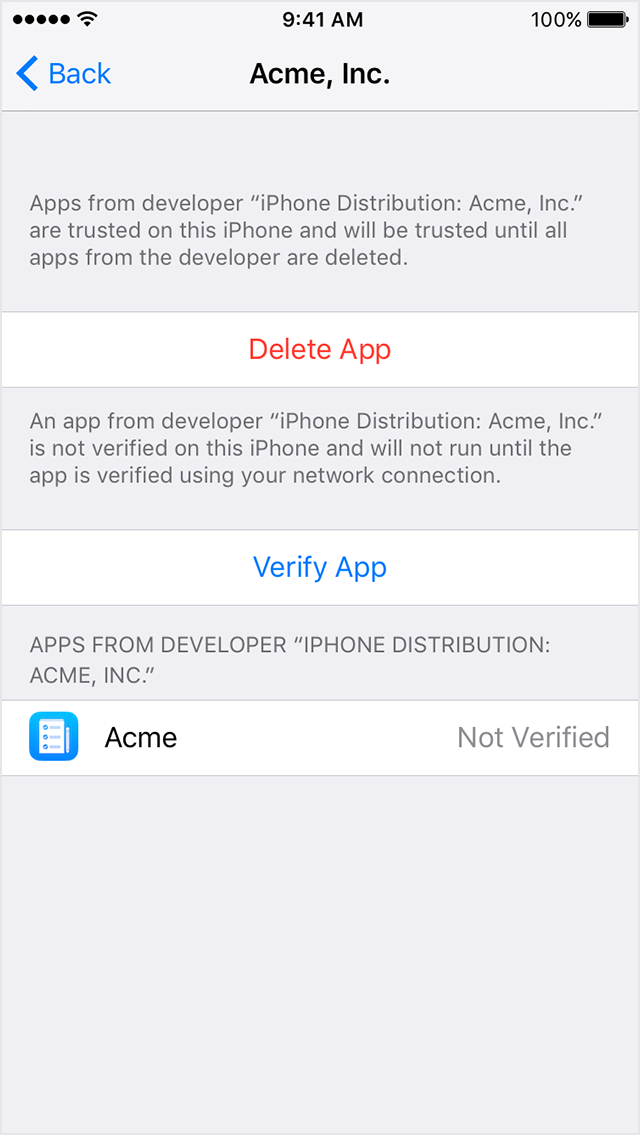
    developer remains trusted

    You must be connected to the Internet to verify the app developer’s certificate when establishing trust. If you’re behind a firewall, make sure that it’s configured to allow connections to https://ppq.apple.com. If you aren’t connected to the Internet when you trust an app, the device displays “Not Verified” instead. To use the app, connect to the Internet and tap the Verify App button.

    After you verify an app for the first time, your iPhone, iPad, or iPod touch must reverify the app developer’s certificate periodically to maintain trust. If you can’t reverify, you may see a message that verification will expire soon. To maintain trust, connect your device to the Internet, then tap the Verify App button or launch the app.

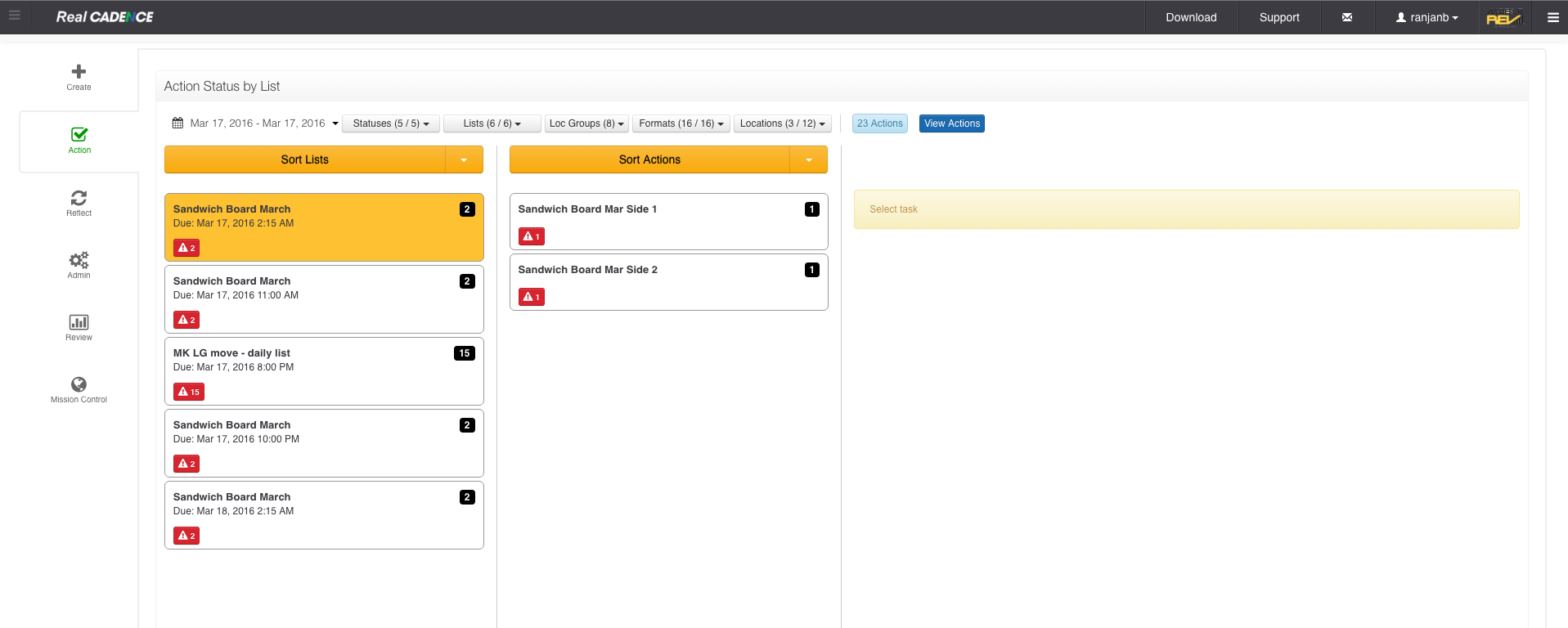
    How-to: Review Action Statuses for Action Lists

    • Login into WebCADENCE™.
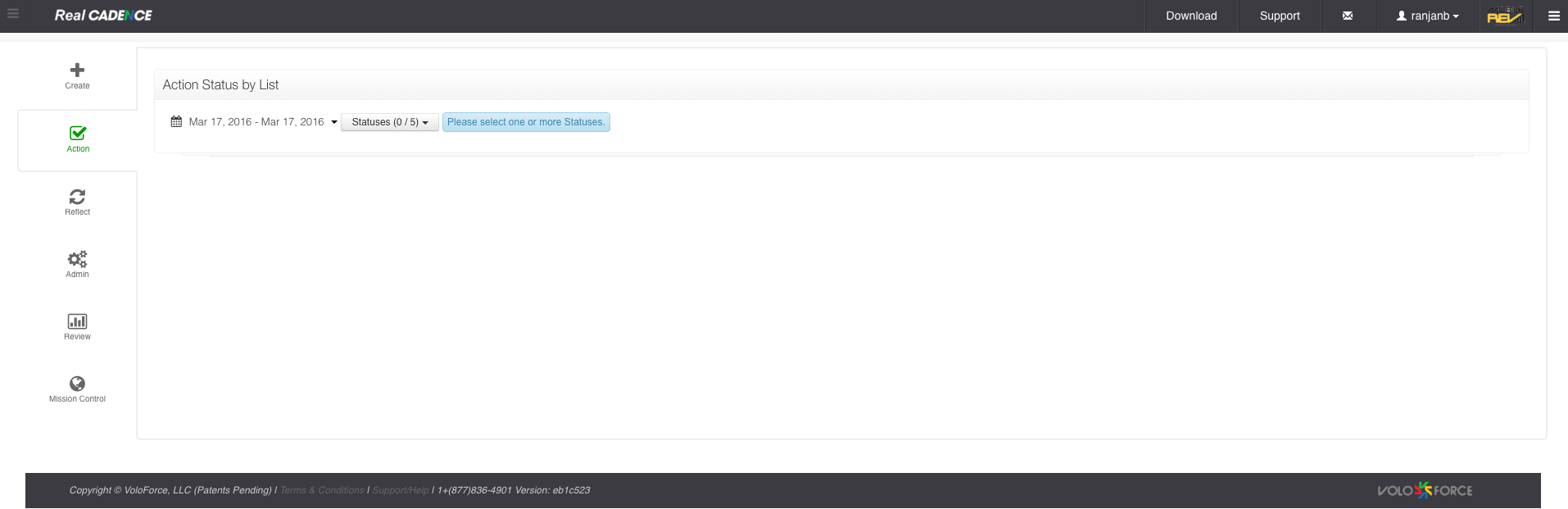
    • Click the Action in the left navigation bar.

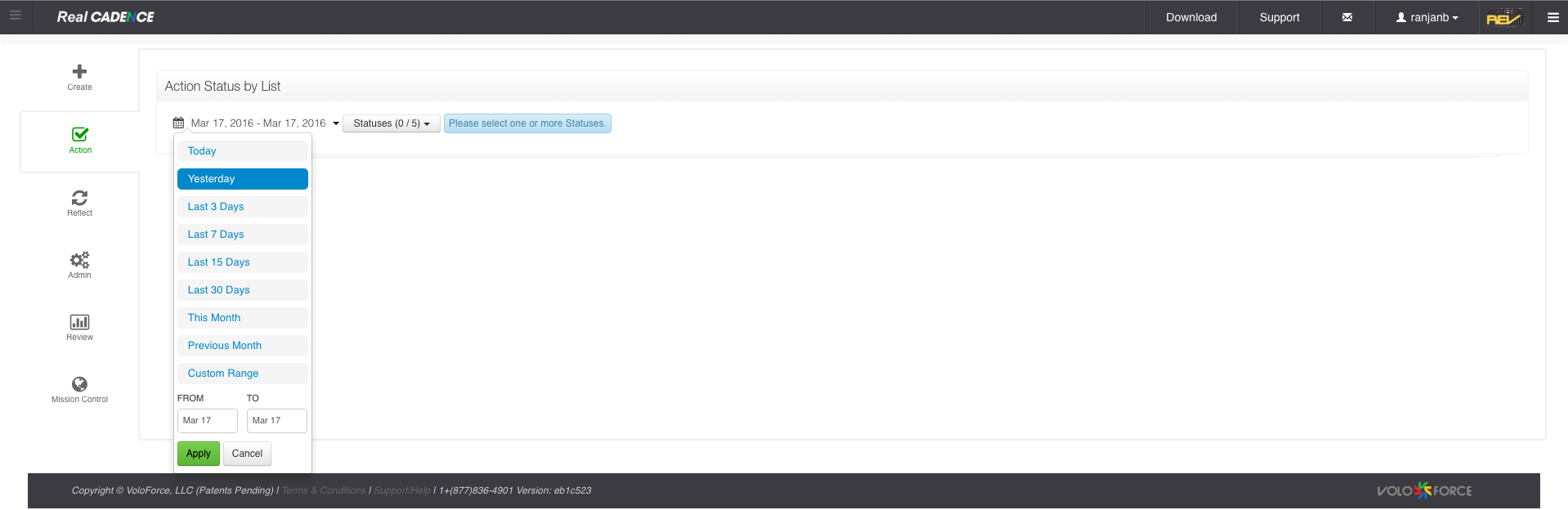
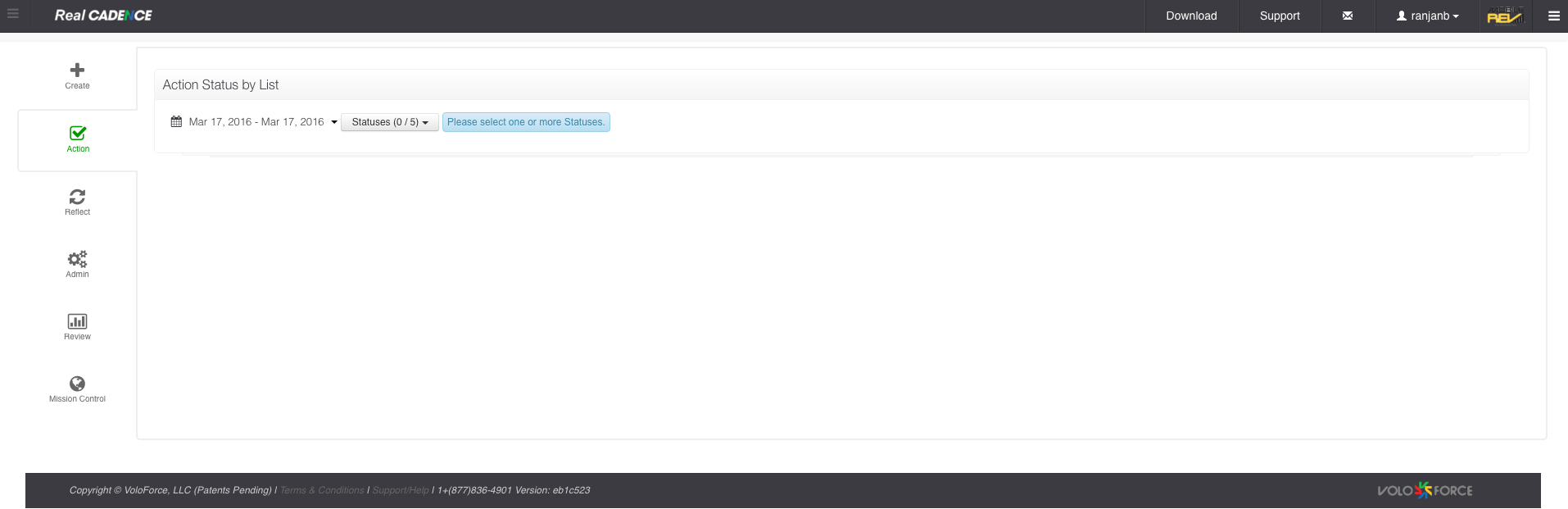
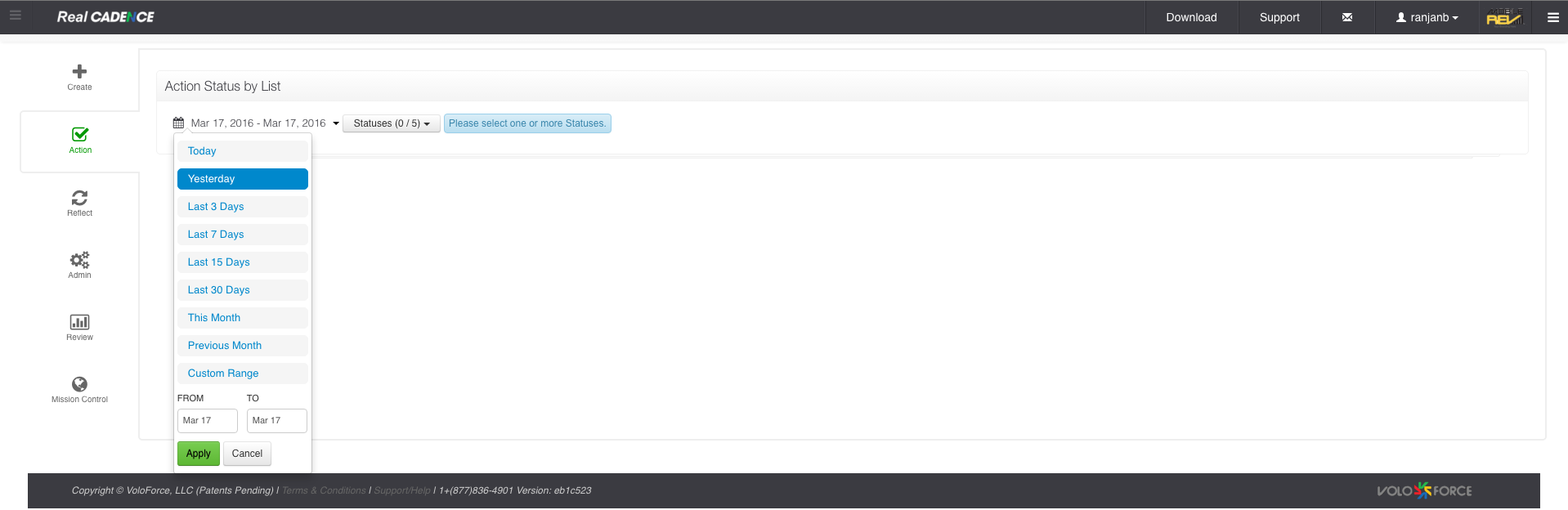
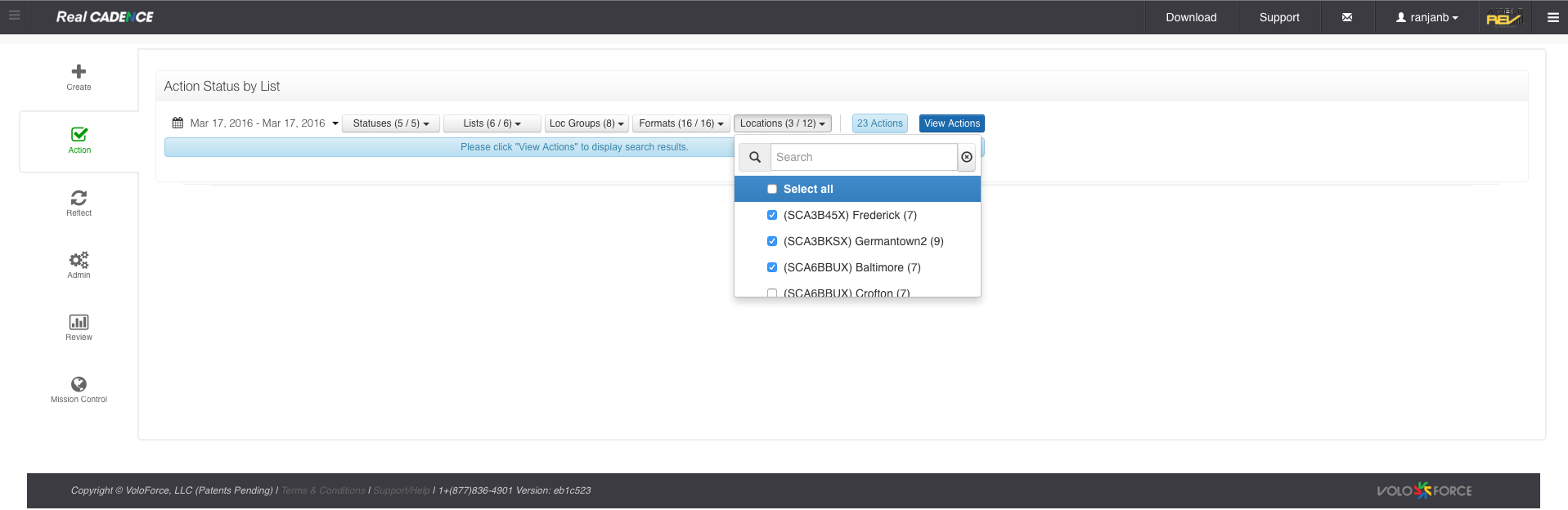
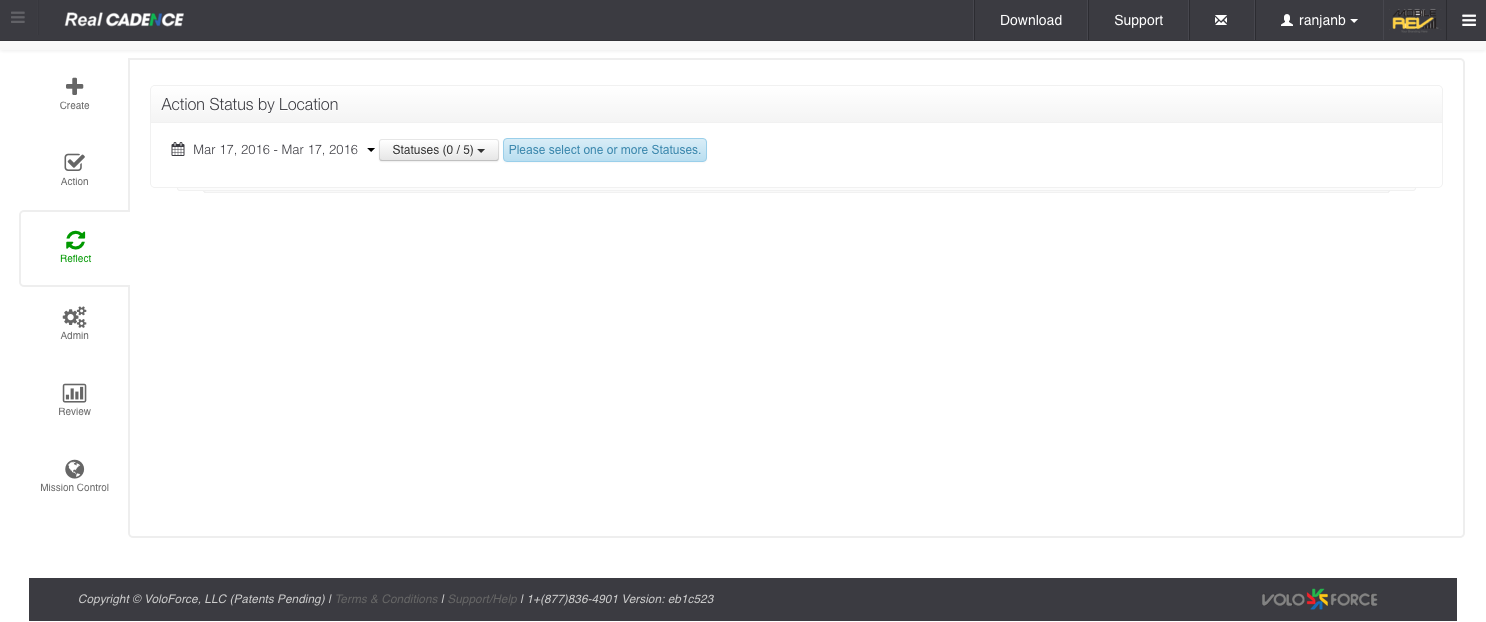
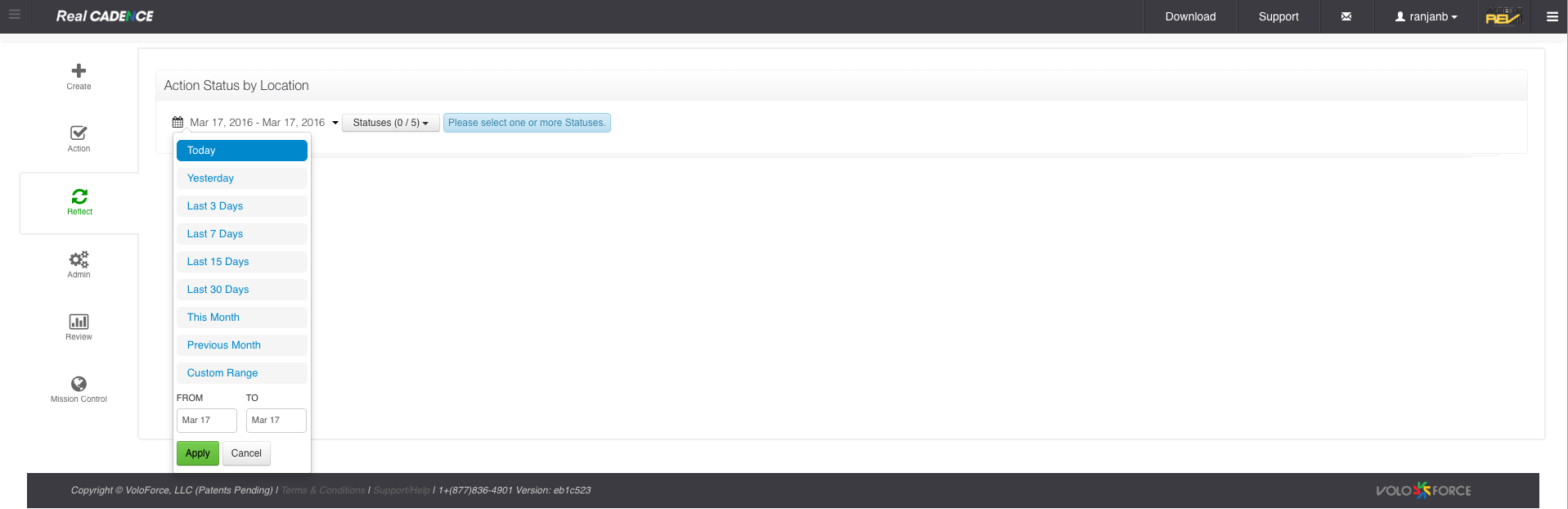
    • Select a date range for which you want to review actions.

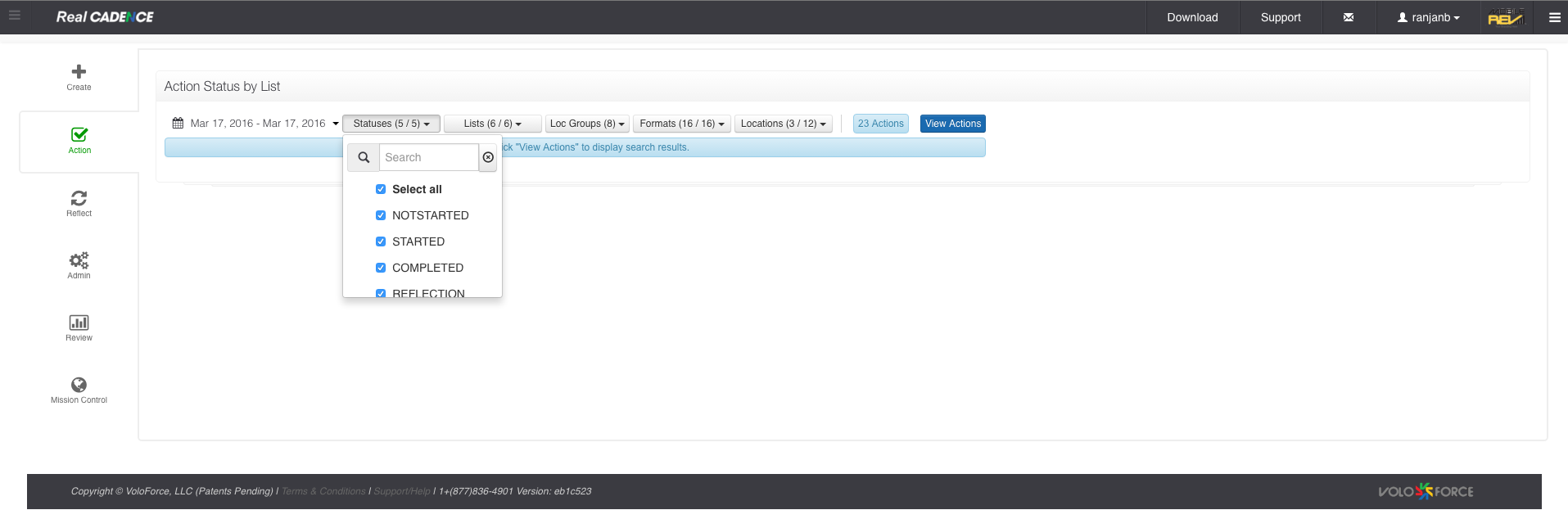
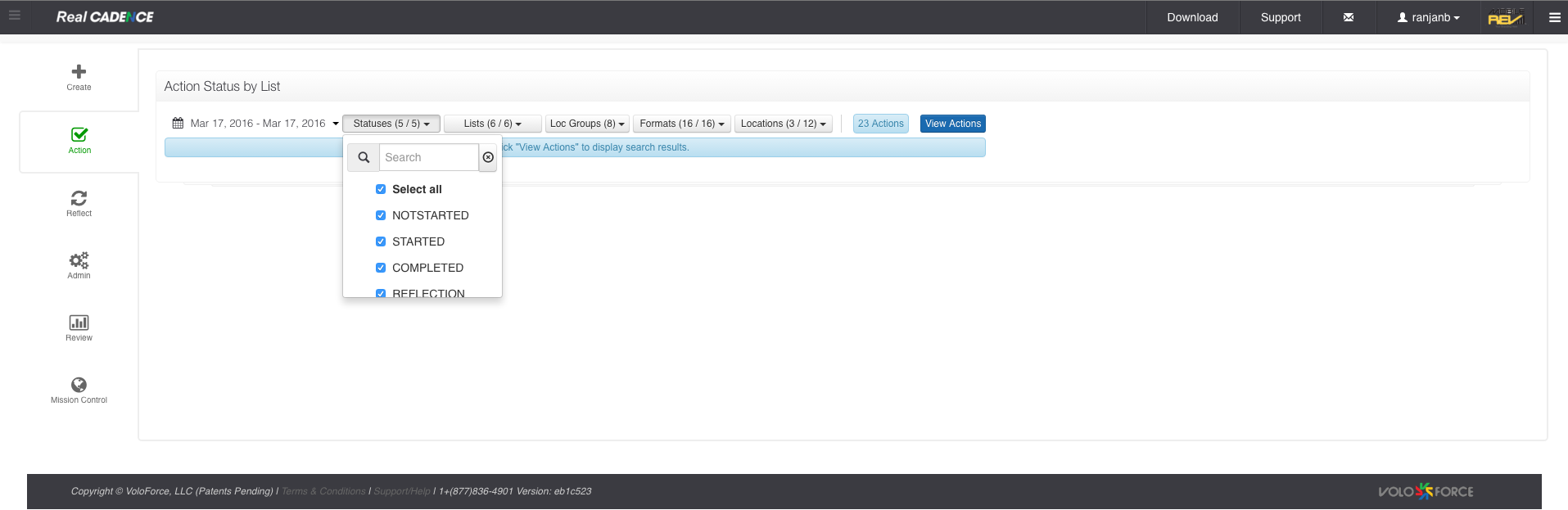
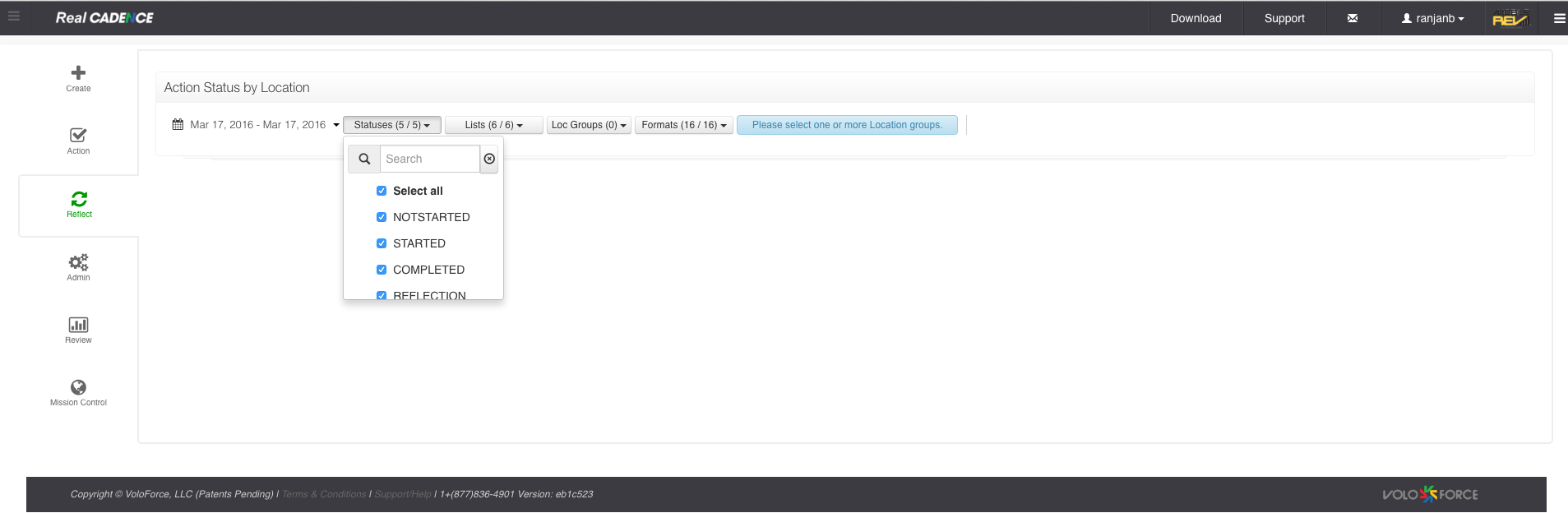
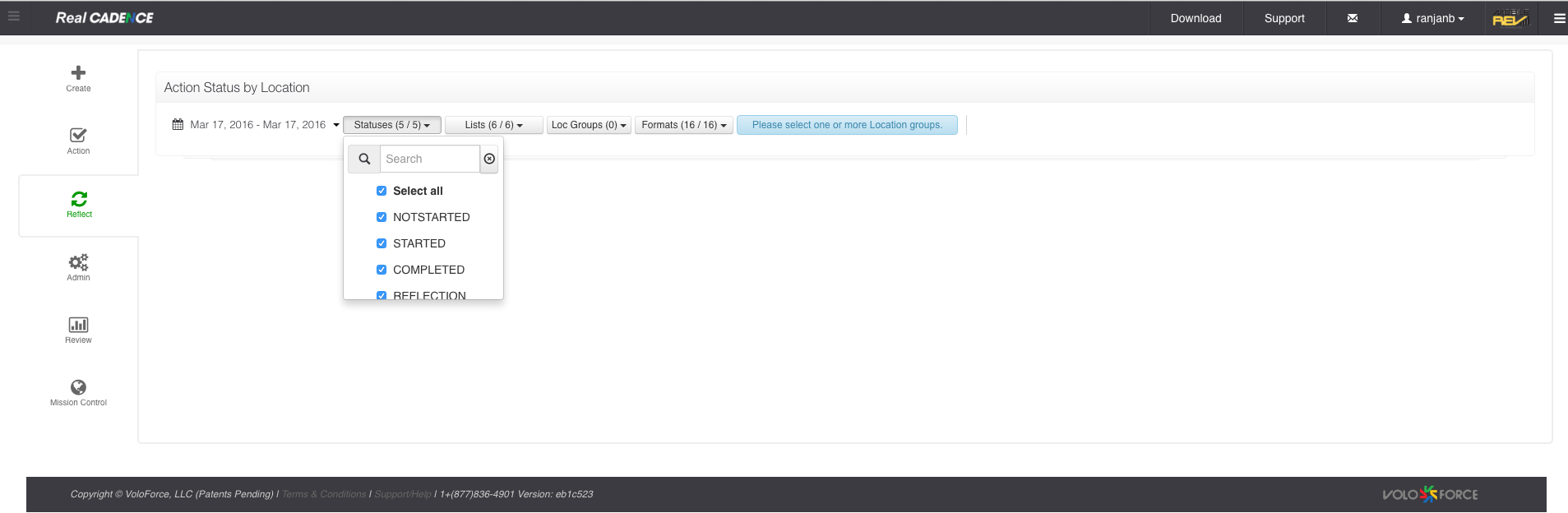
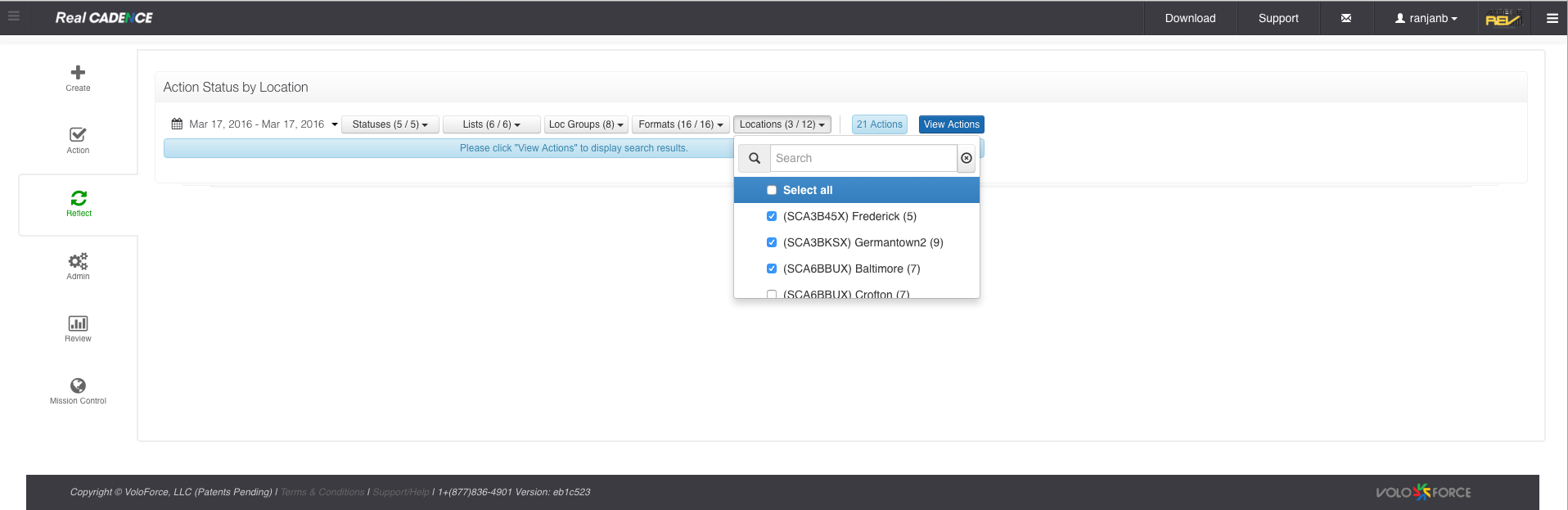
    • Select the statuses you want to work on. By default all are selected.

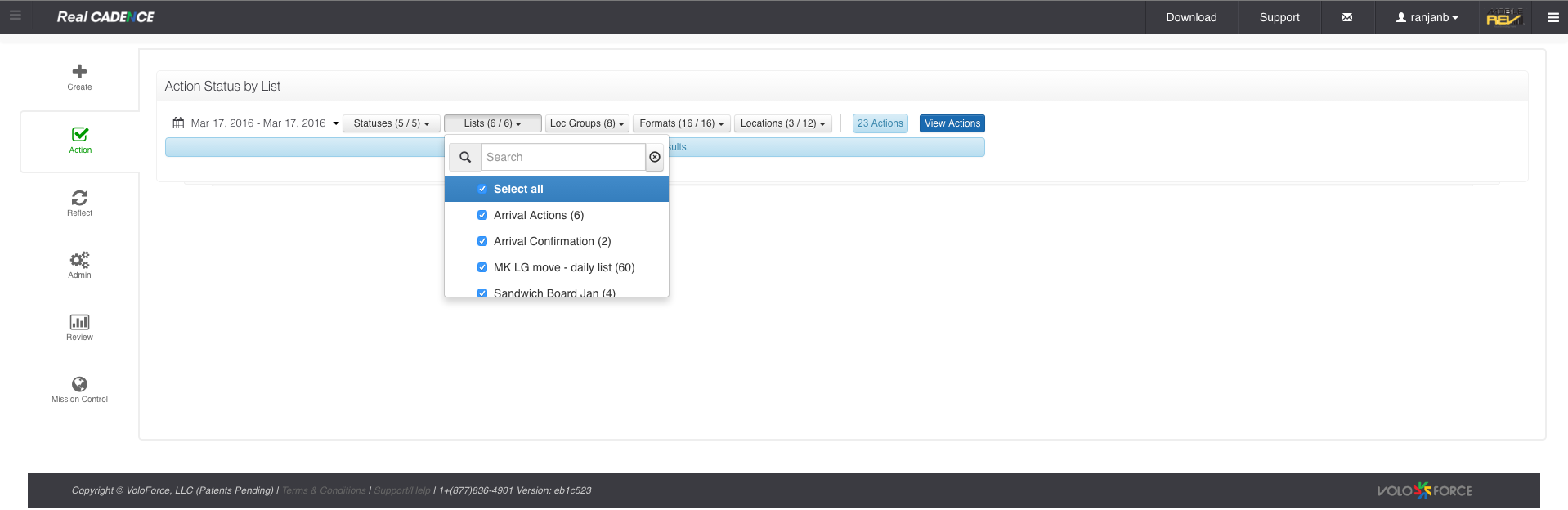
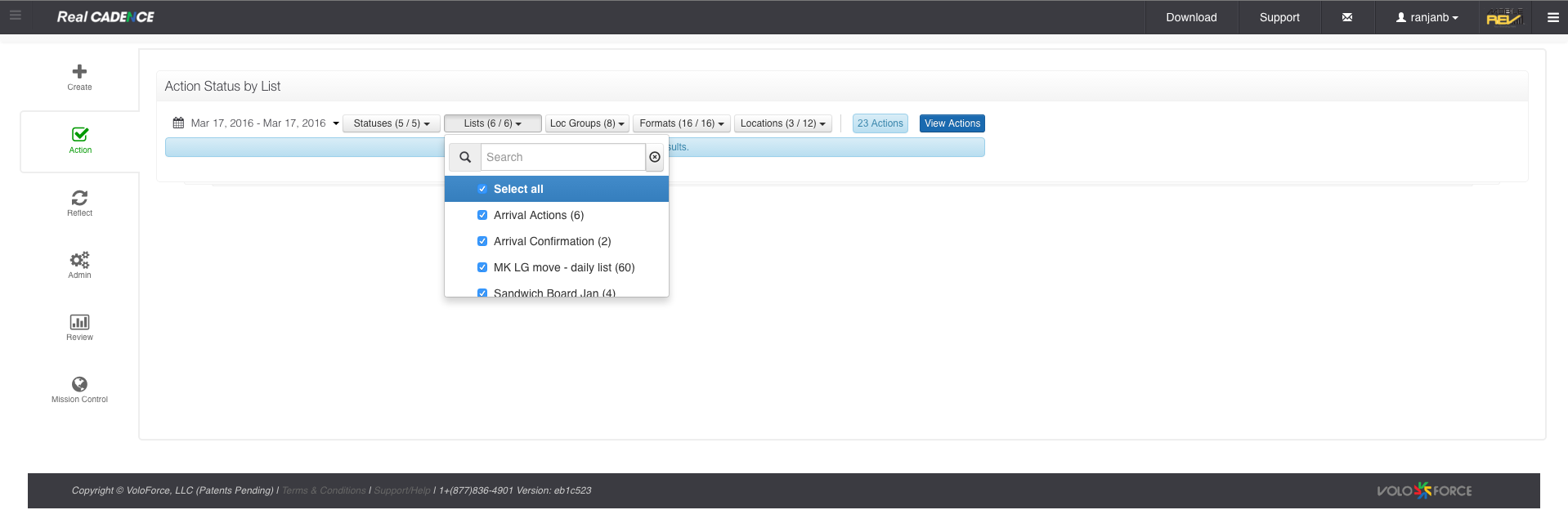
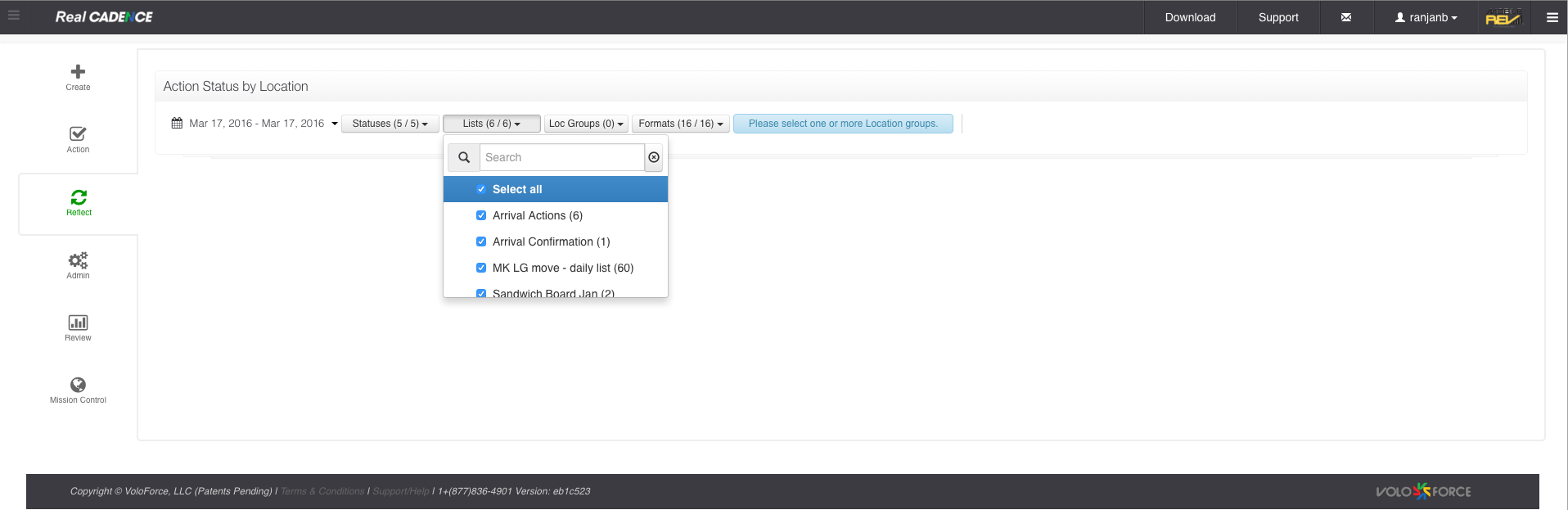
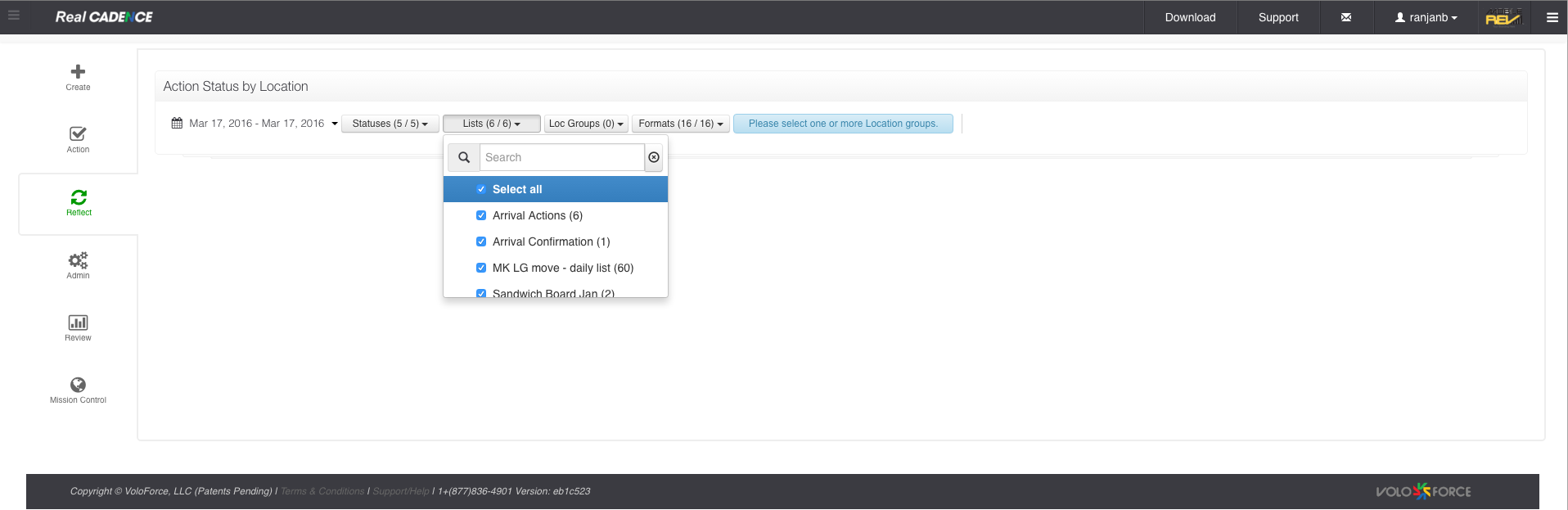
    • Select the lists for which you want to do the review.

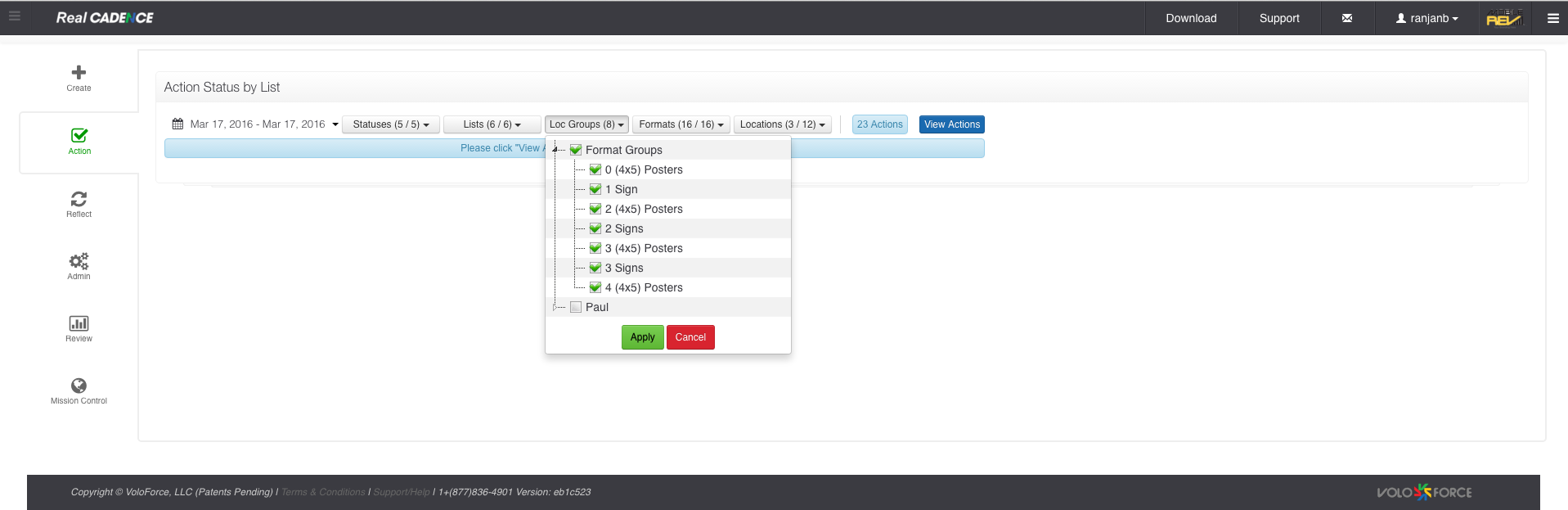
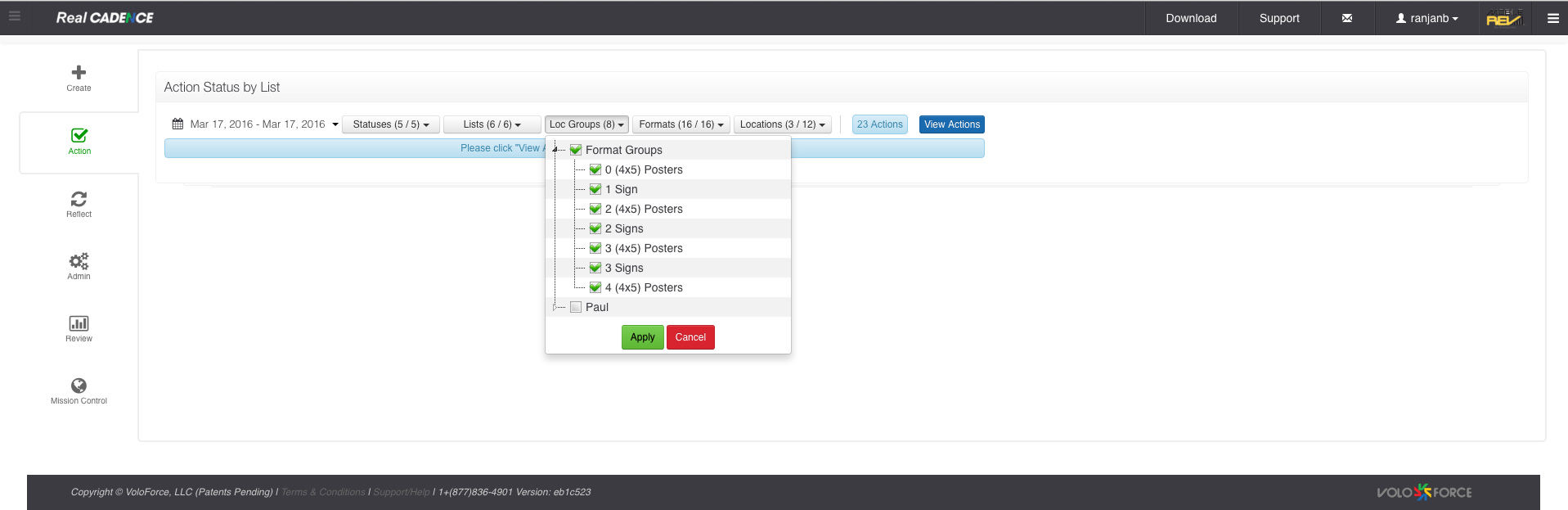
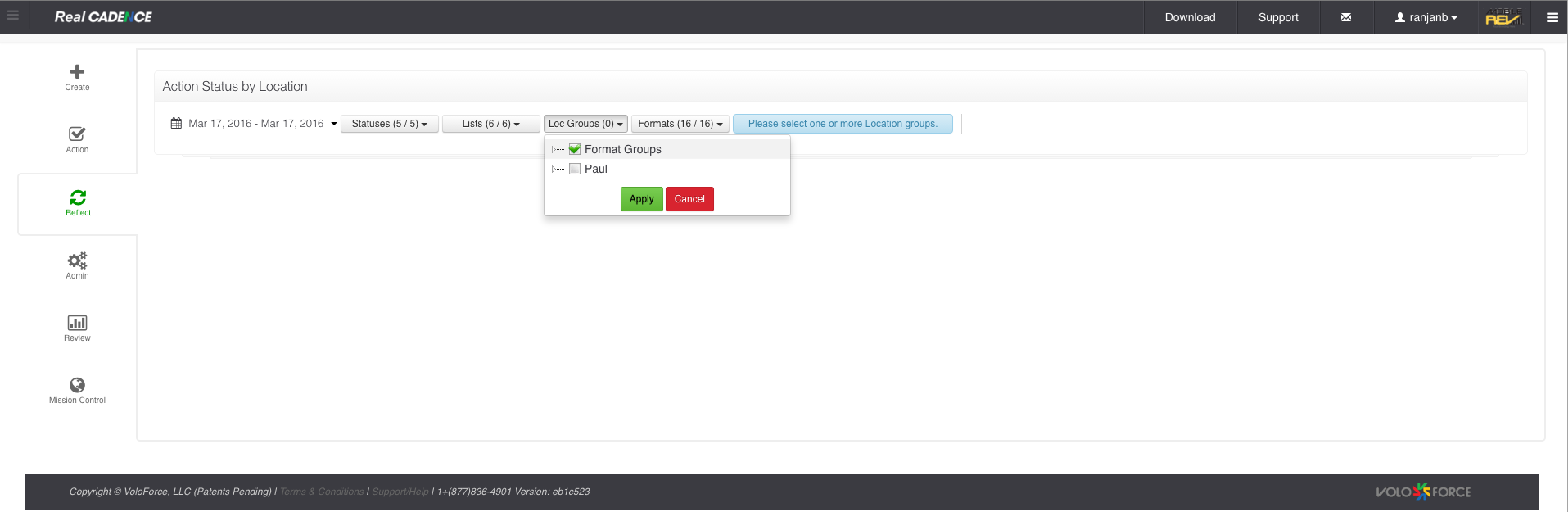
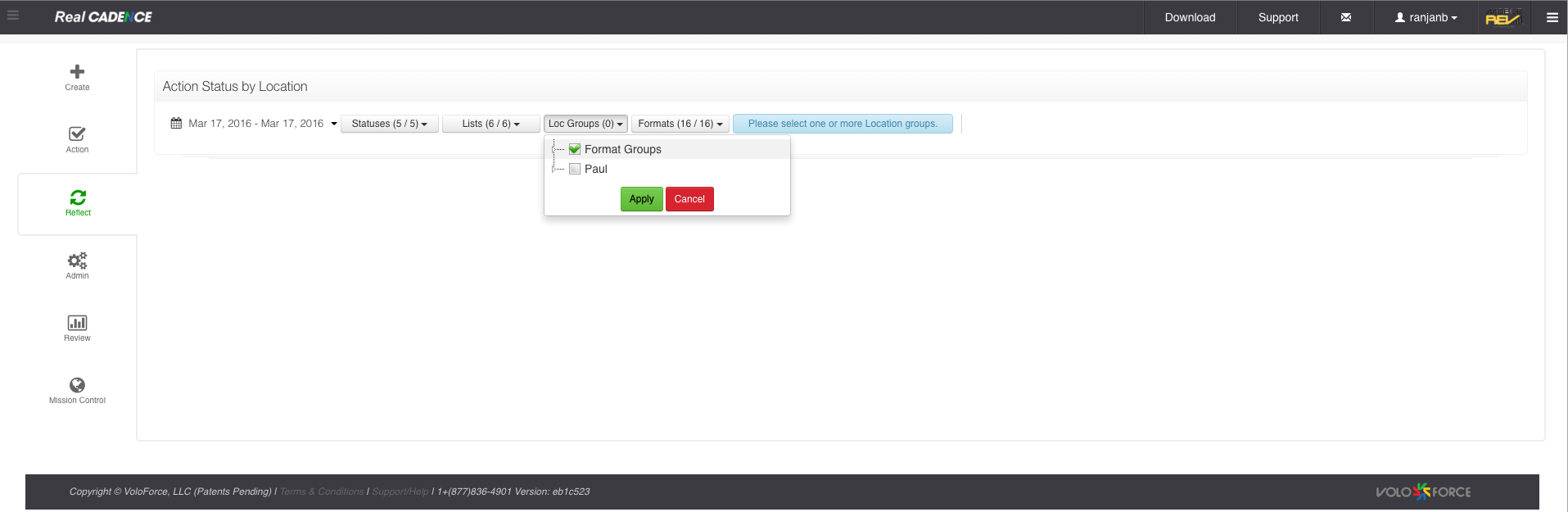
    • Select the location group and click Apply Button.

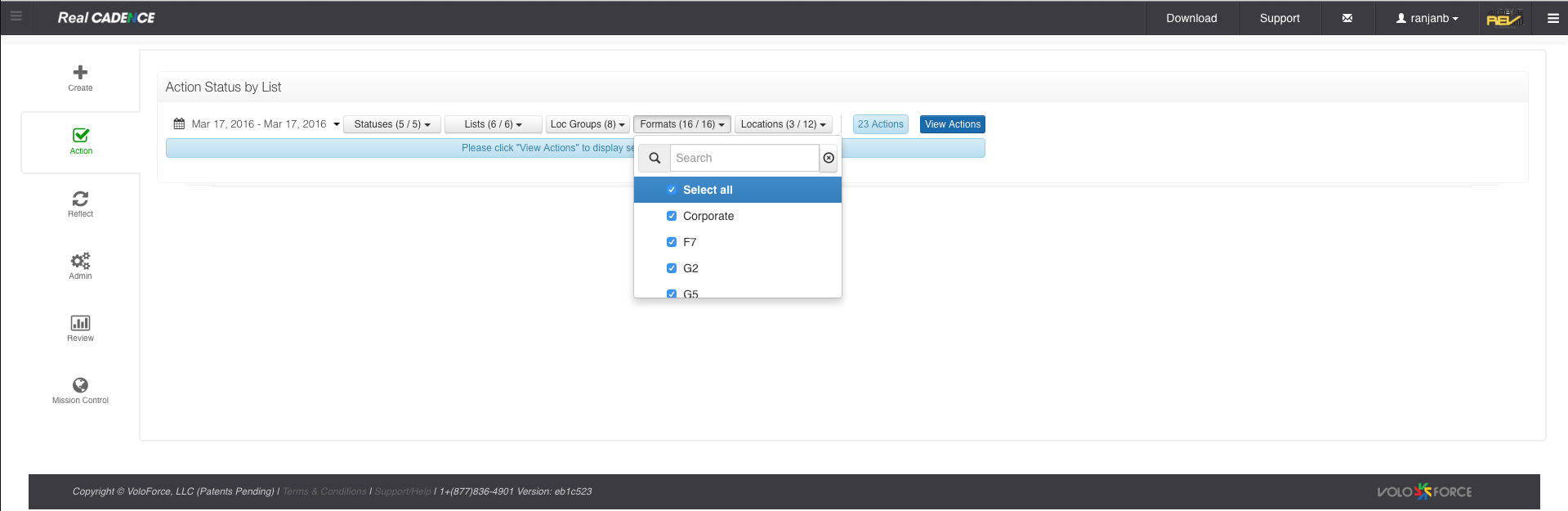
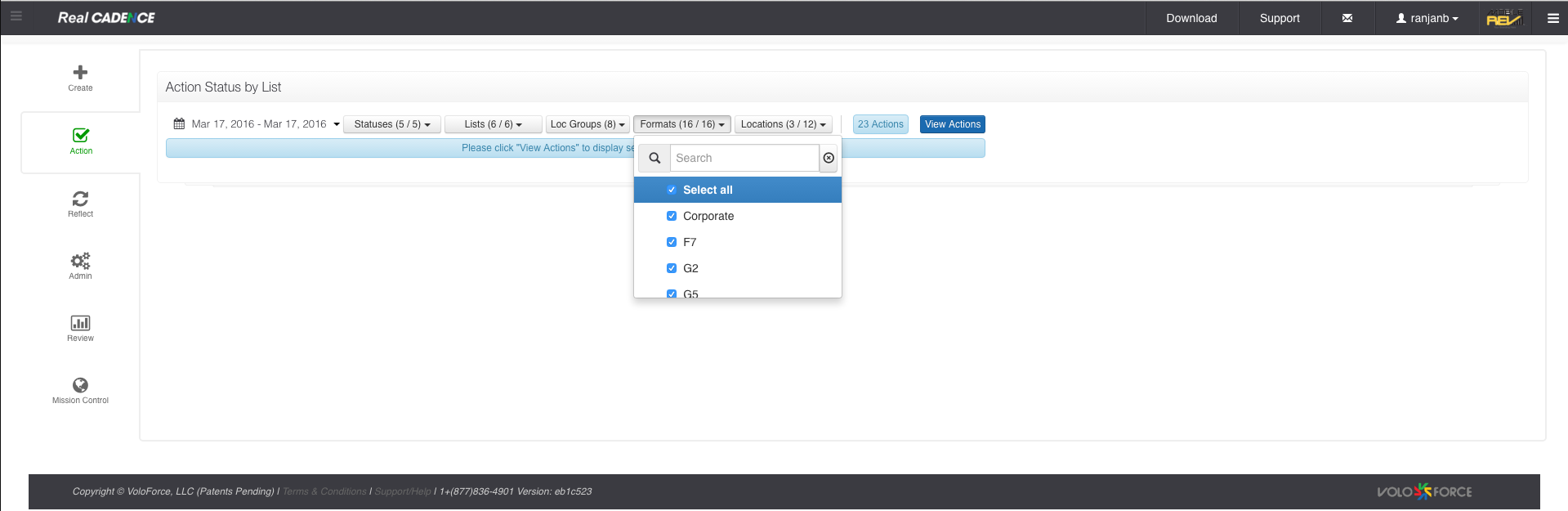
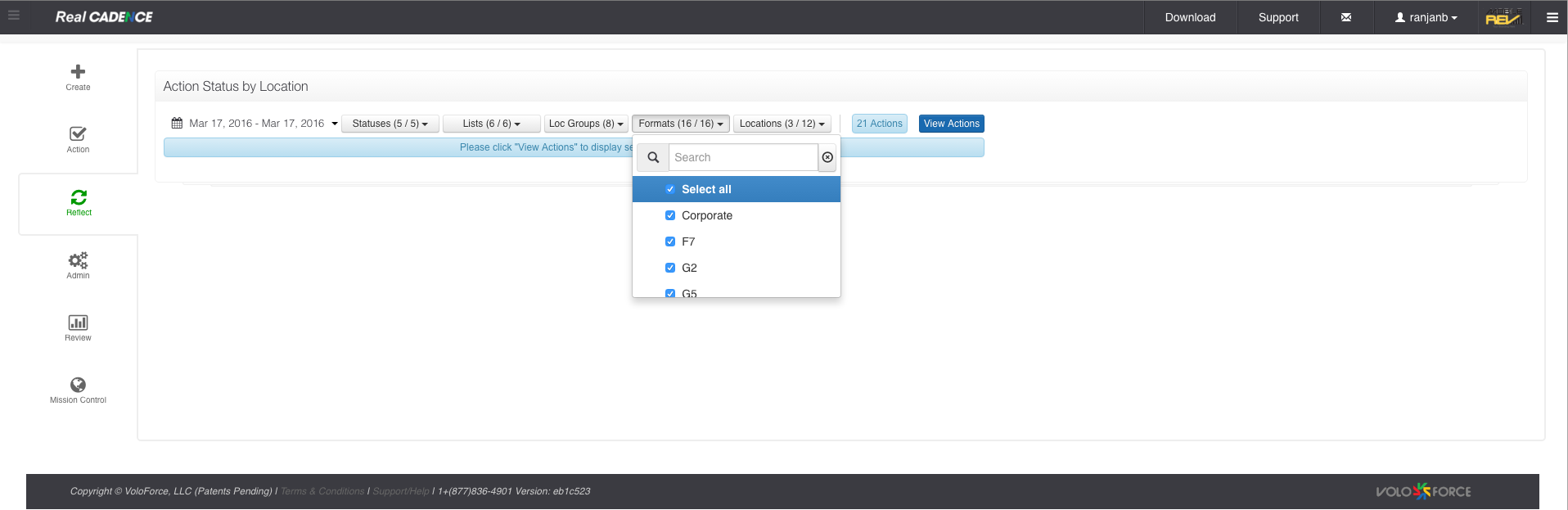
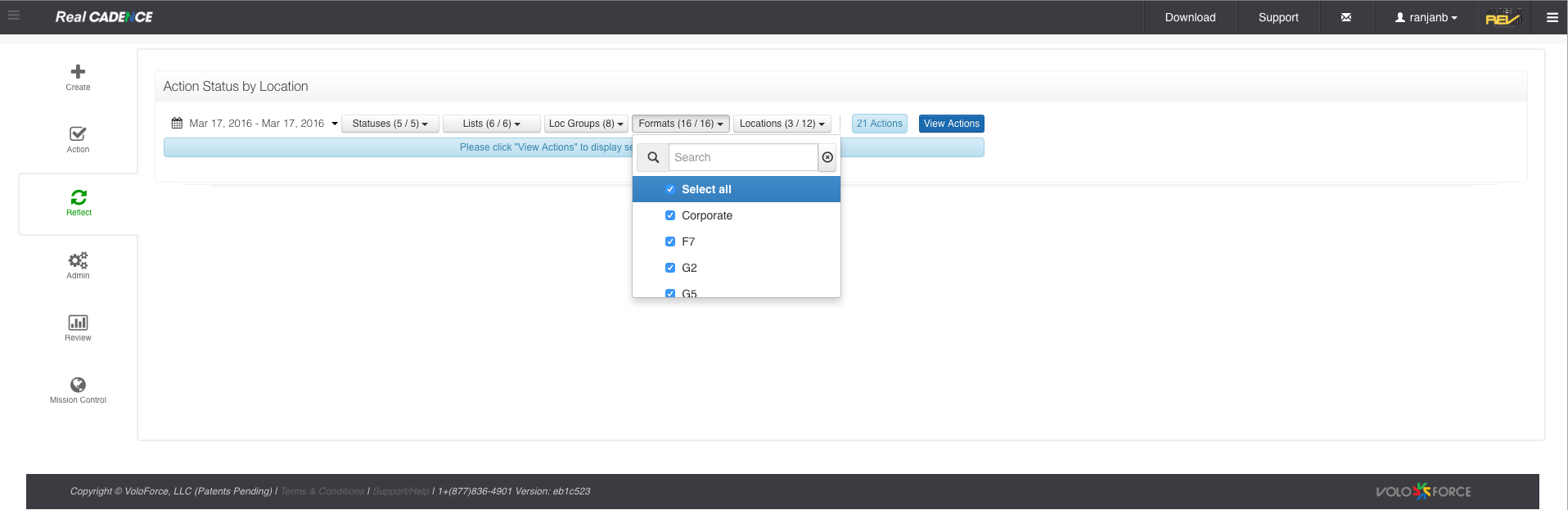
    • Select Formats.

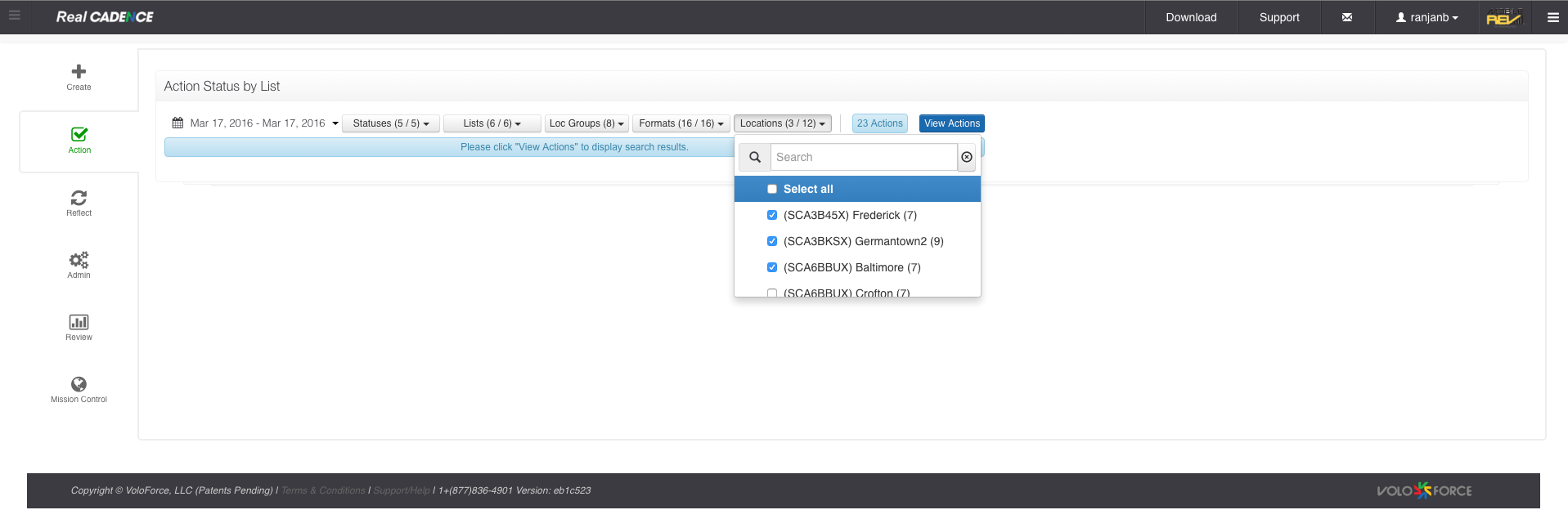
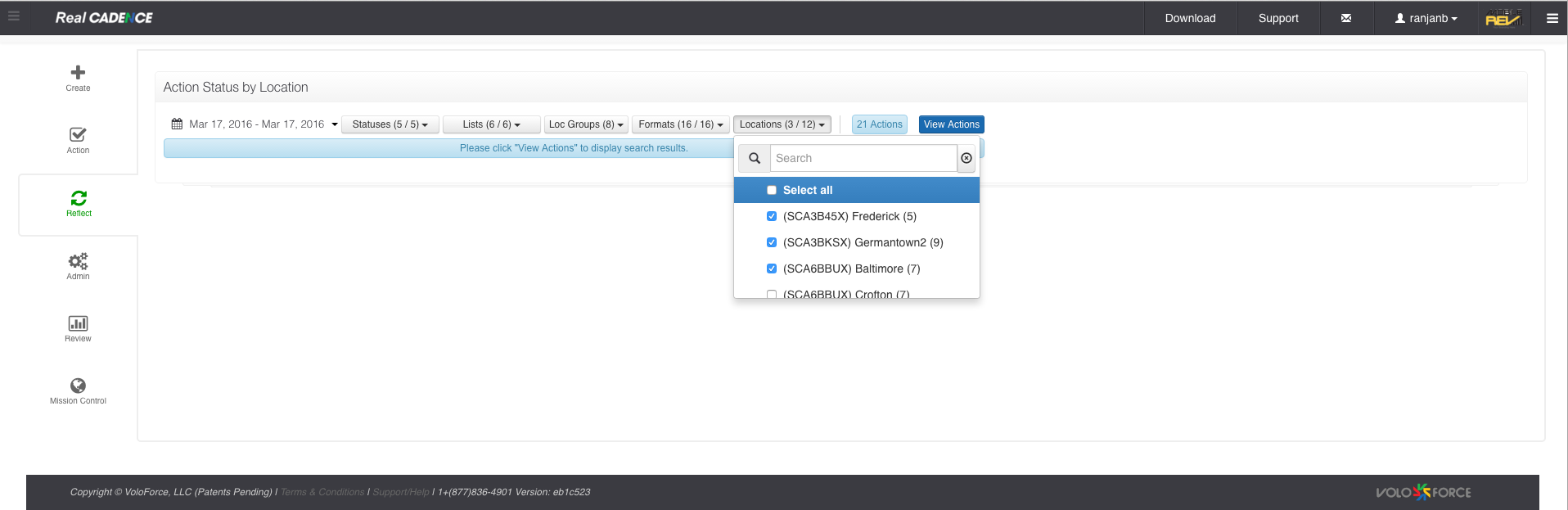
    • Select the locations for which you want to review the actions.

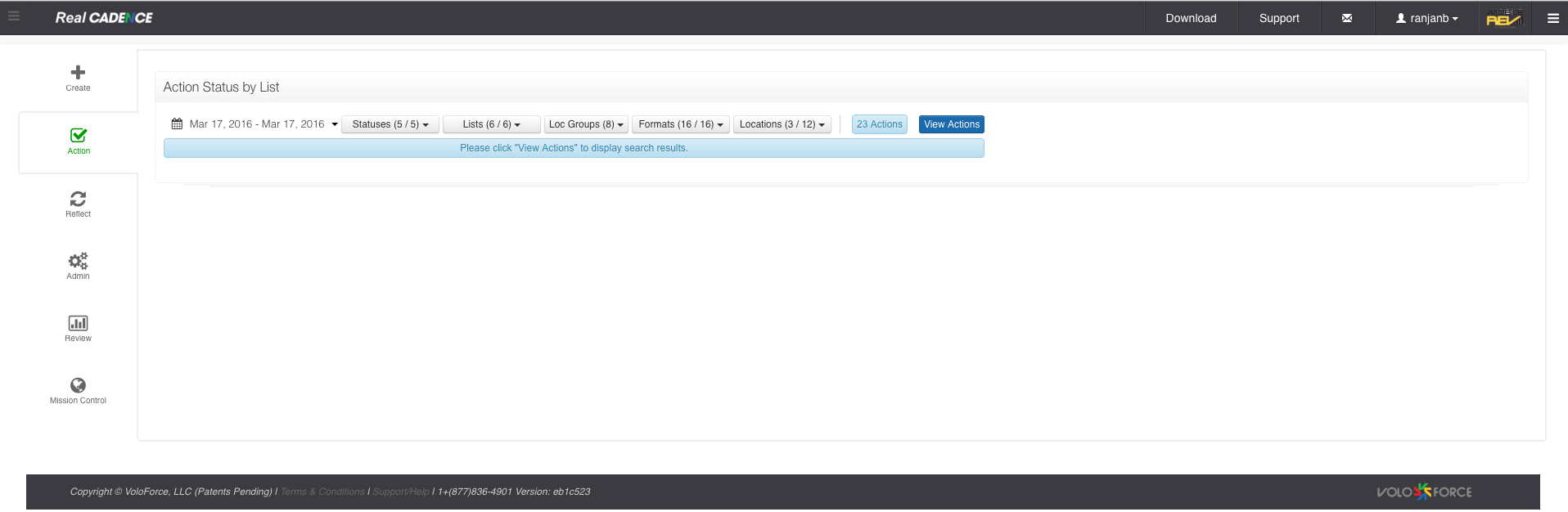
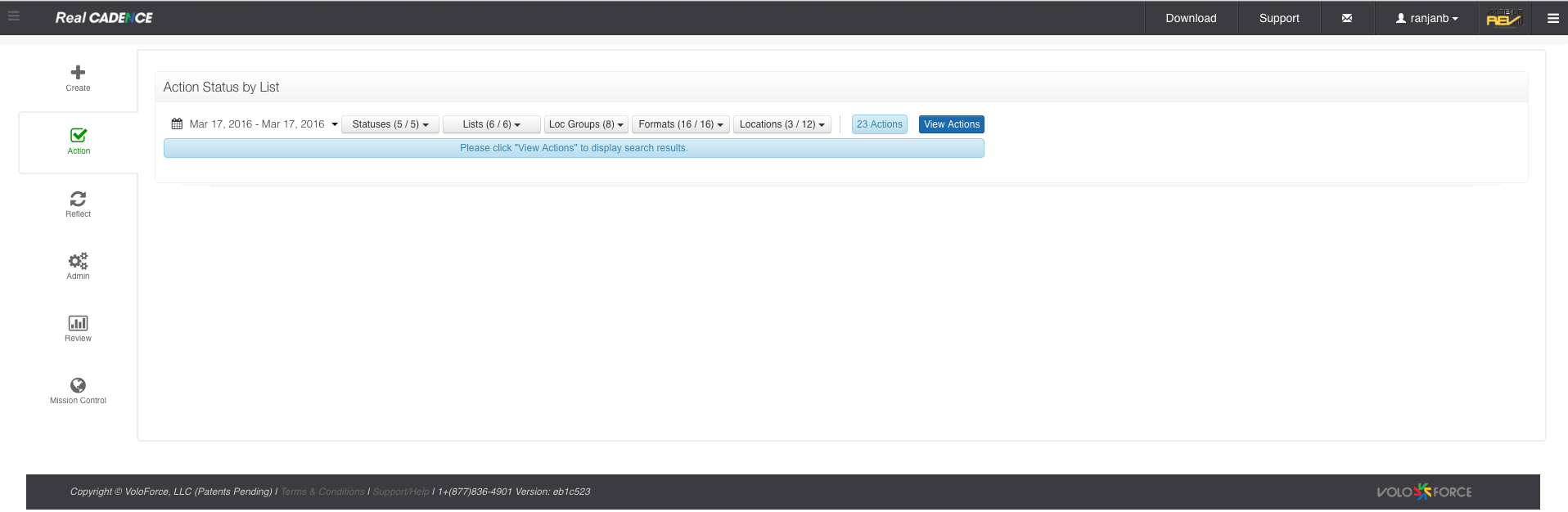
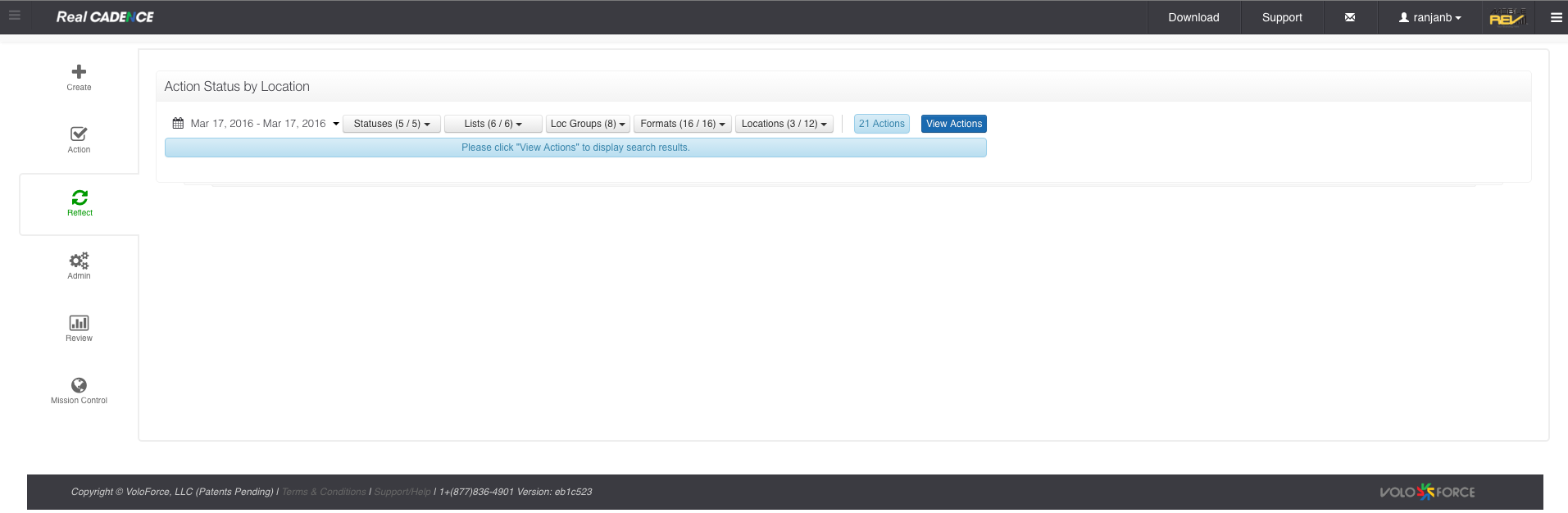
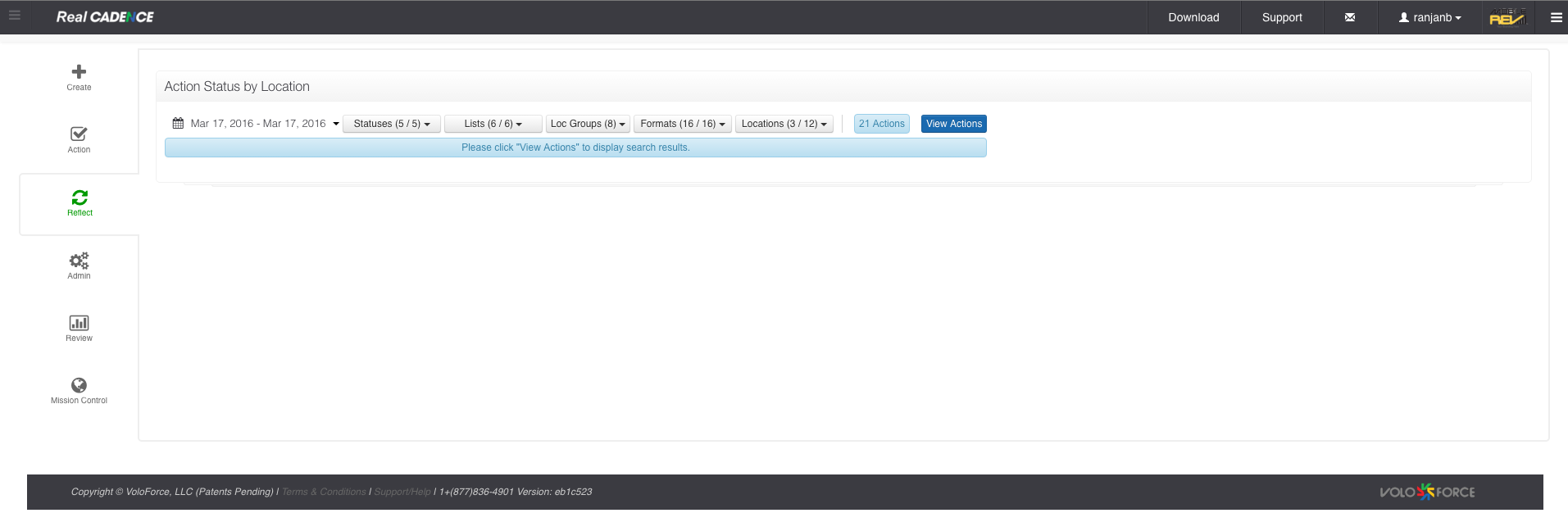
    • Click View Actions Button.

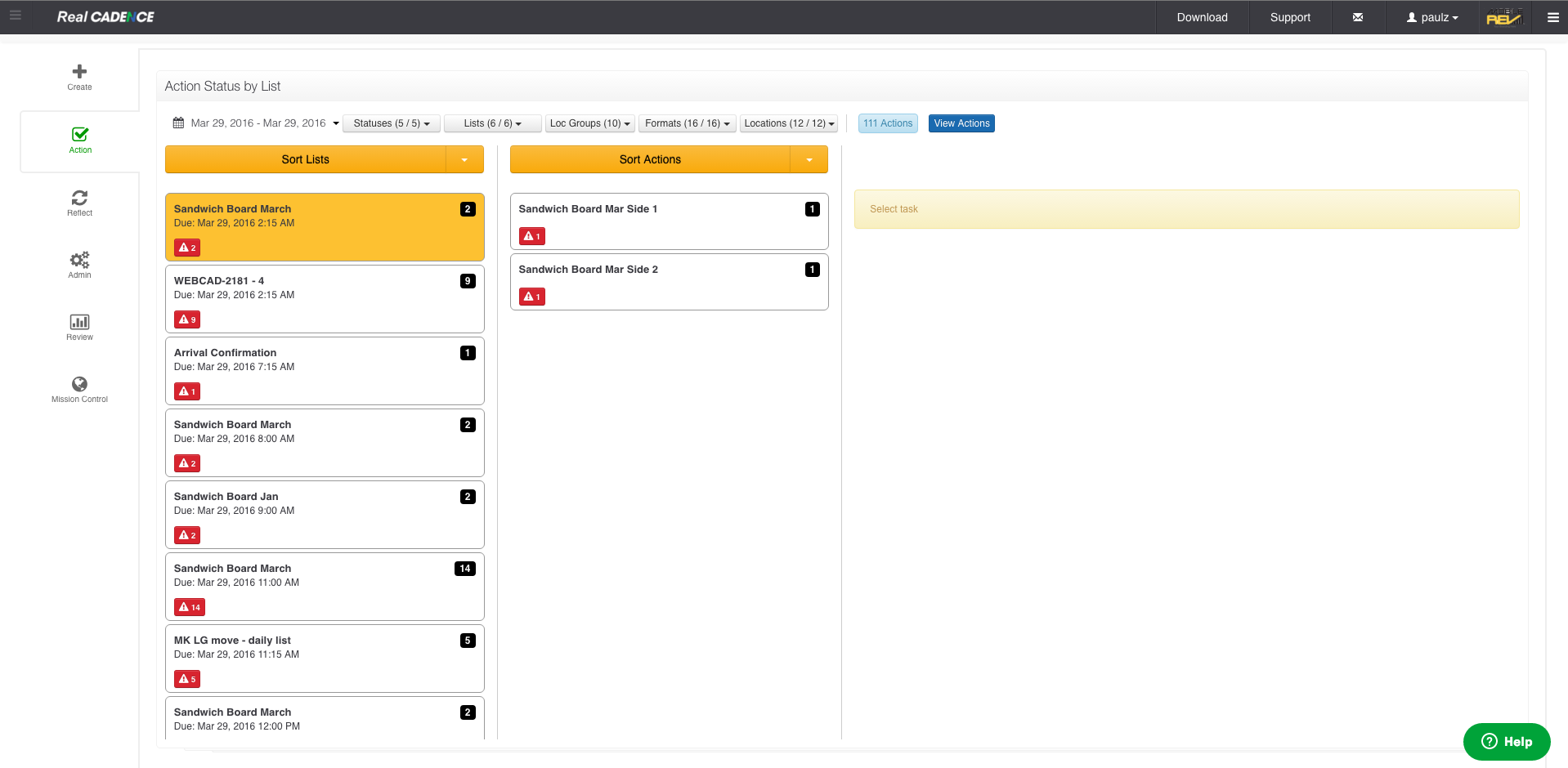
    • Click the Action List that you want to audit.

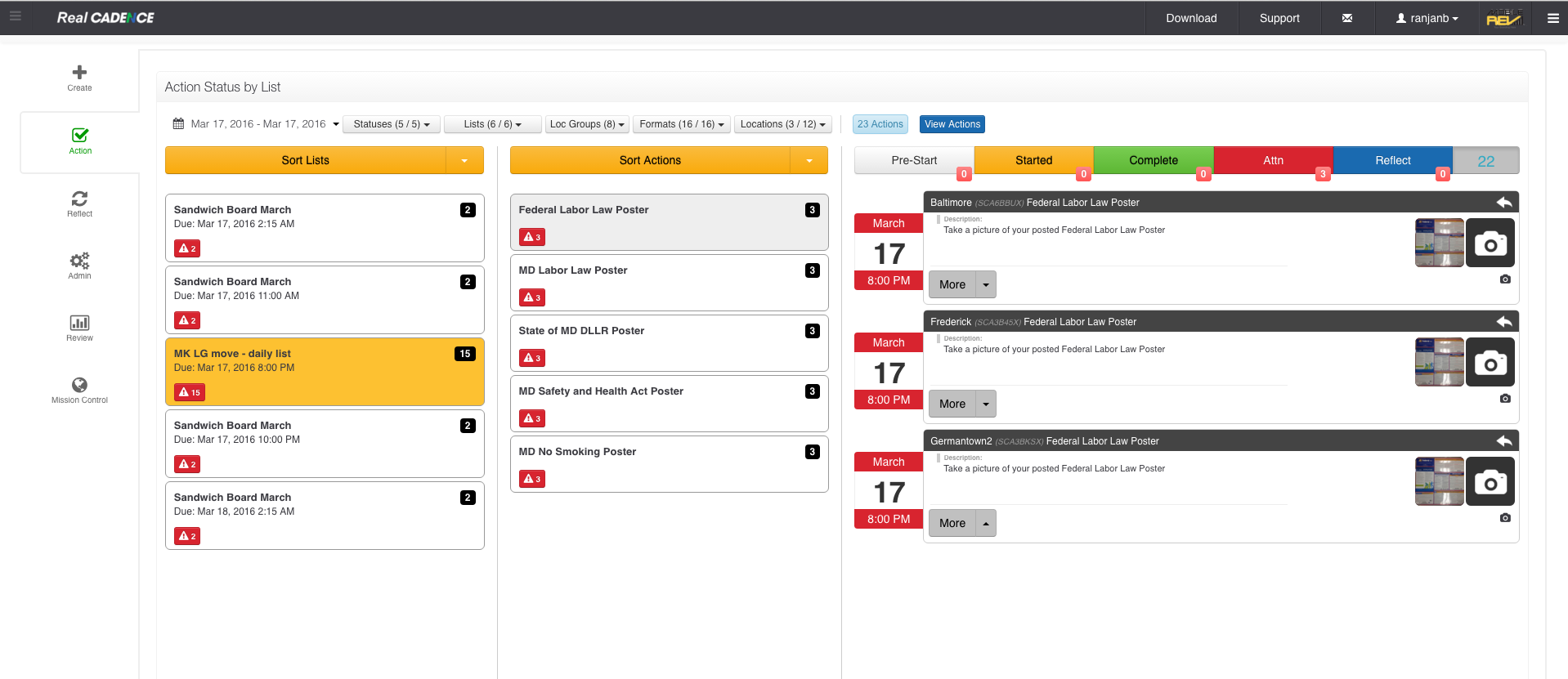
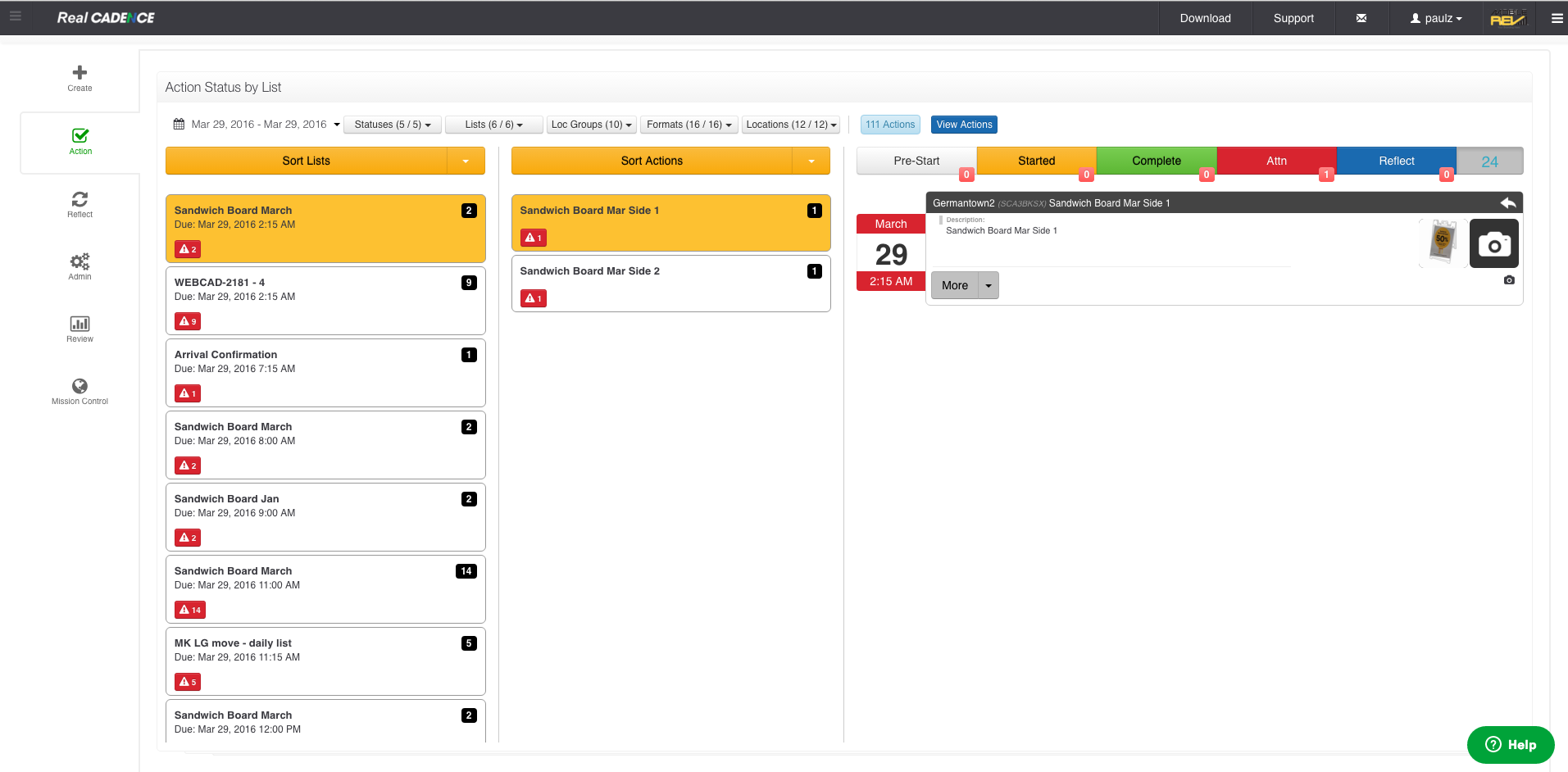
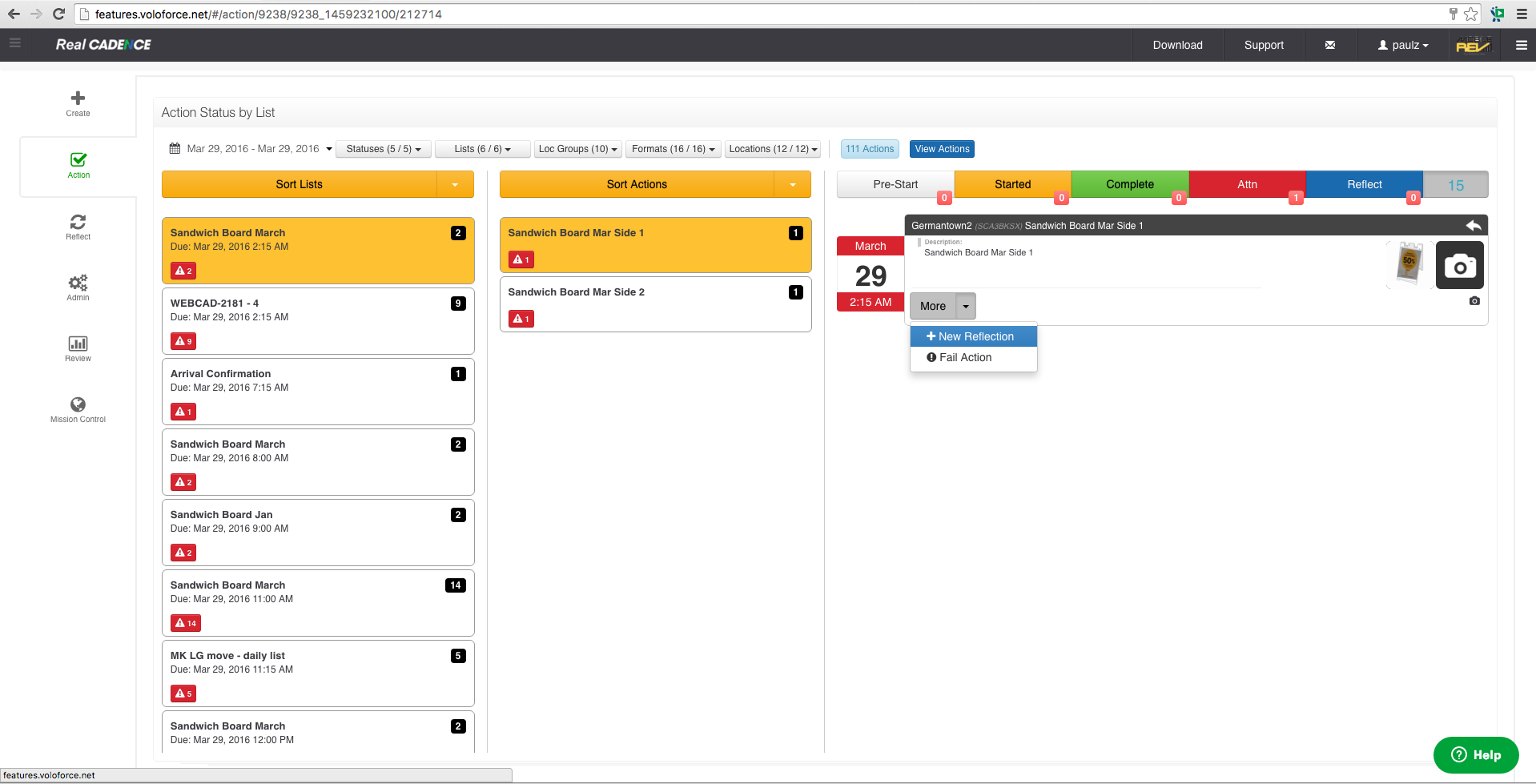
    • Click the Action that you want to review for all locations. A list of location actions is displayed in the third column. The date and time of each action is color coded to represent its current status.

    • To filter it by action status, click the toolbar above the list of actions.
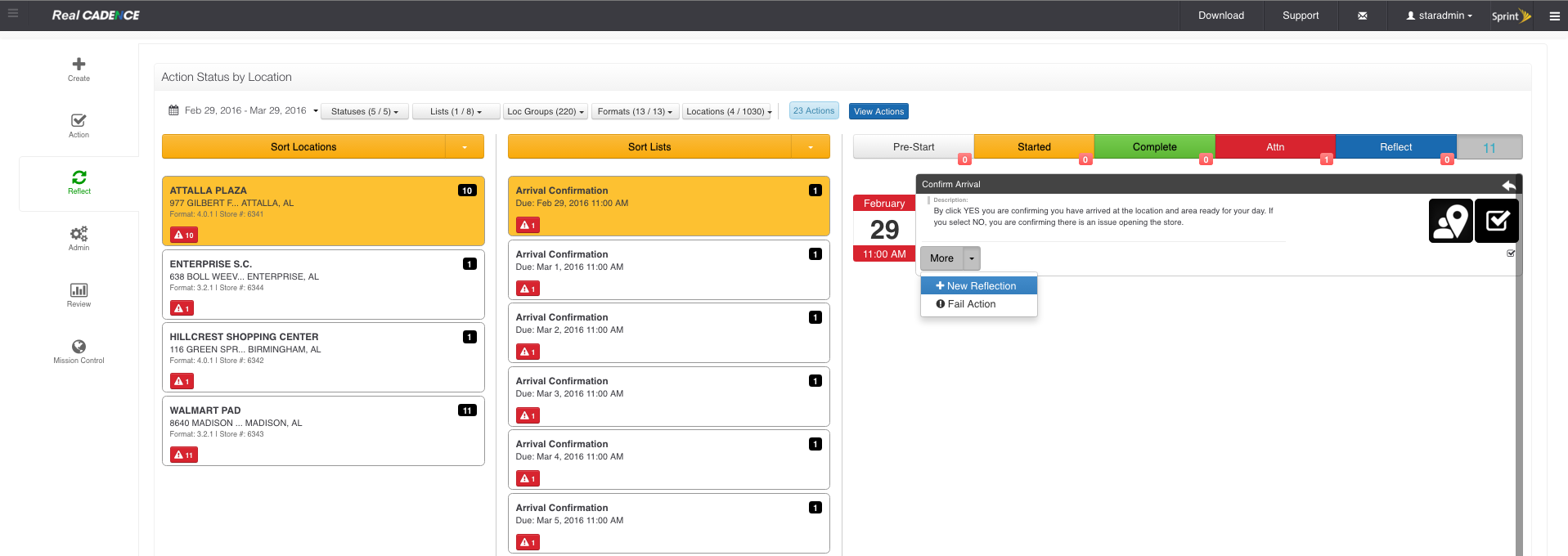
    • To address an action, click the More drop-down menu in the action’s entry on the list. A pop-up opens to show available responses.
    • To refresh the list of action statuses, double-click the countdown at the upper right.

    How to: Create A Reflection from Action View

    • Login into WebCADENCE™.
    • Click the Action in the left navigation bar.

    • Select a date range for which you want to review actions.

    • Select the statuses you want to work on. By default all are selected.

    • Select the lists for which you want to do the review.

    • Select the location group and click Apply Button.

    • Select Formats.

    • Select the locations for which you want to review the actions.

    • Click View Actions Button.

    • Click the Action List that you want to audit.

    • Click the Action that you want to review for all locations. A list of location actions is displayed in the third column. The date and time of each action is color coded to represent its current status.

    • To Create a reflection, click the More drop-down menu in the action’s entry on the list. A pop-up opens to show “New Reflection” as an option. Choose New reflection.

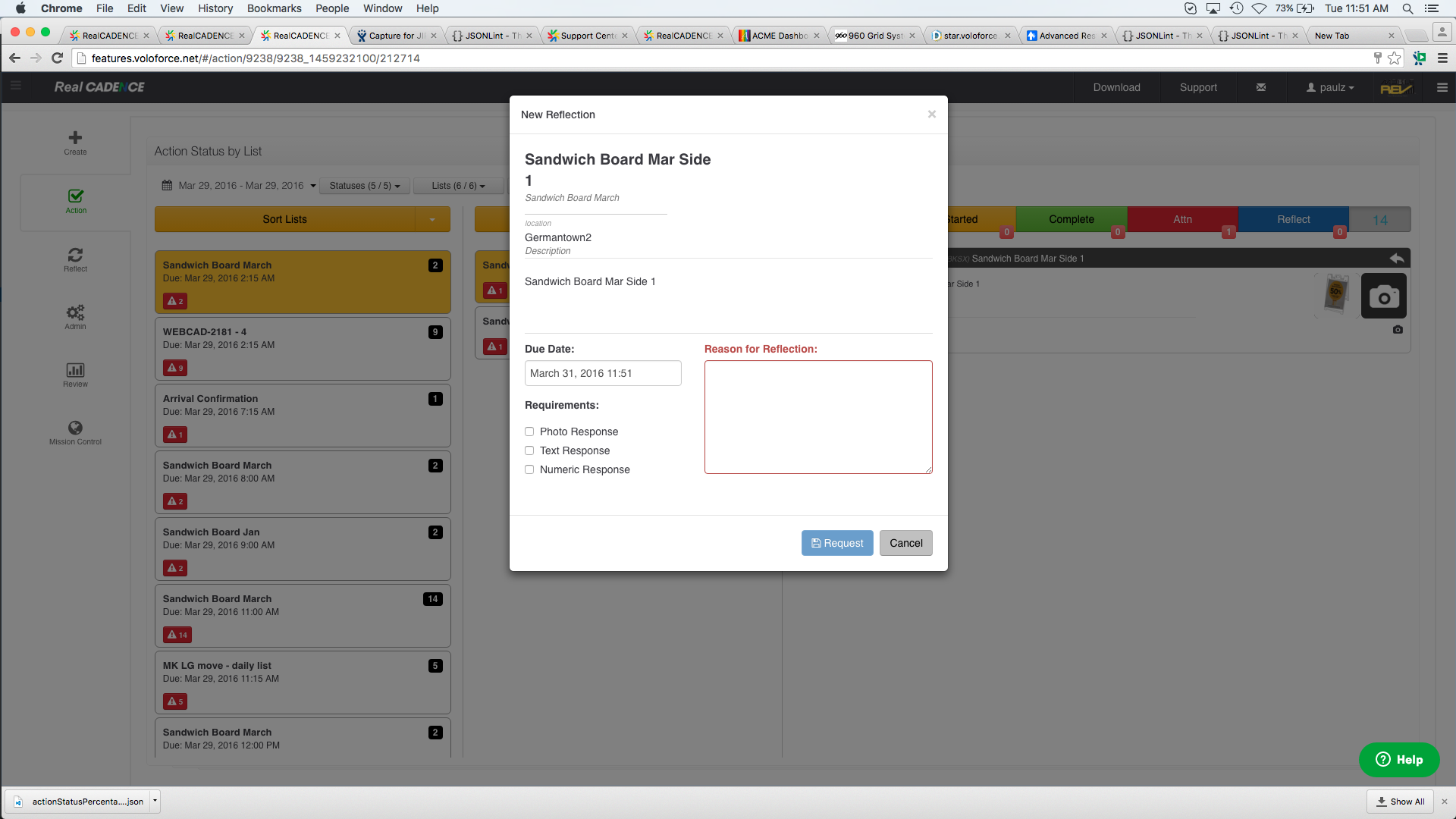
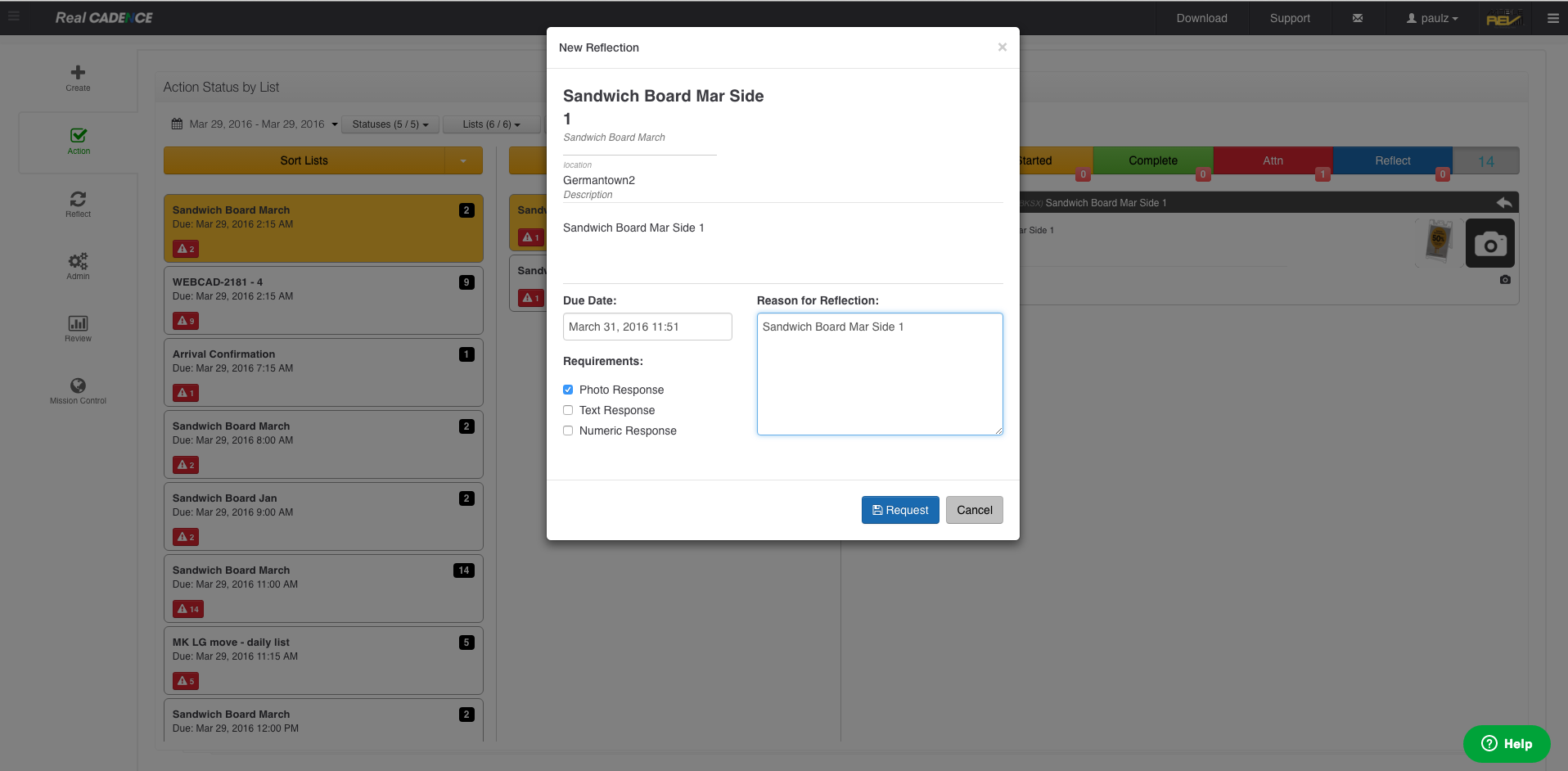
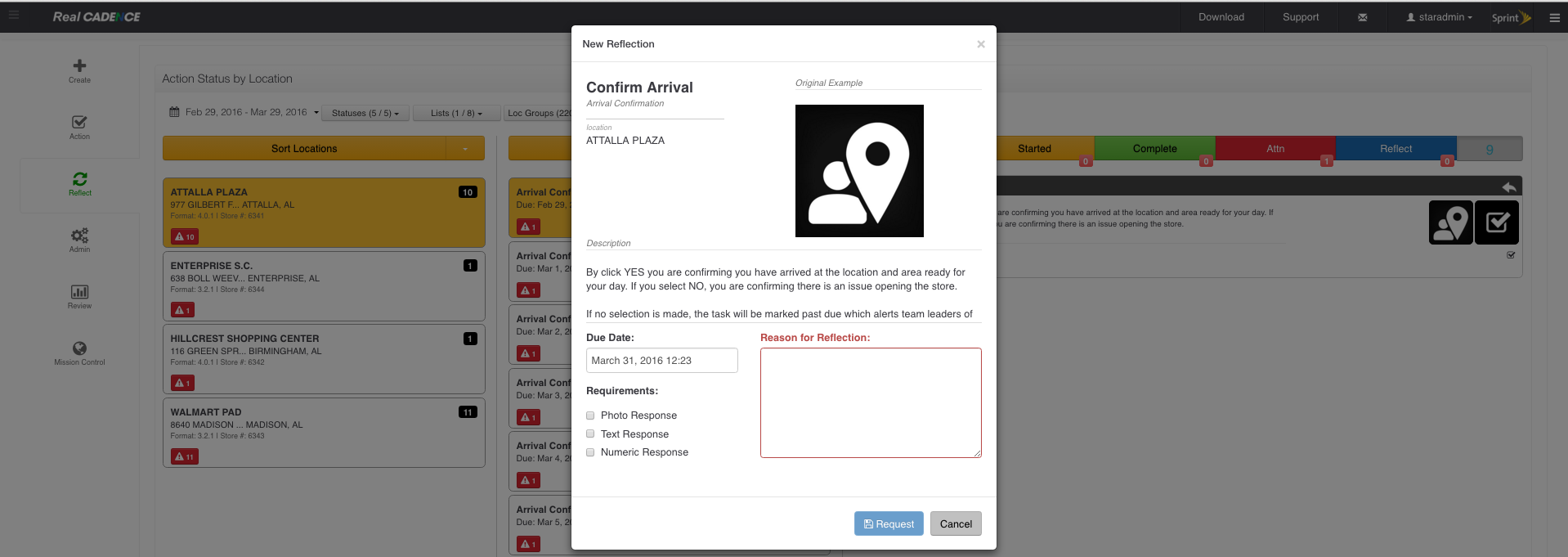
    • A Reflection dialog will appear.

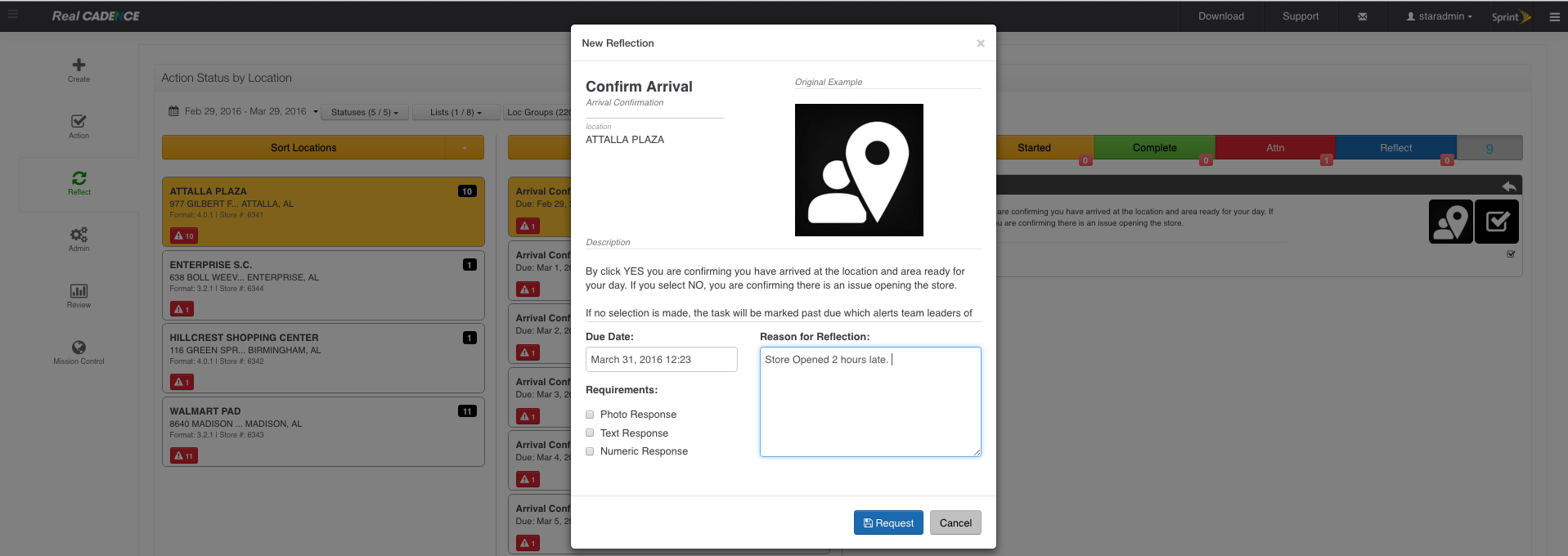
    • Select The response that you require for the reflection. Select the due date and enter the description for the reflection.

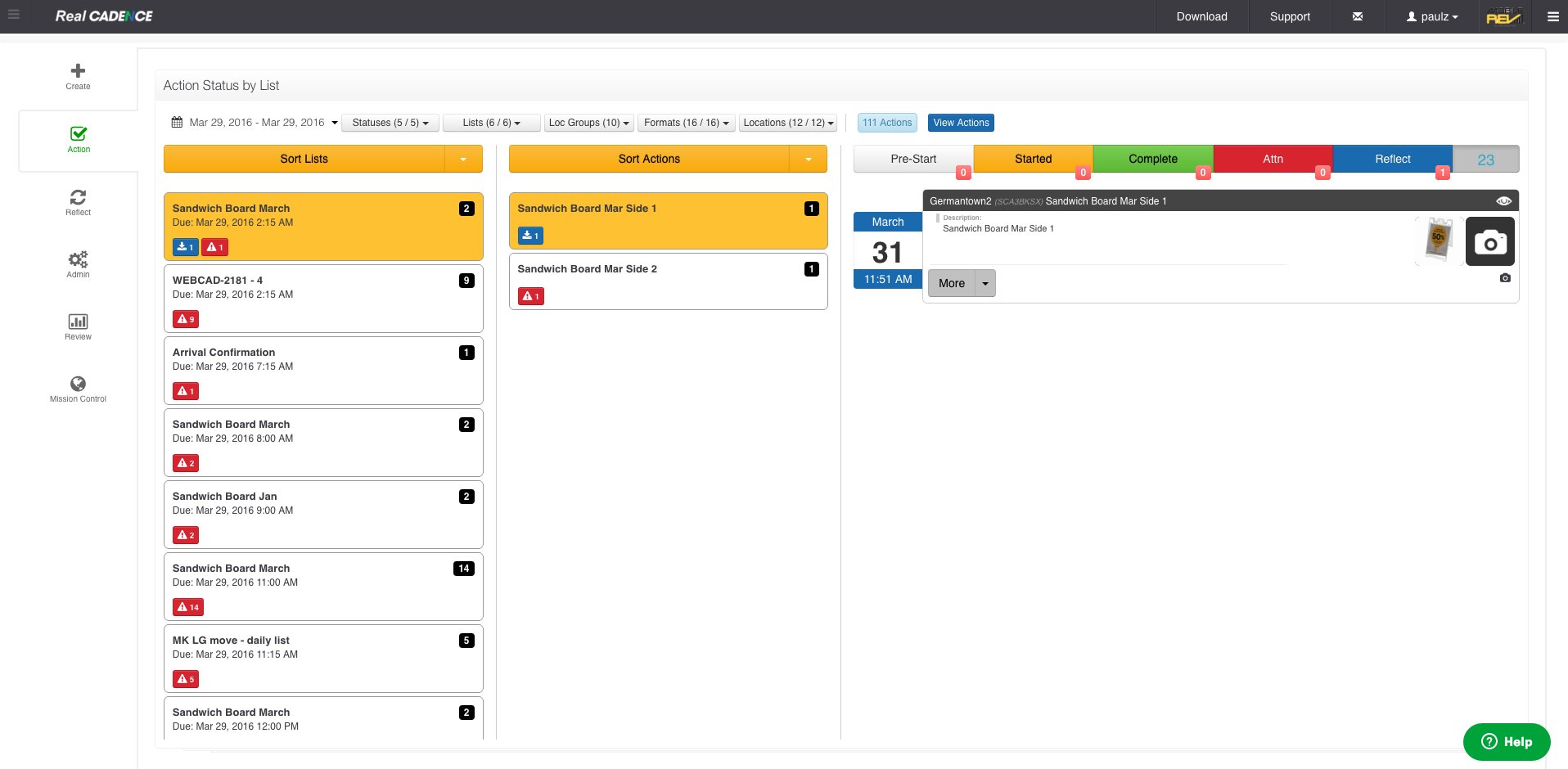
    • After you have filled out the required information, click the Request Button. The reflection will be created at this point.

    Giveback Process

    Solution Overview

    Location and Action Review Training

    Location Action Status Review

    Action Status Training

    Action Compliance Review Training

    How-to: Review Action Statuses for a Location

    • Login into WebCADENCE™.
    • Click the Reflect in the left navigation bar.

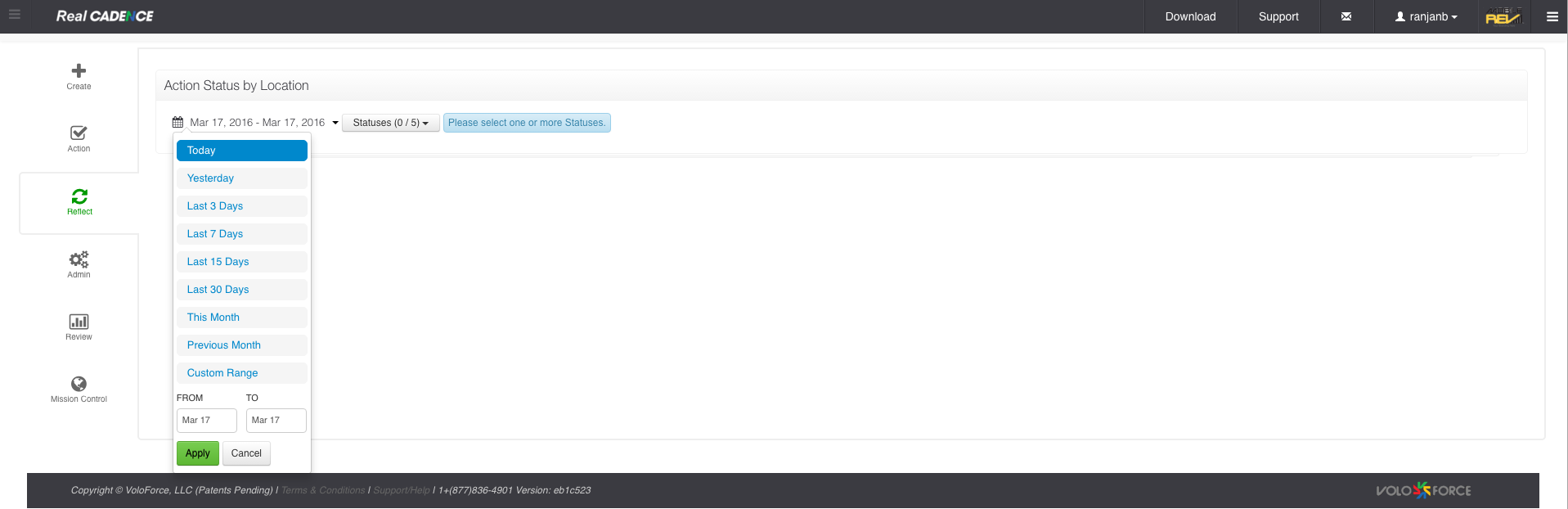
    • Select a date range for which you want to review actions.

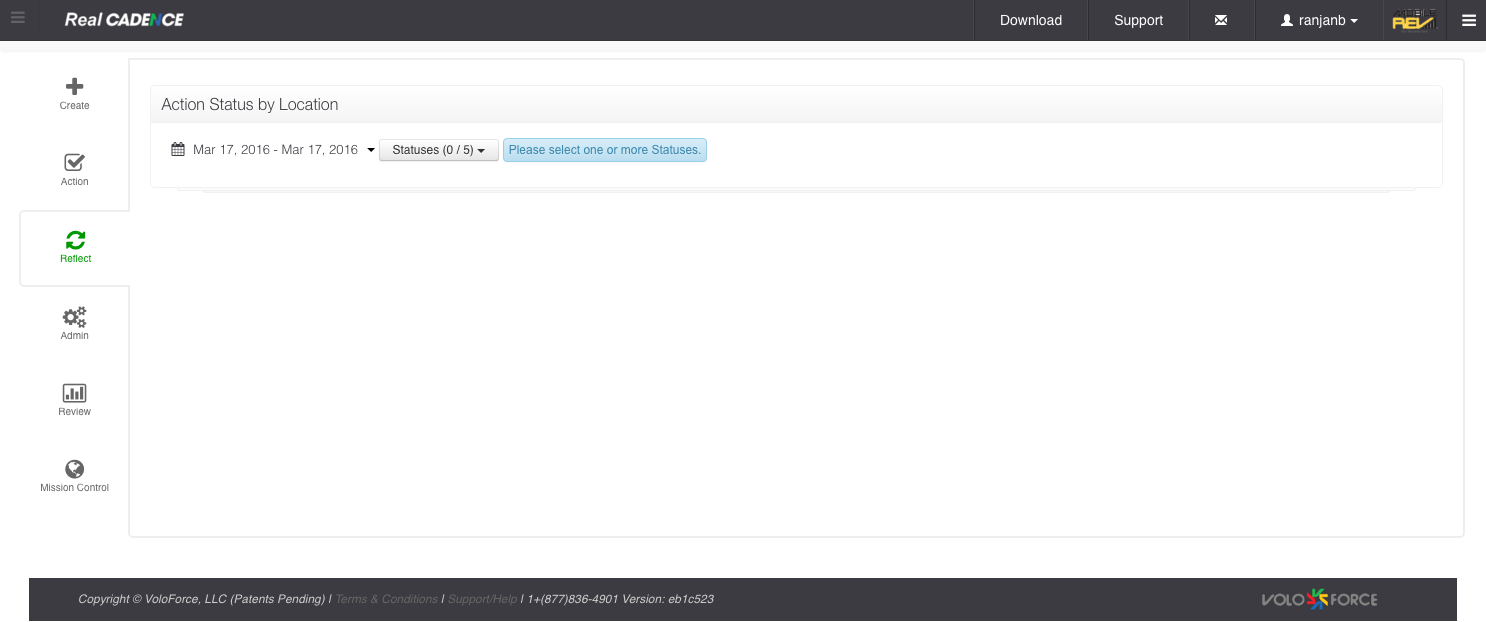
    • Select the statuses you want to work on. By default all are selected.

    • Select the lists for which you want to do the review.

    • Select the location group and click Apply Button.

    • Select Formats.

    • Select the locations for which you want to review the actions.

    • Click View Actions Button.

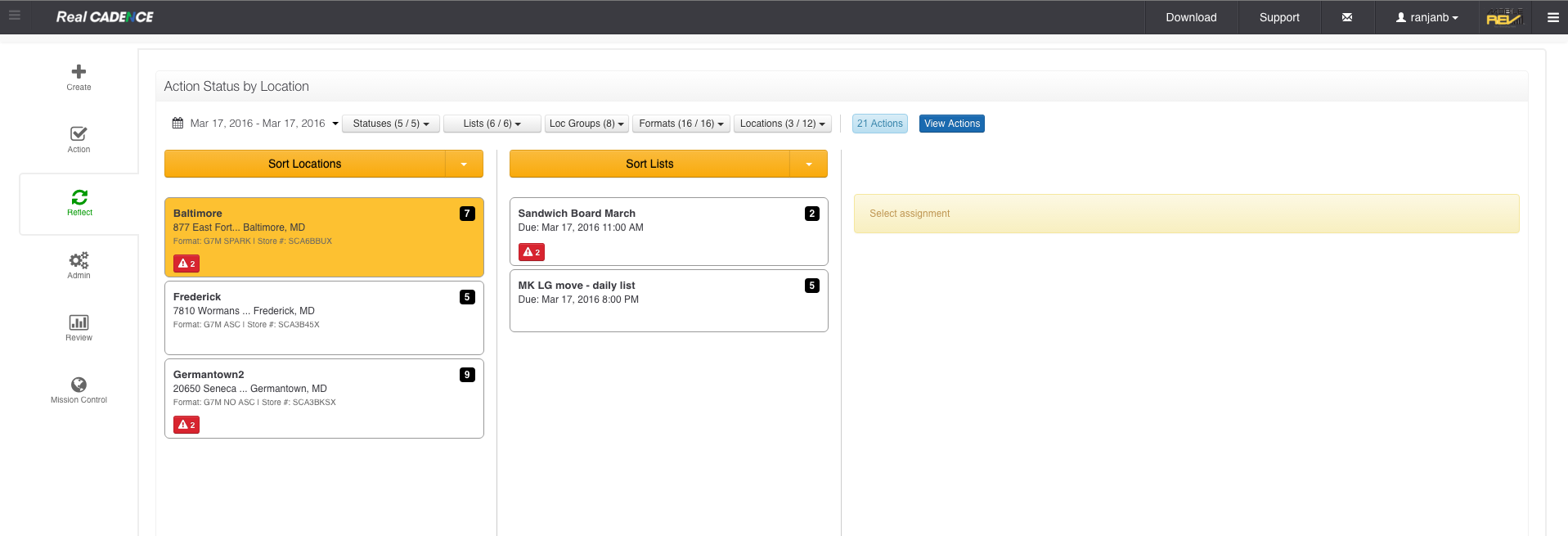
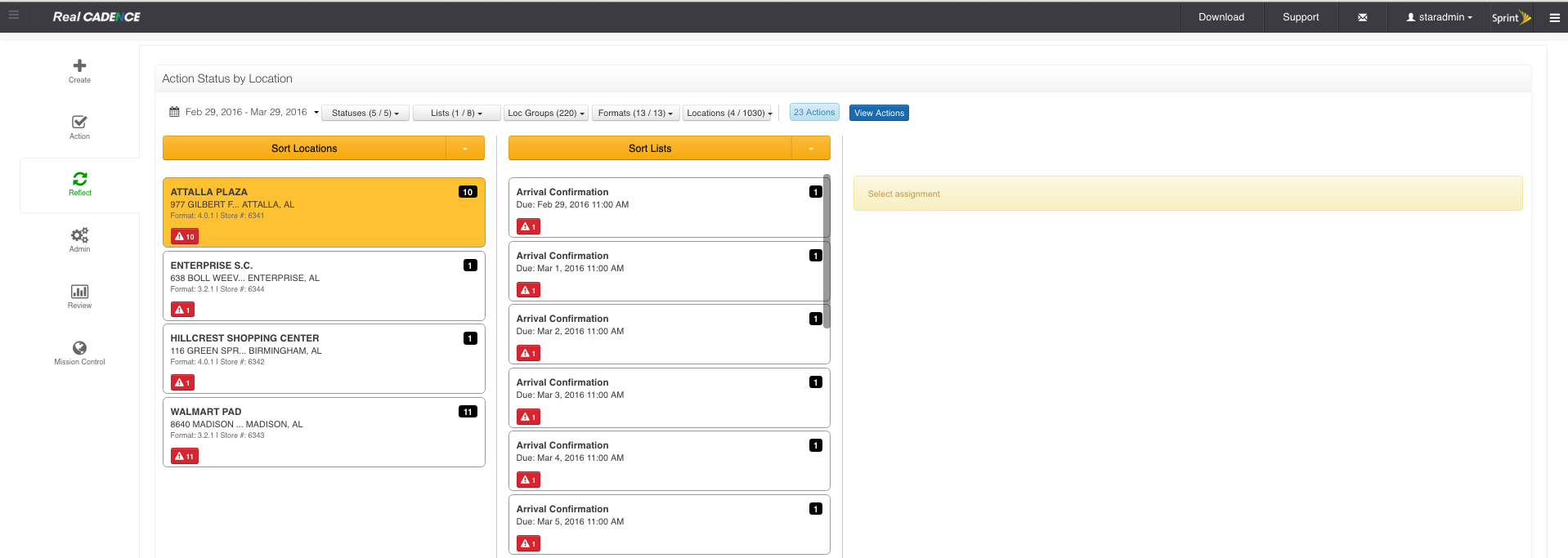
    • Click the location that you want to audit.

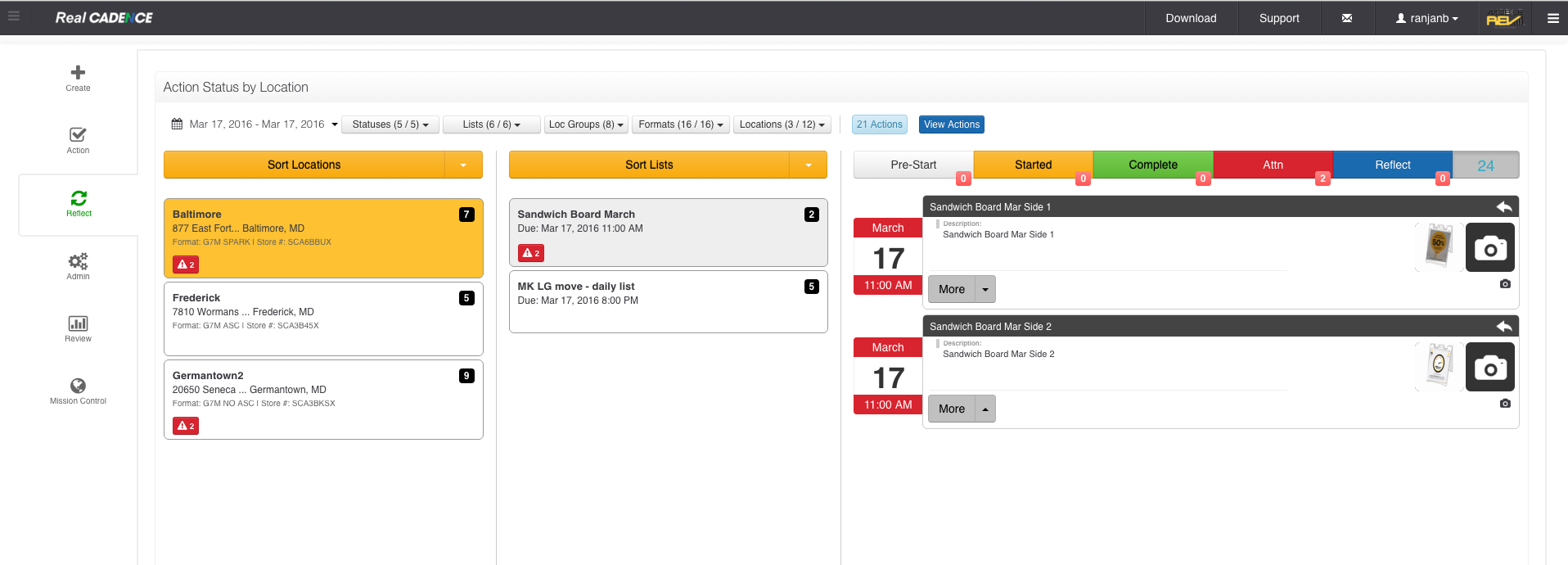
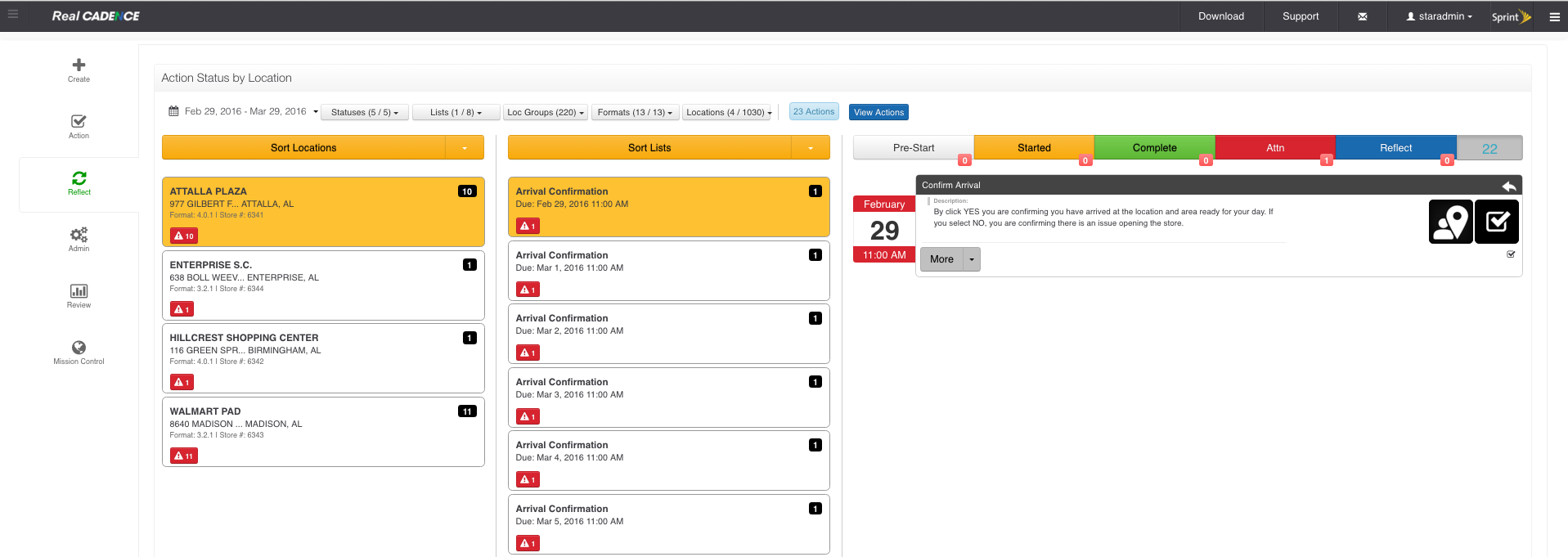
    • Click the action list that you want to review for that location. A list of actions generated by the action list for the particular location displays on the right. The date and time of each action is color coded to represent its current status.

    • To filter it by action status, click the toolbar above the list of actions.
    • To address an action, click the More drop-down menu in the action’s entry on the list. A pop-up opens to show available responses.
    • To refresh the list of action statuses, double-click the countdown at the upper right.

    How To: Create a Reflection from Reflect View

    • Login into WebCADENCE™.
    • Click the Reflect in the left navigation bar.

    • Select a date range for which you want to review actions.

    • Select the statuses you want to work on. By default all are selected.

    • Select the lists for which you want to do the review.

    • Select the location group and click Apply Button.

    • Select Formats.

    • Select the locations for which you want to review the actions.

    • Click View Actions Button.

    • Click the location that you want to audit.

    • Click the action list that you want to review for that location. A list of actions generated by the action list for the particular location displays on the right. The date and time of each action is color coded to represent its current status.

    • To Create a reflection, click the More drop-down menu in the action’s entry on the list. A pop-up opens to show “New Reflection” as an option. Choose New reflection.

    • A Reflection dialog will appear.

    • Select the response that you require for the reflection. Select the due date and enter the description for the reflection. Click the “Request” button.

    • The reflection will be created at this point.

    How-to: Login

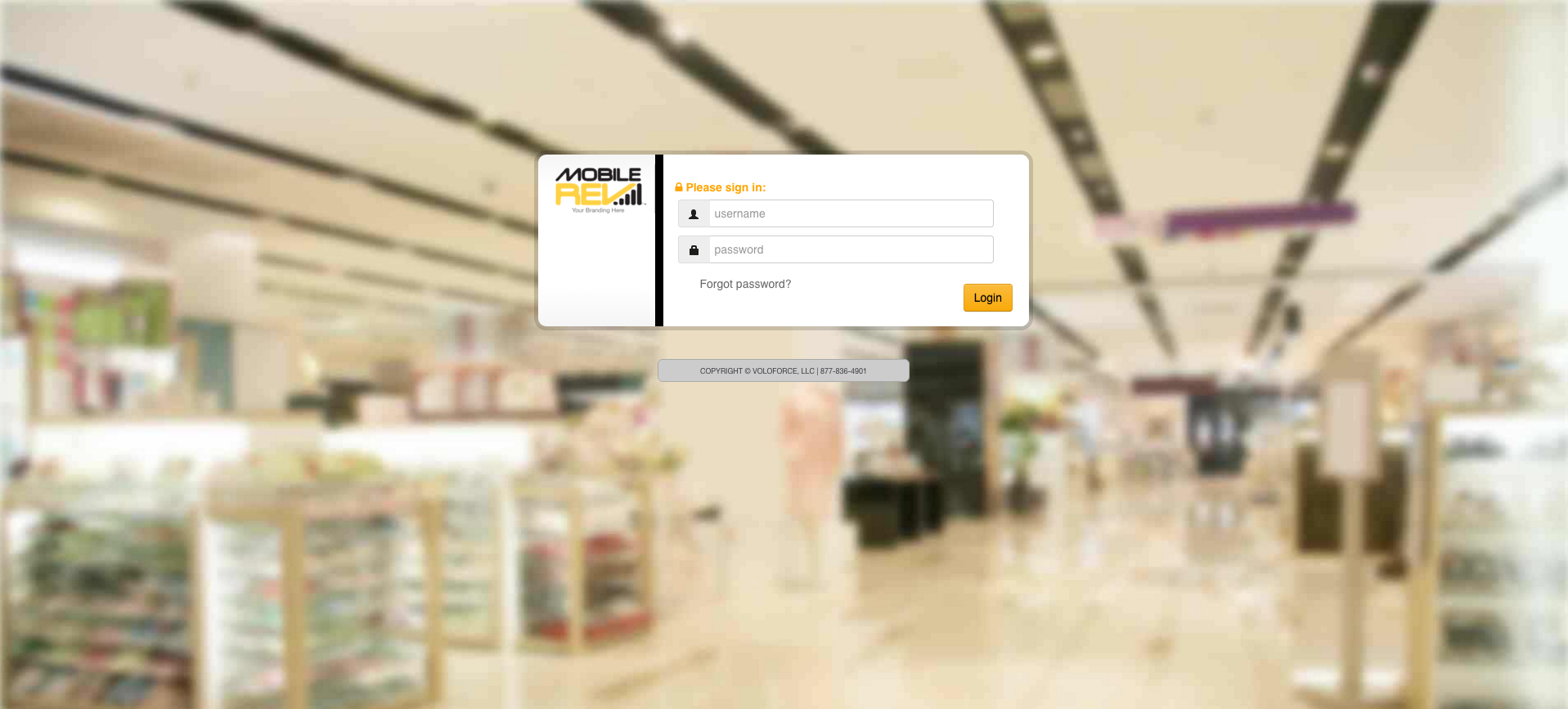
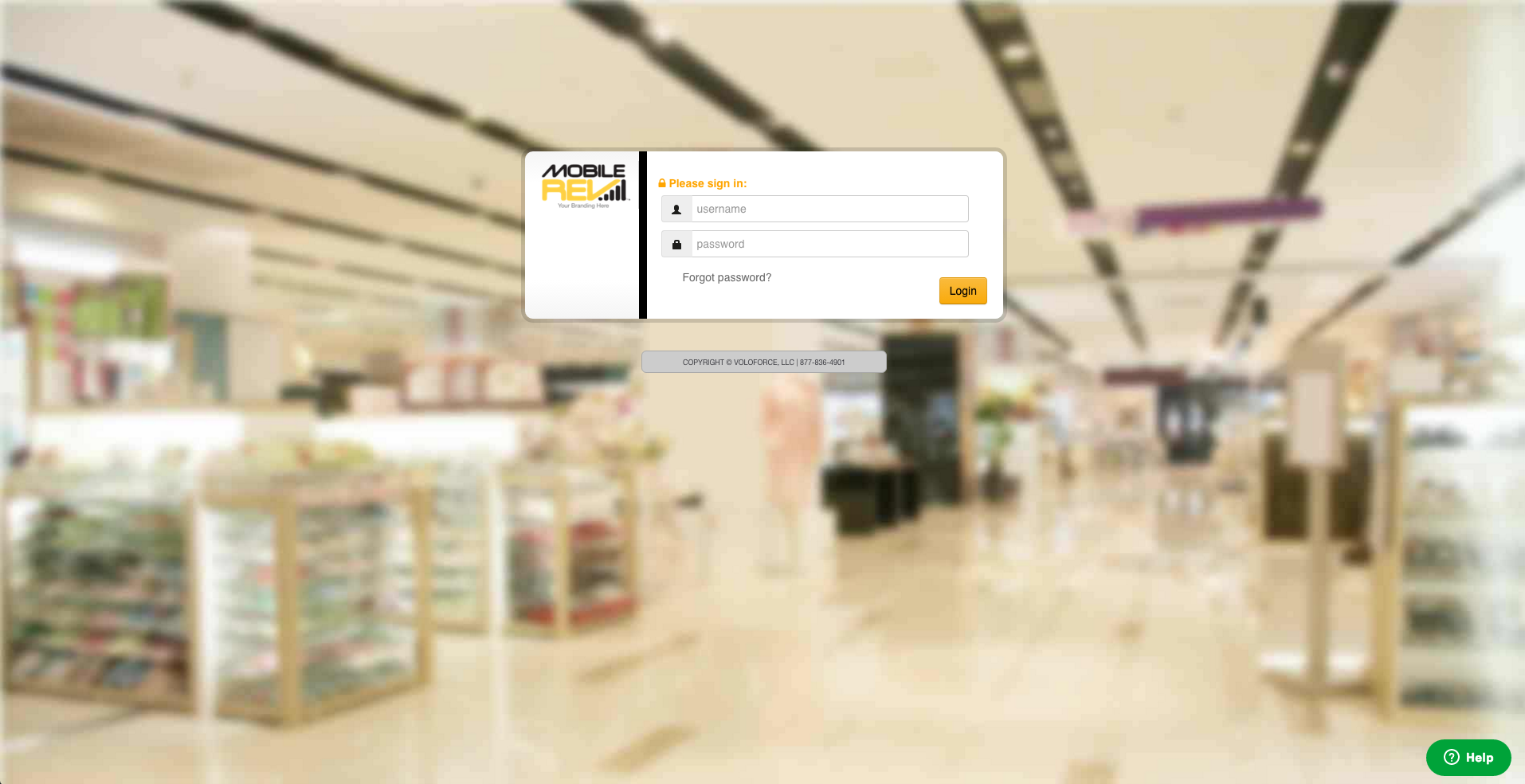
    • Open the browser.
    • Enter the URL for WebCADENCE™.

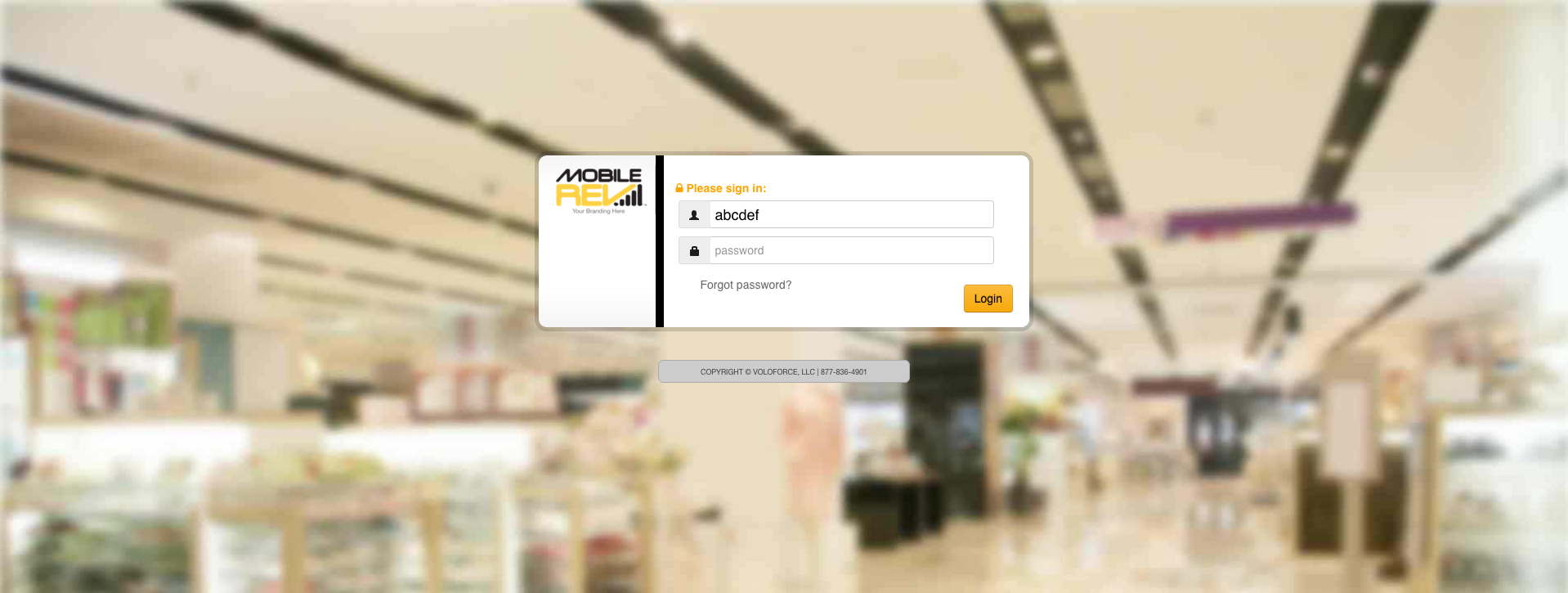
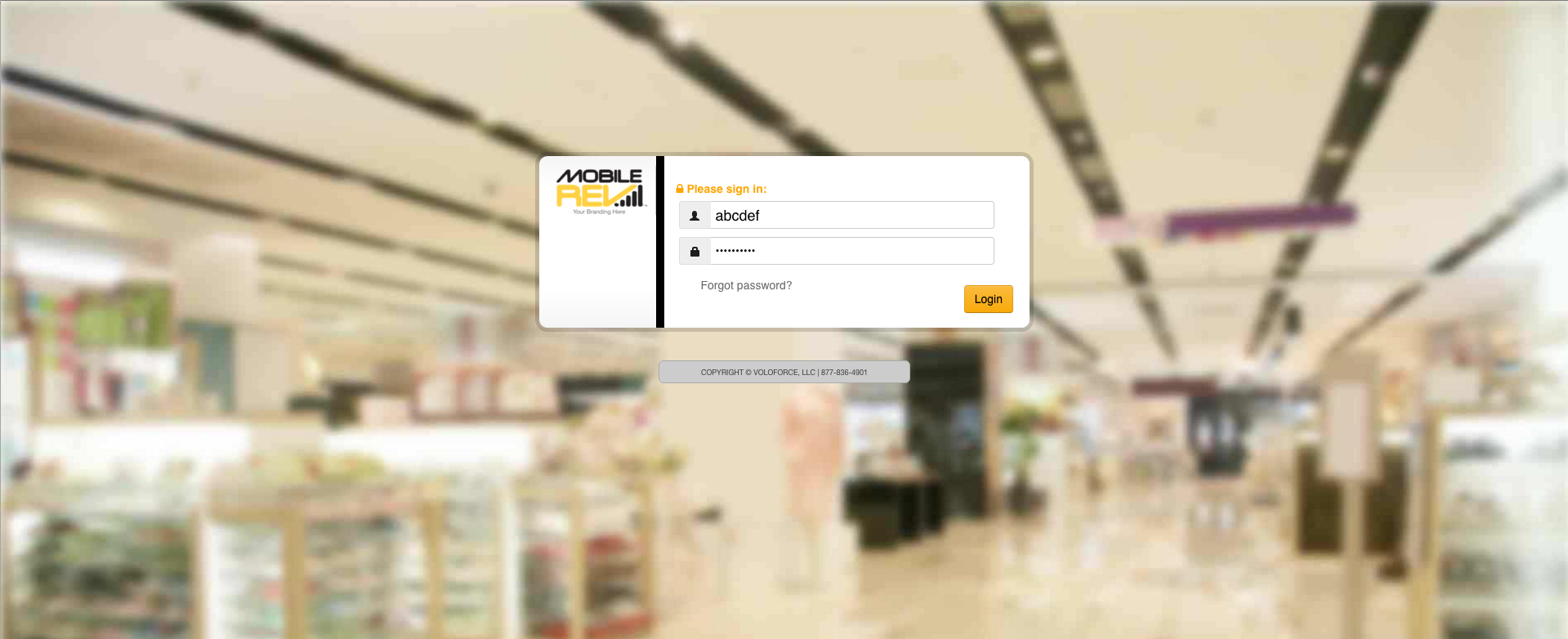
    • Enter your username.

    • Enter your password.

    • Click the Login Button.

    How-to: Reset Password

    • Open the browser.
    • Enter the URL to get to the login screen.

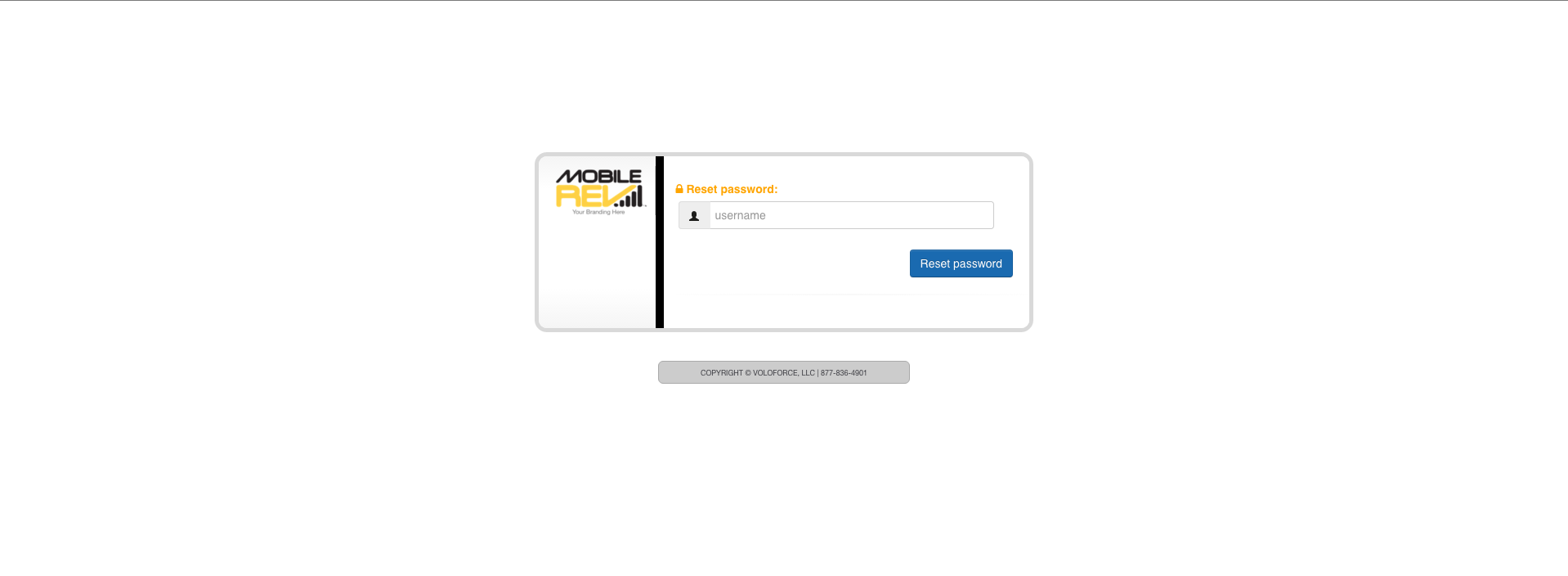
    • On the login screen click Forgot Password.

    • It will prompt you to enter the username.

    • After that click Reset Password Button.

    • You will See a pop after you click the Reset Password button and You should receive an email with the new password.

    How-to: Change Password

    • Login into WebCADENCE™.
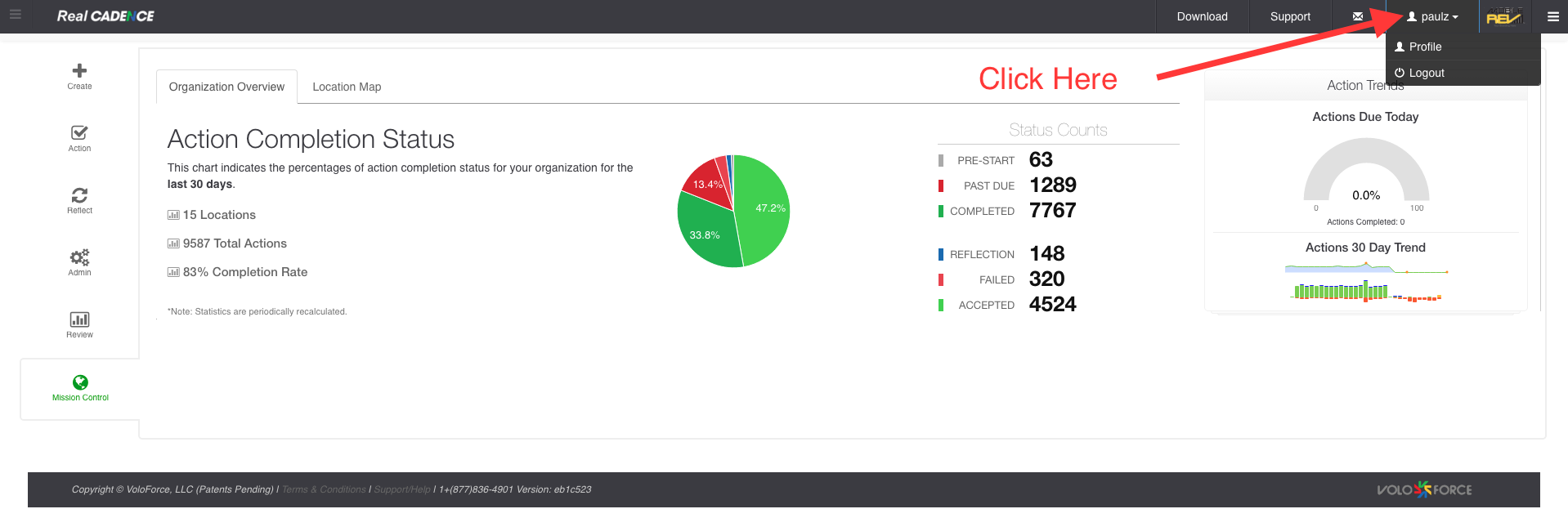
    • Click on your name drop down

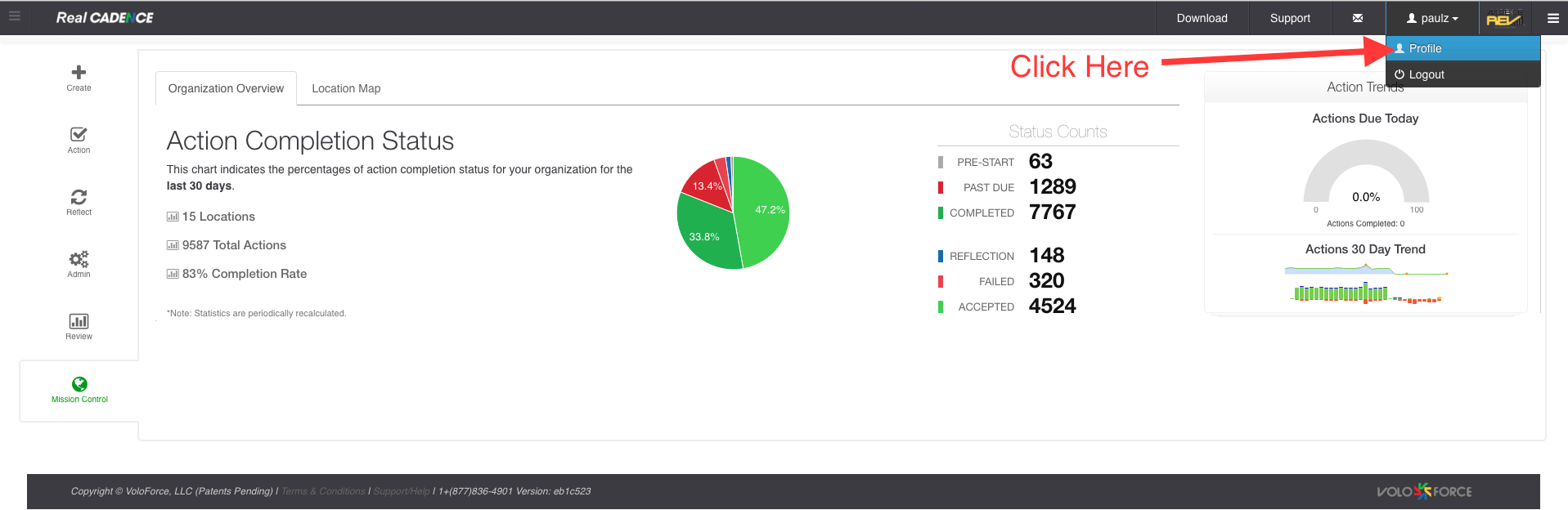
    • Then click profile.

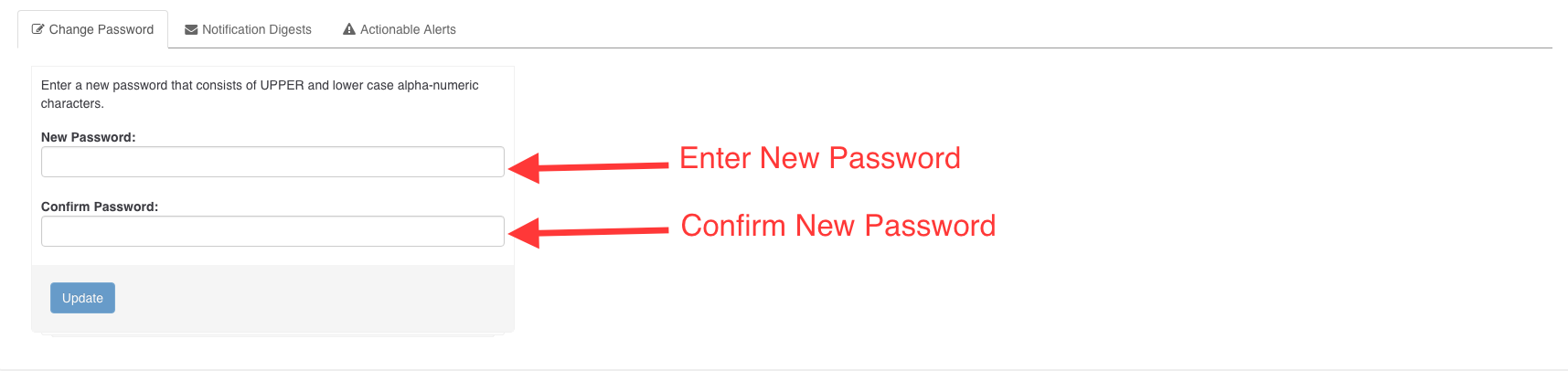
    • You will see the profile page. Enter your new password then confirm the new password and click the update button. You password will be changed at this point. Next time you will login with the new password.

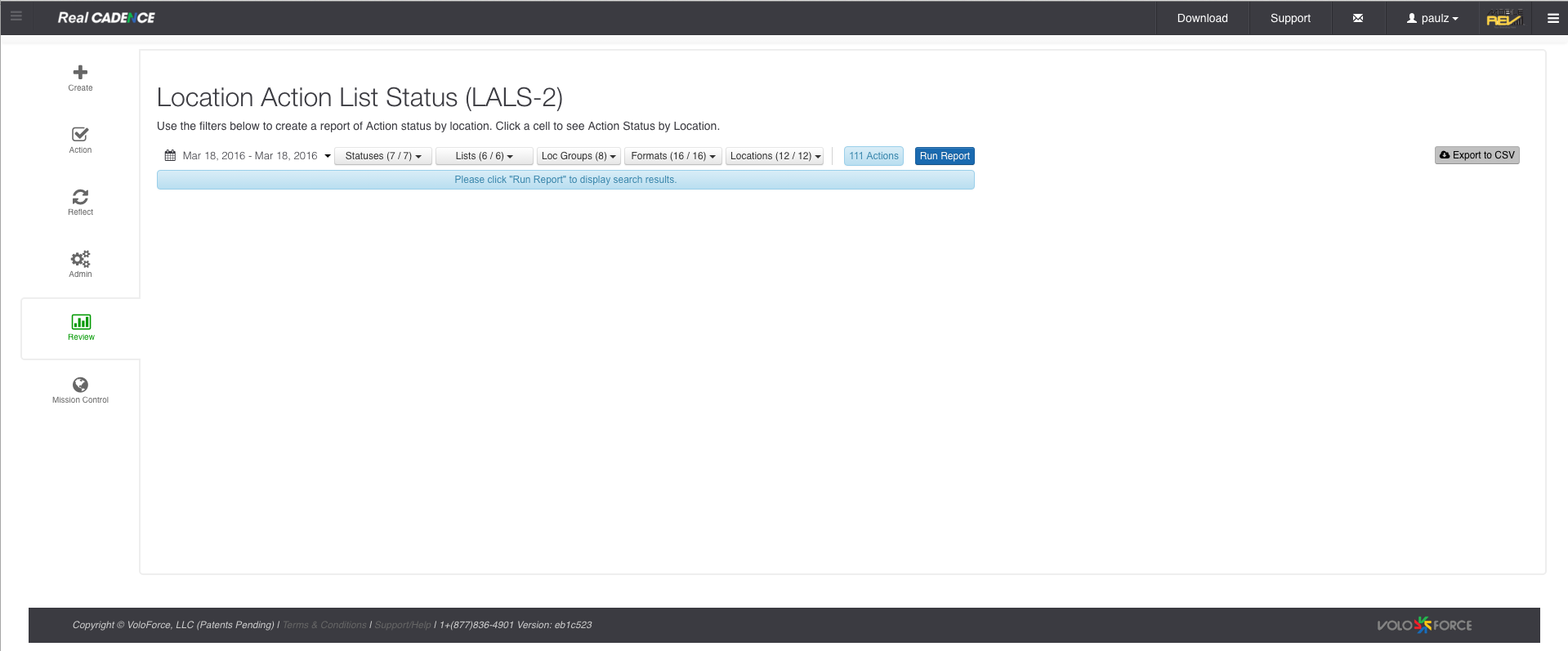
    How-to: View location action list status by date range

    • Login into WebCADENCE™.
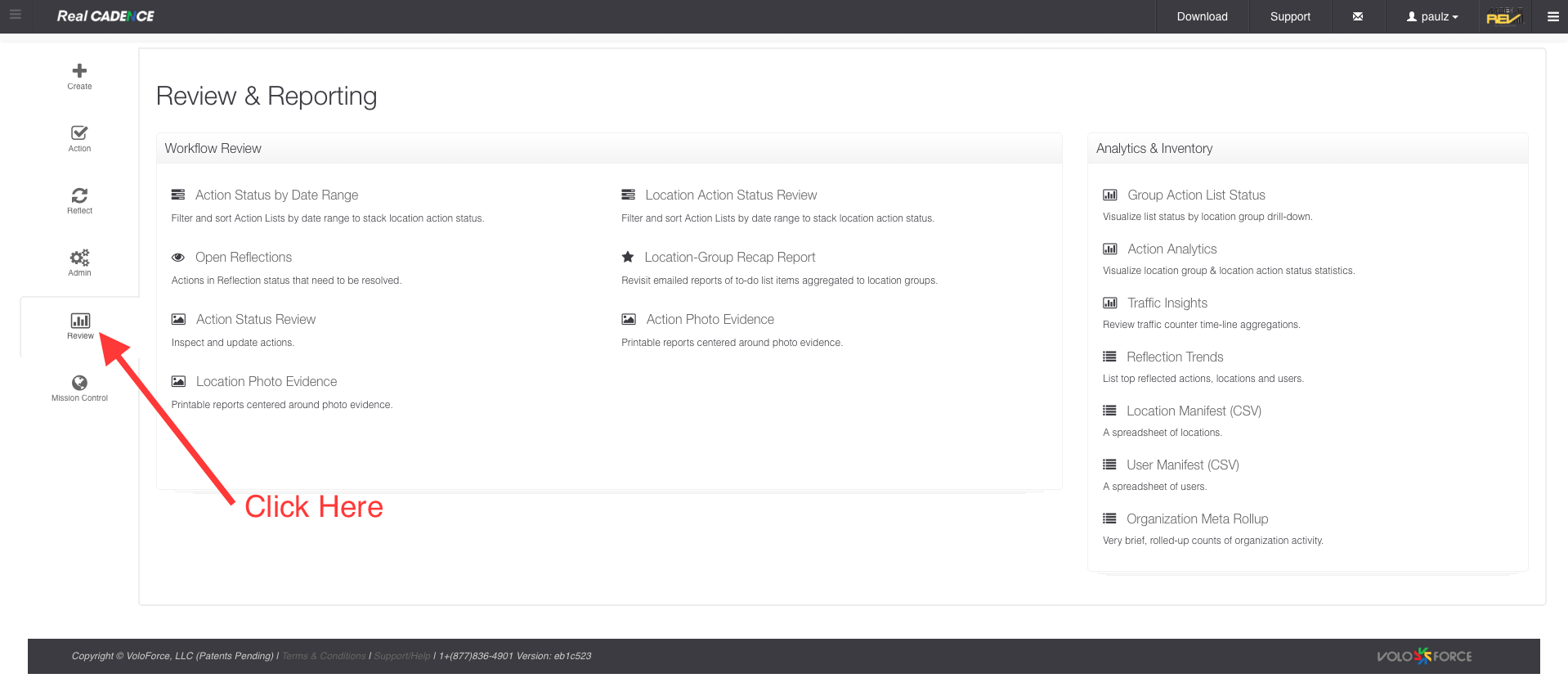
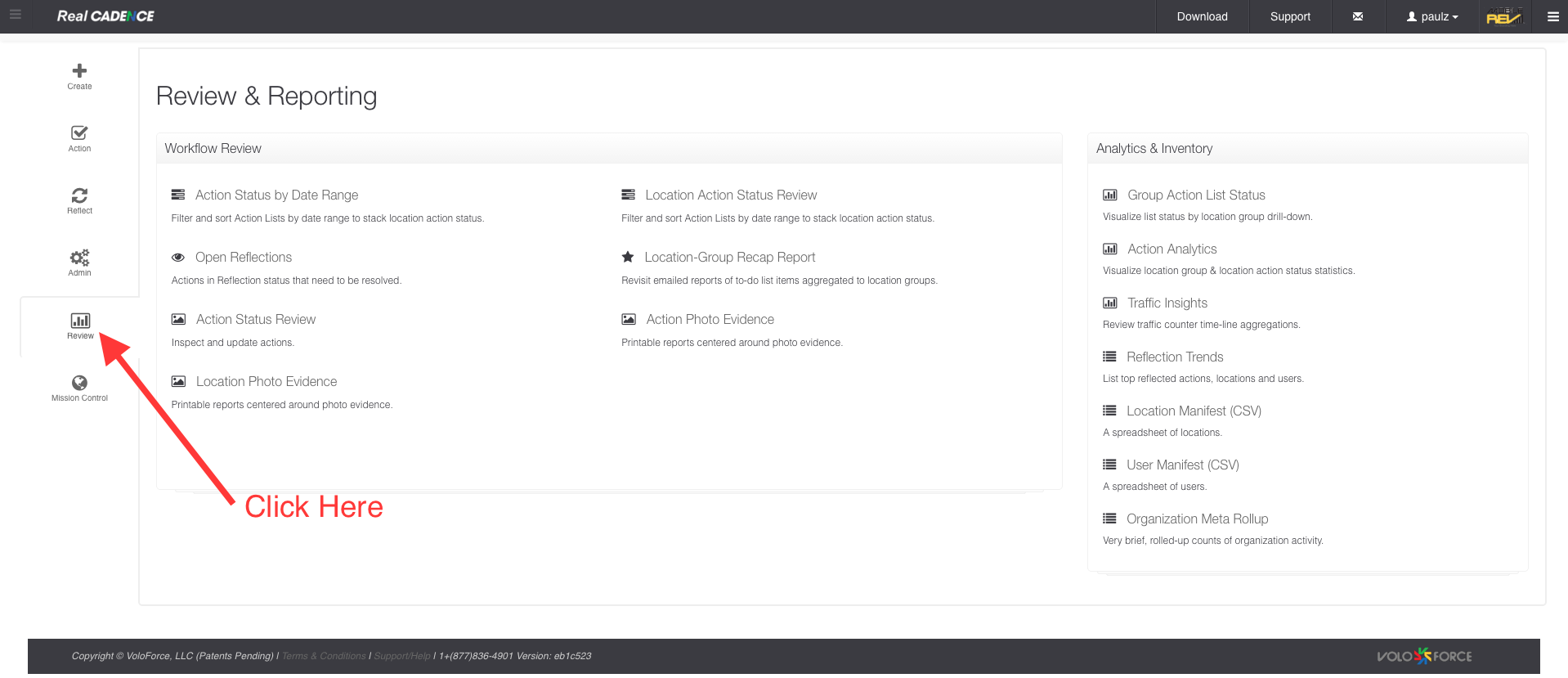
    • Click the Review in the left navigation bar.

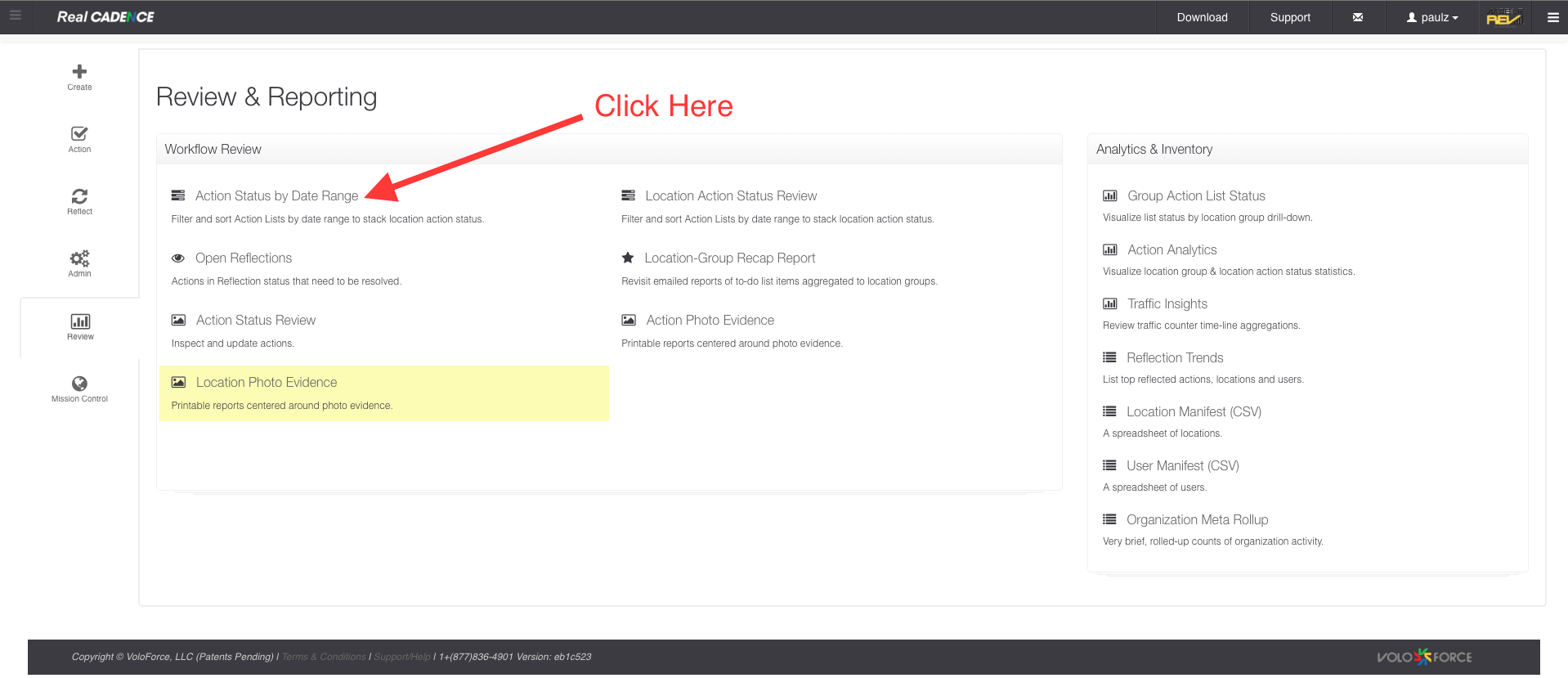
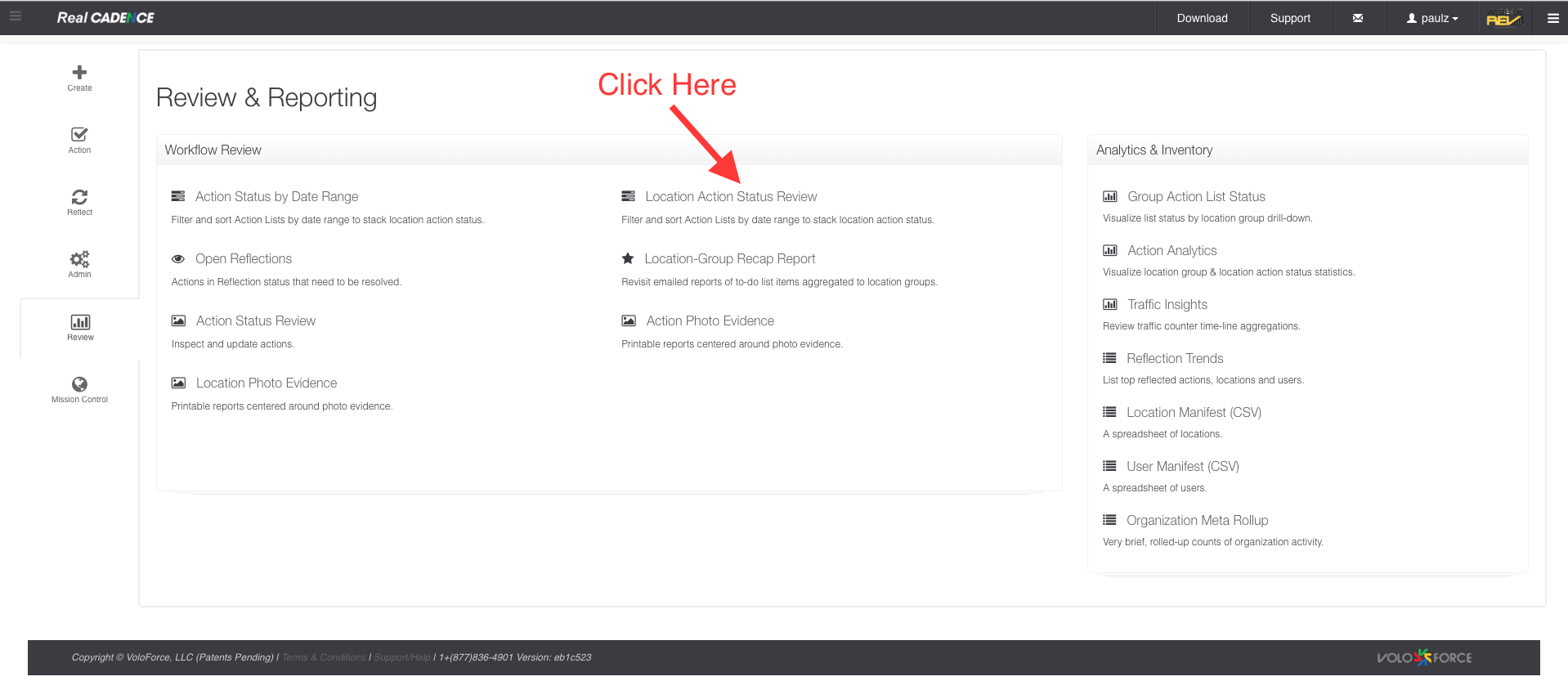
    • Click On Action Status By date range link.

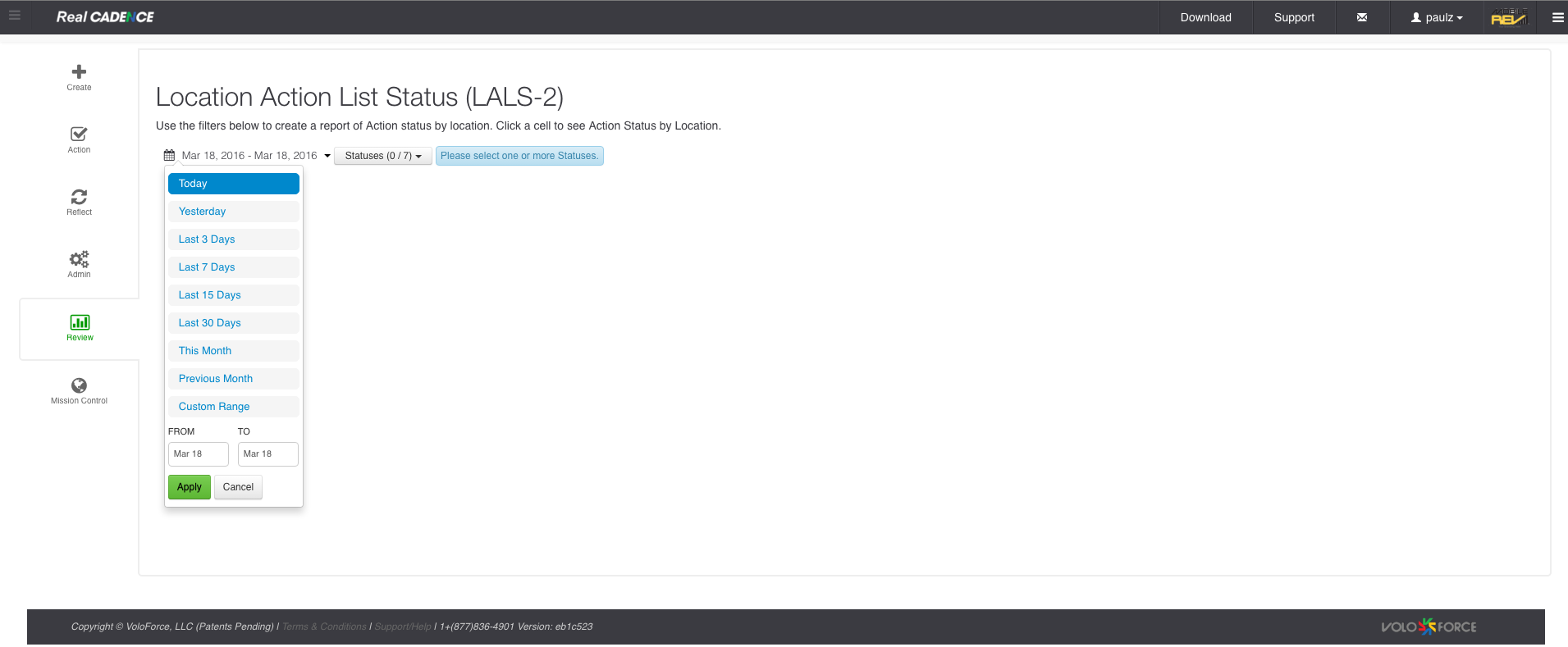
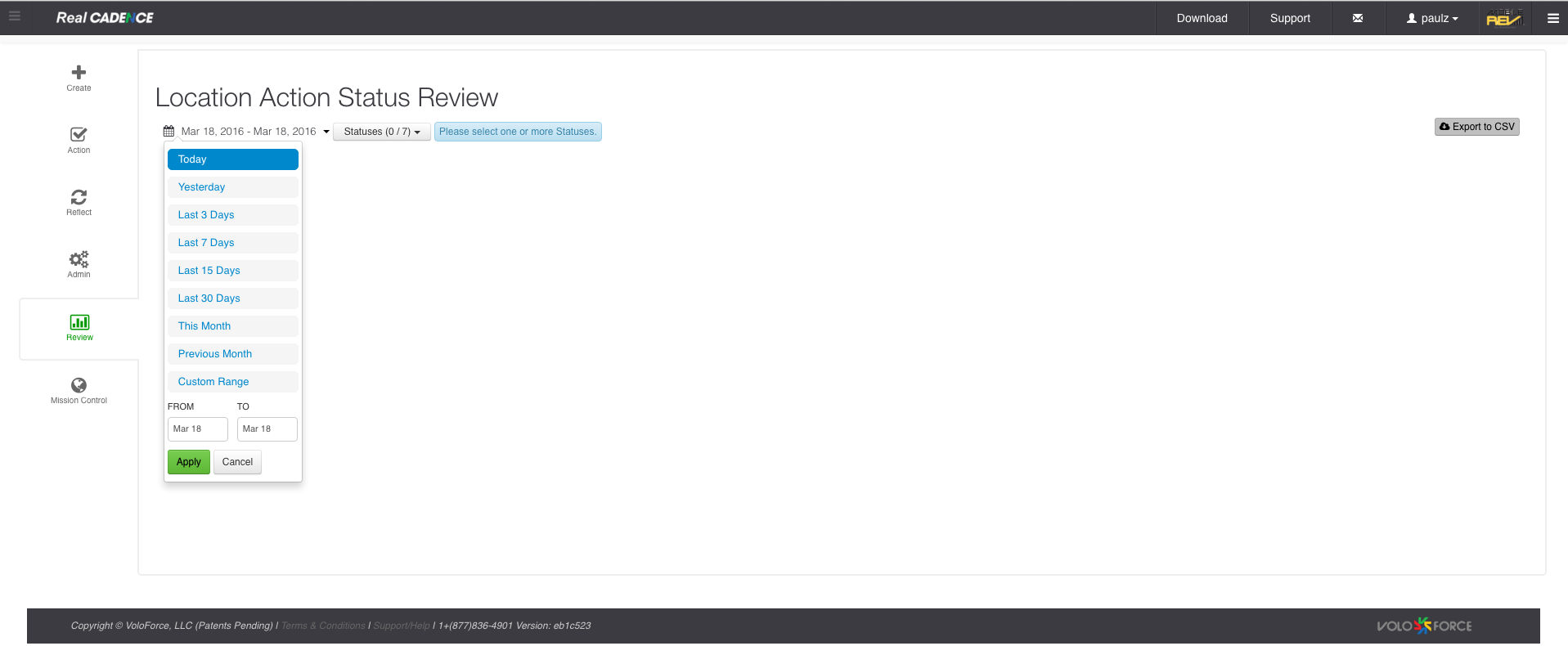
    • Select a date range for which you want to review actions.

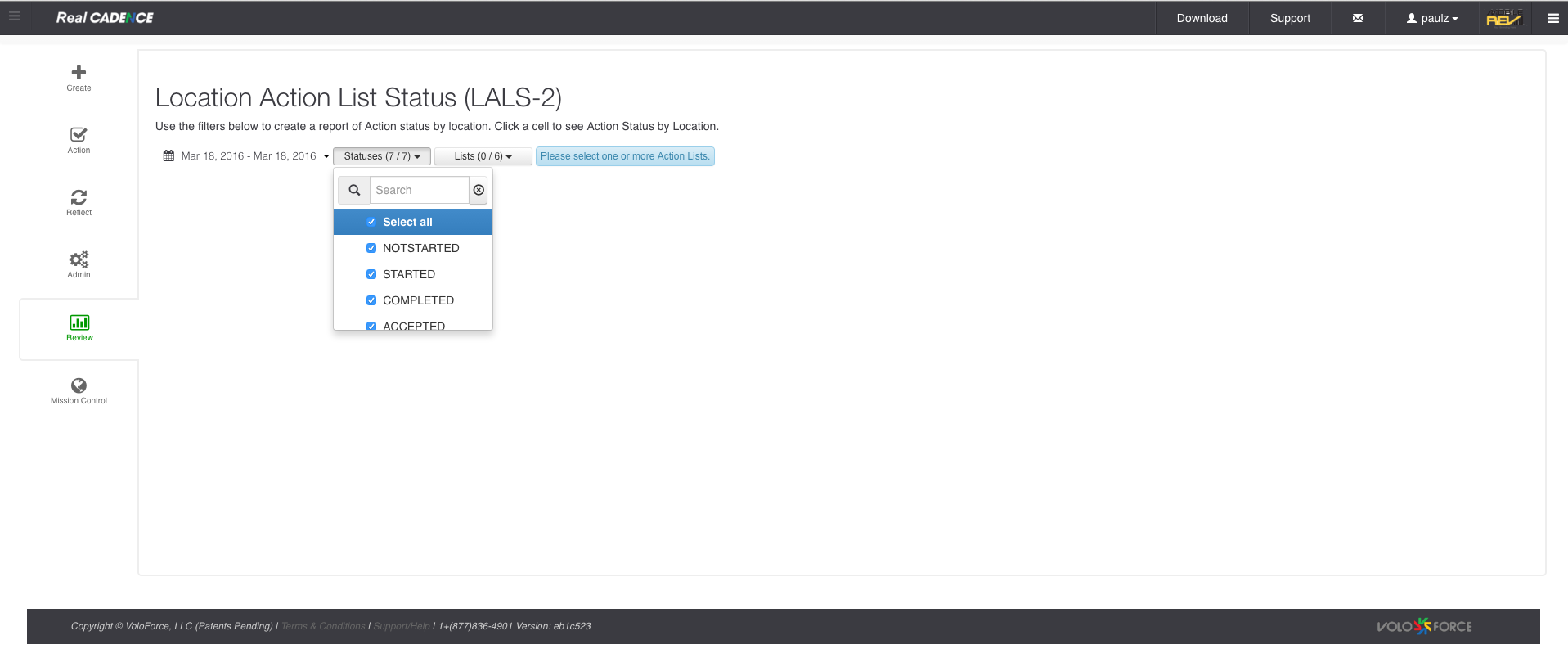
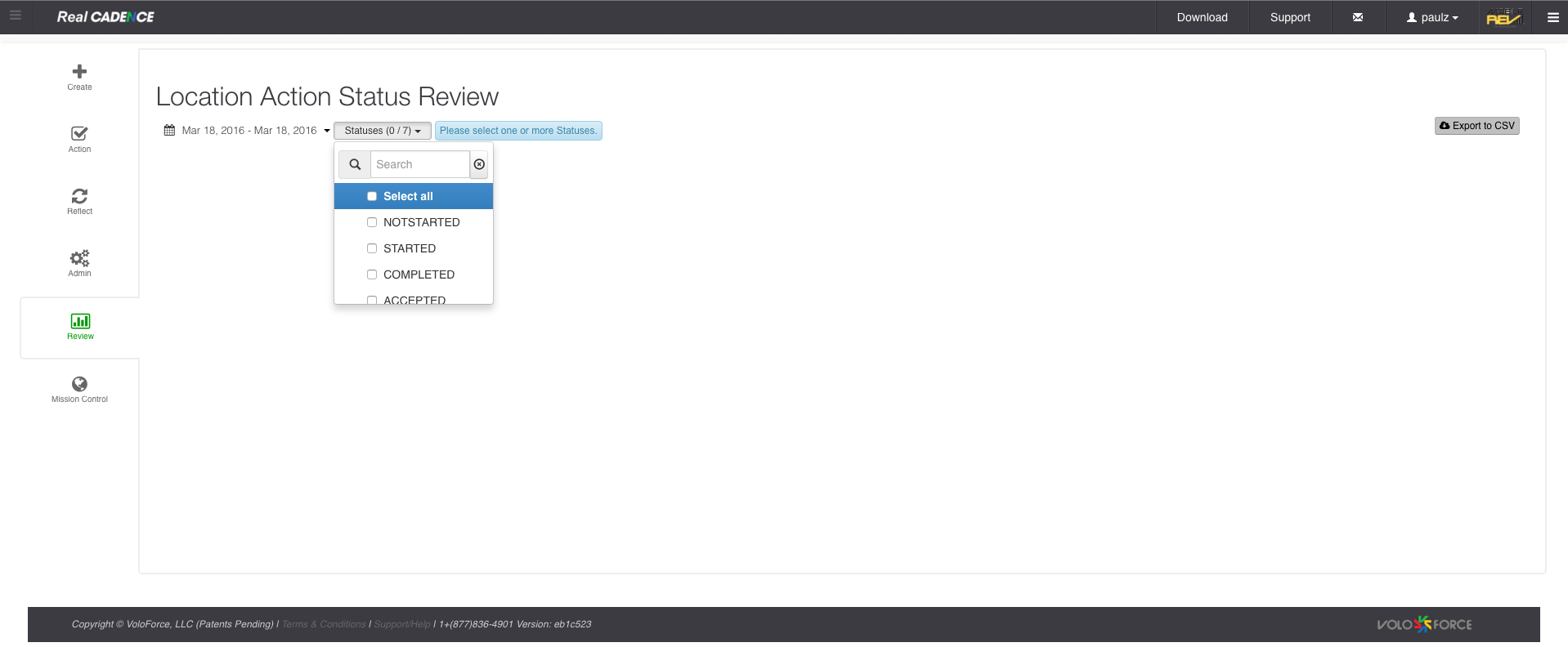
    • Select the statuses you want to work on. By default all are selected.

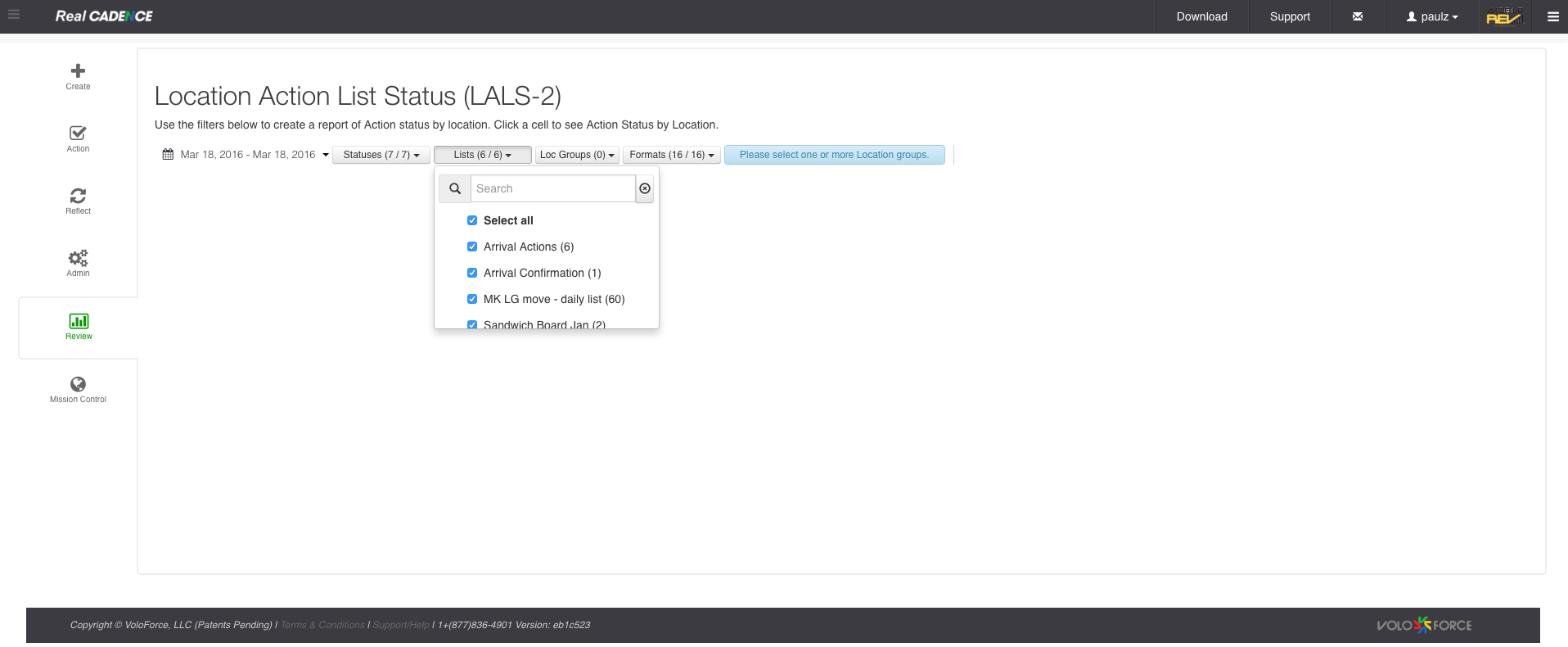
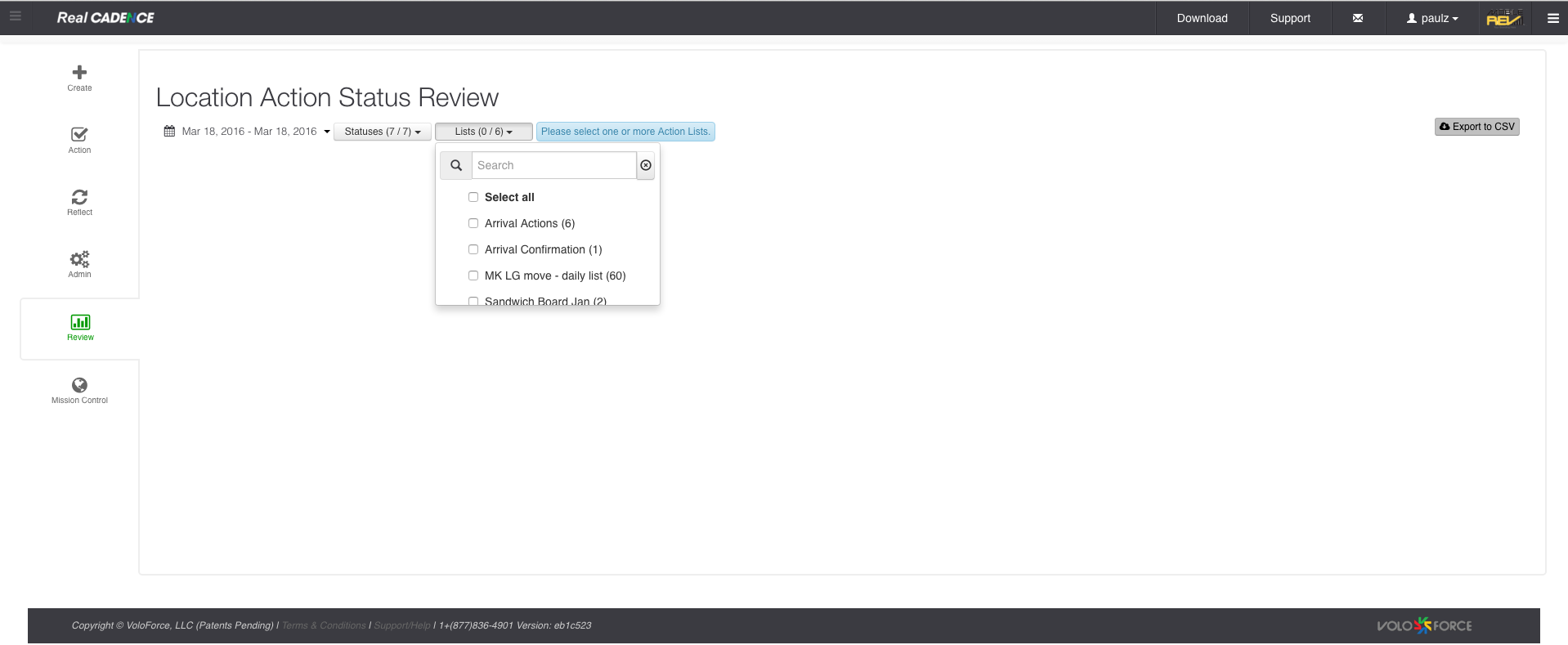
    • Select the lists for which you want to do the review.

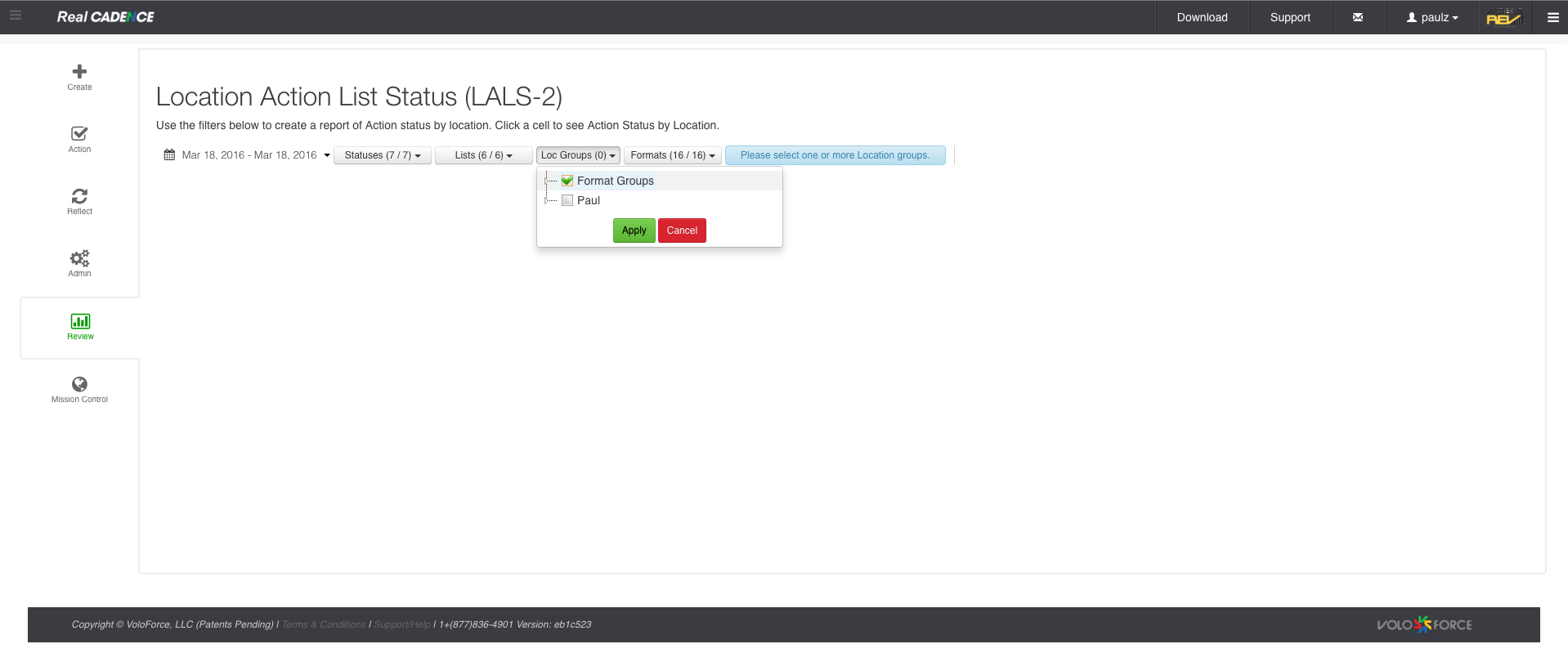
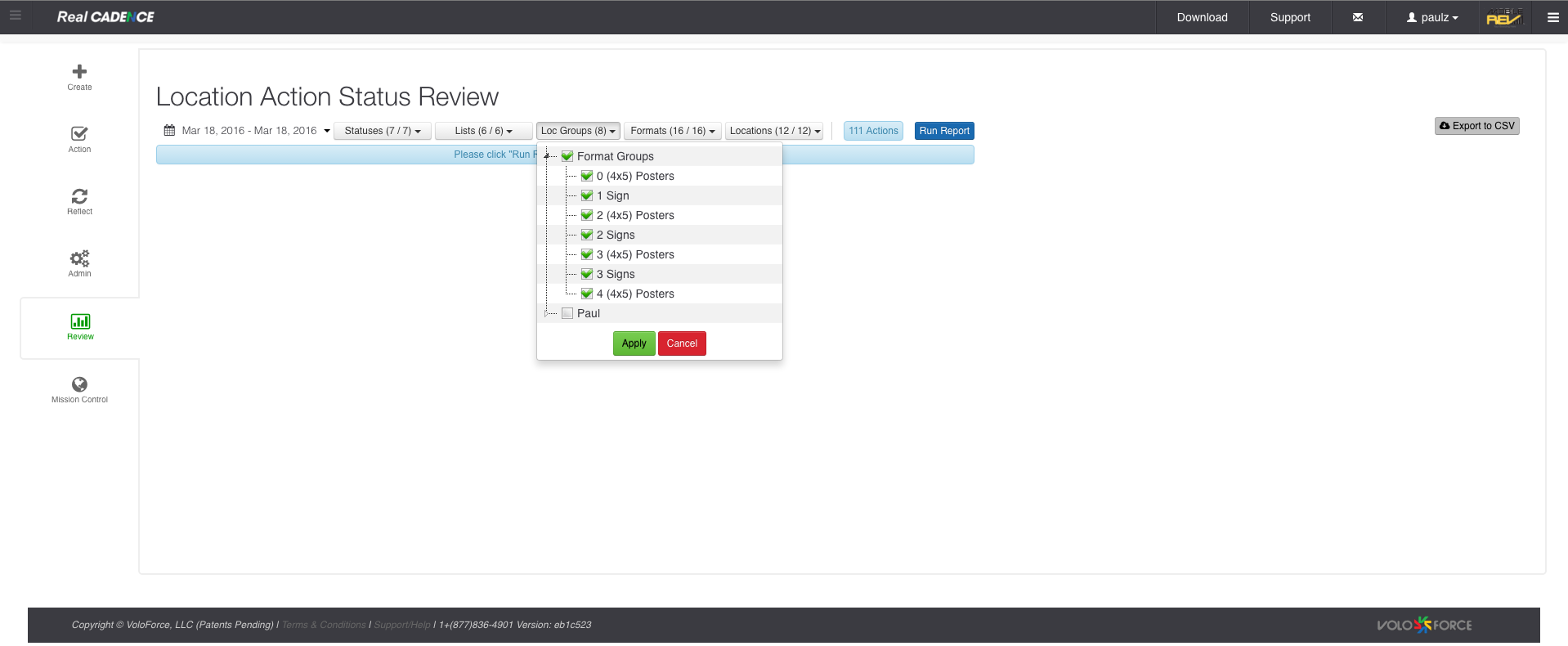
    • Select the location group and click Apply Button.

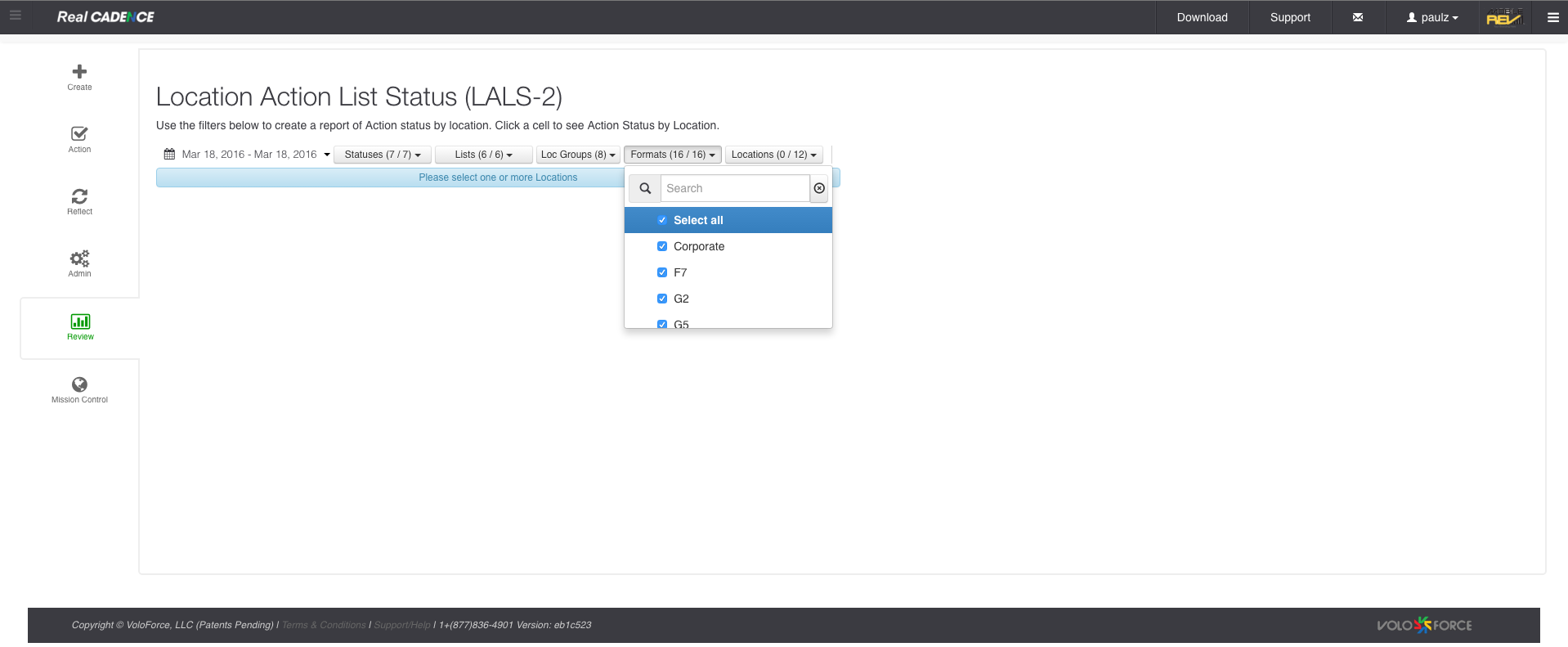
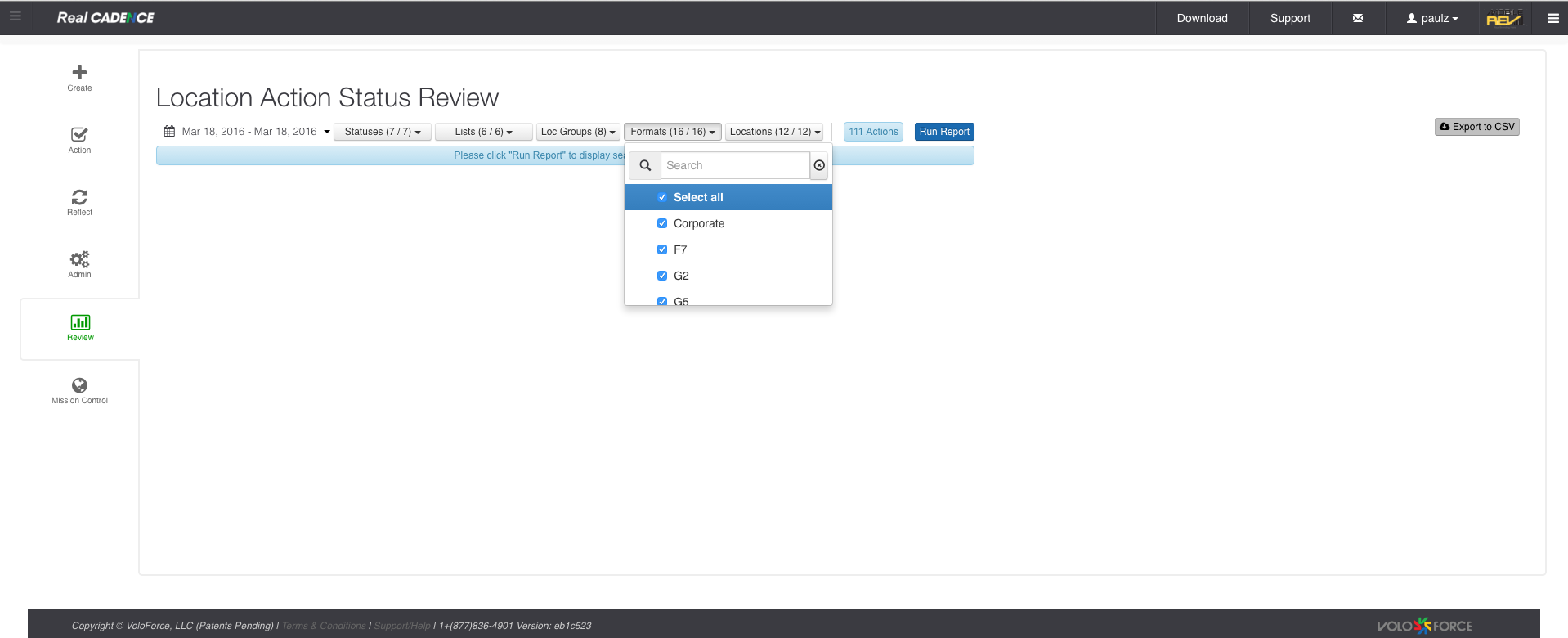
    • Select Formats.

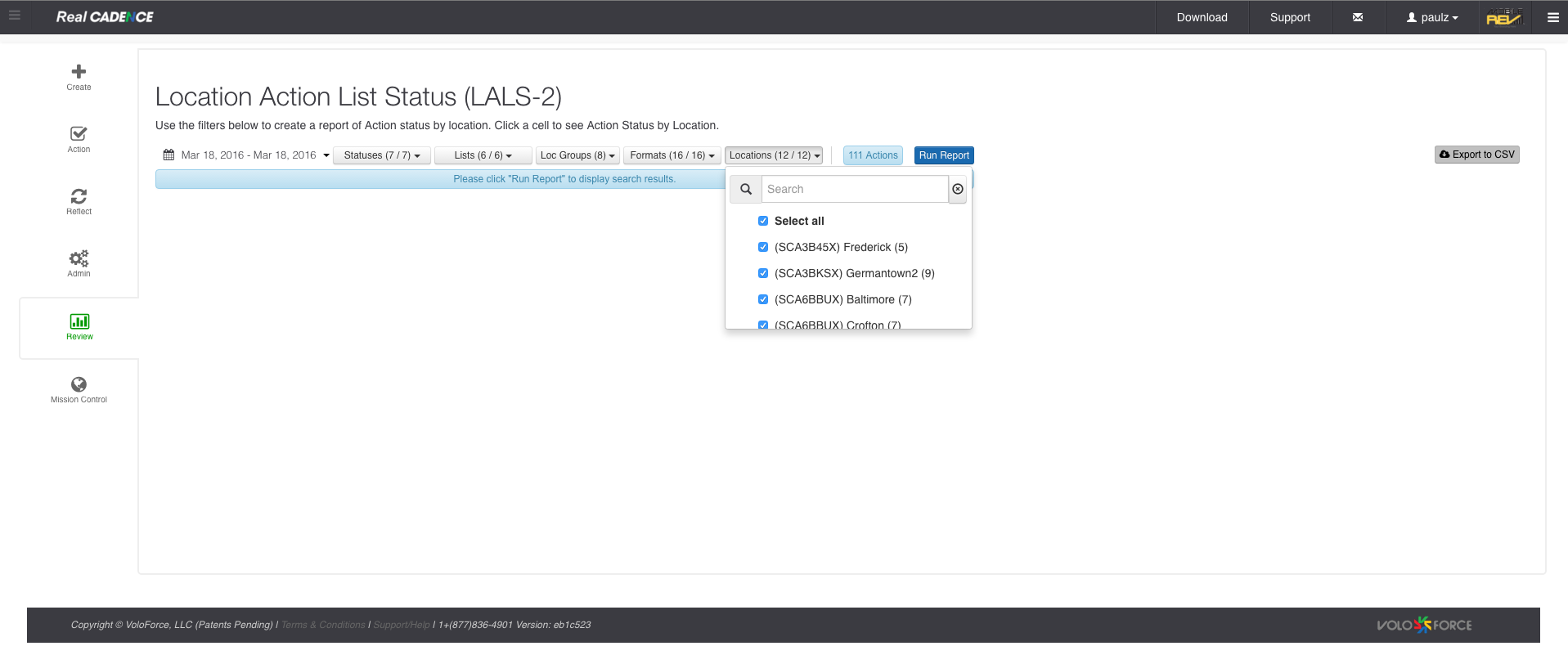
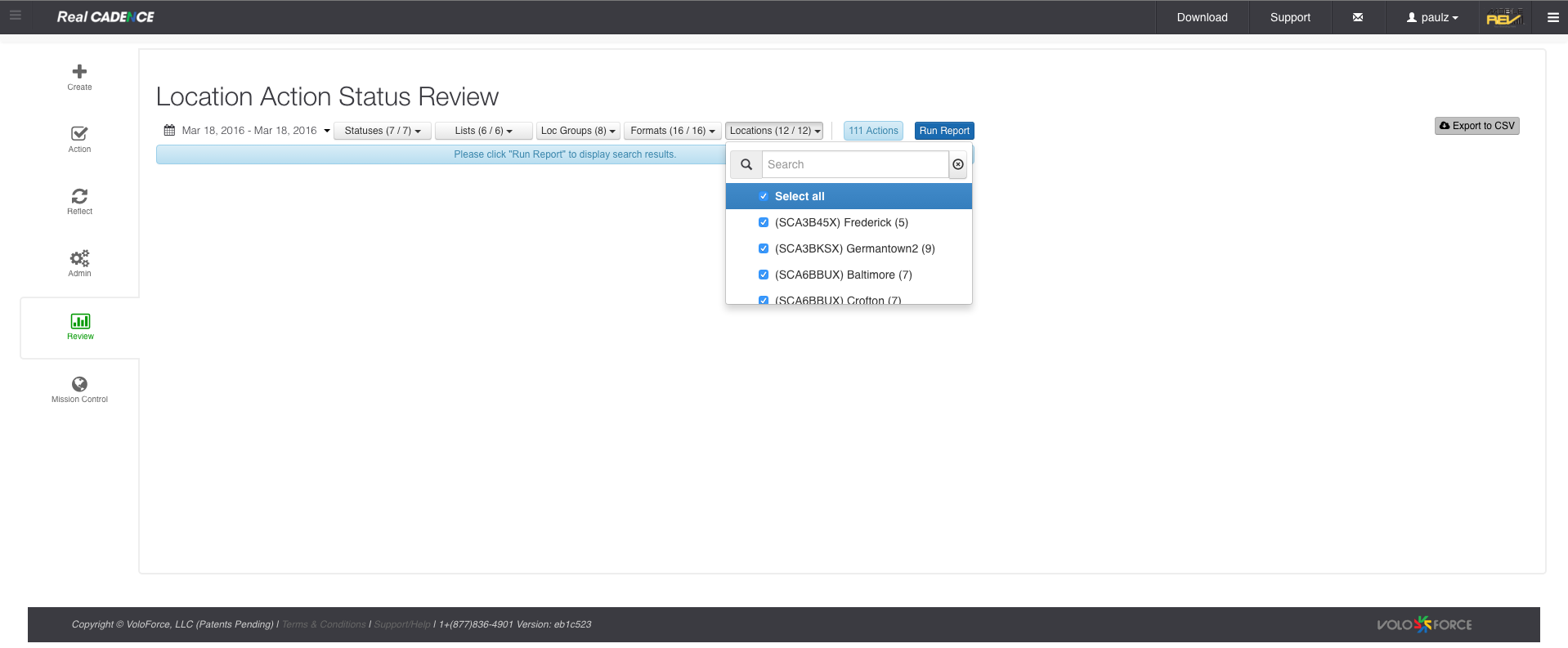
    • Select the locations for which you want to review the actions.

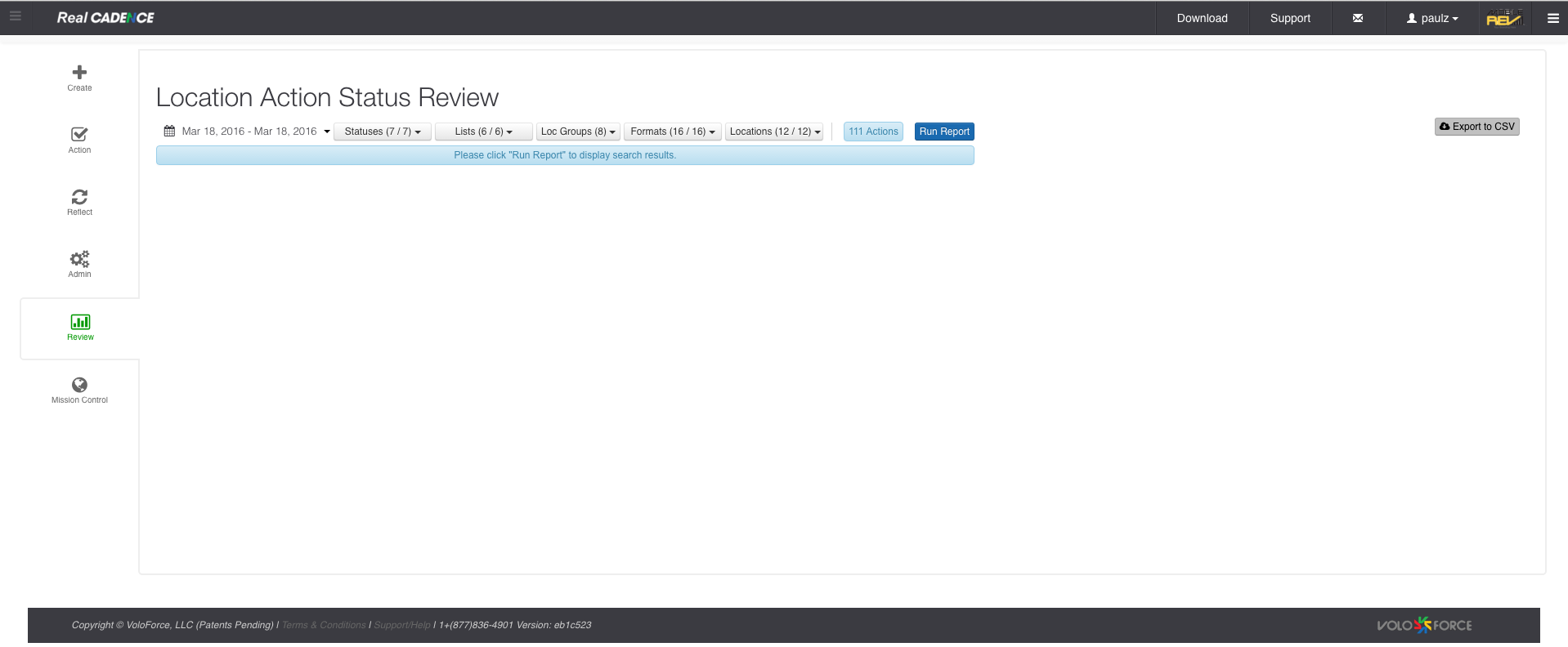
    • Click Run Report Button.

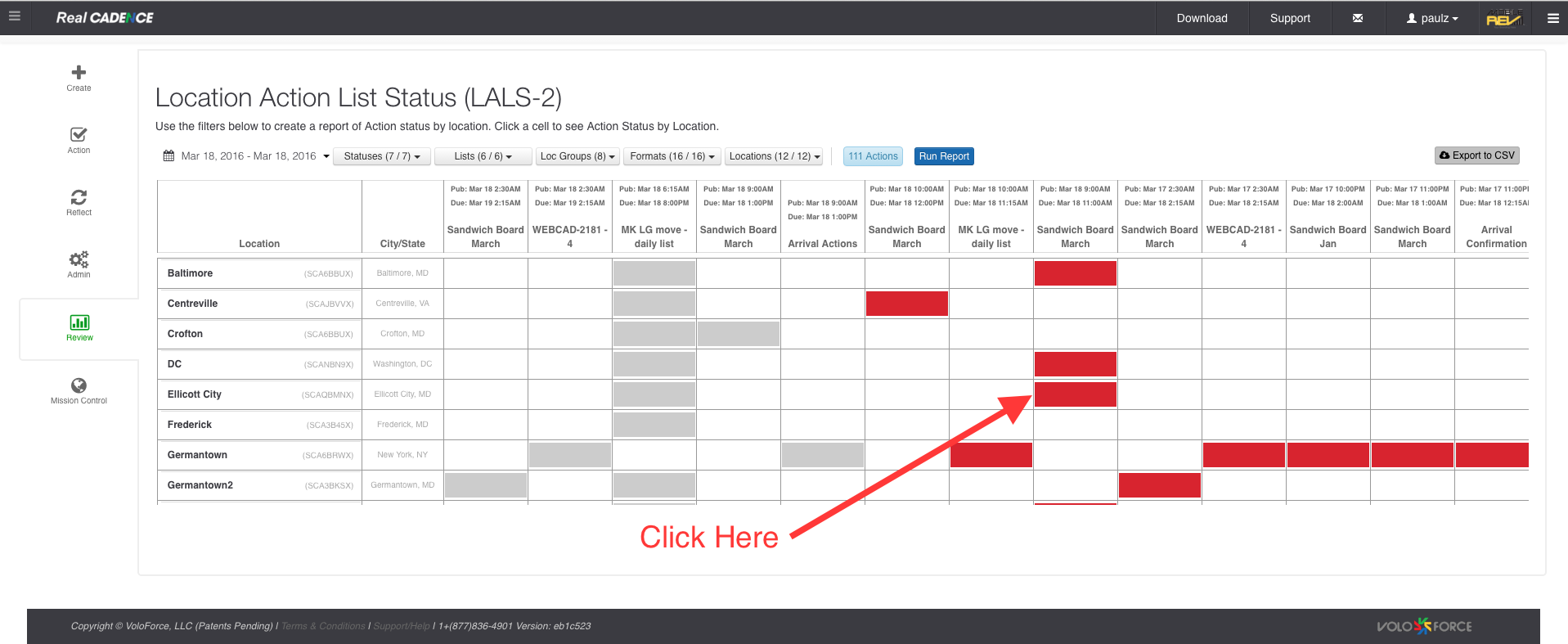
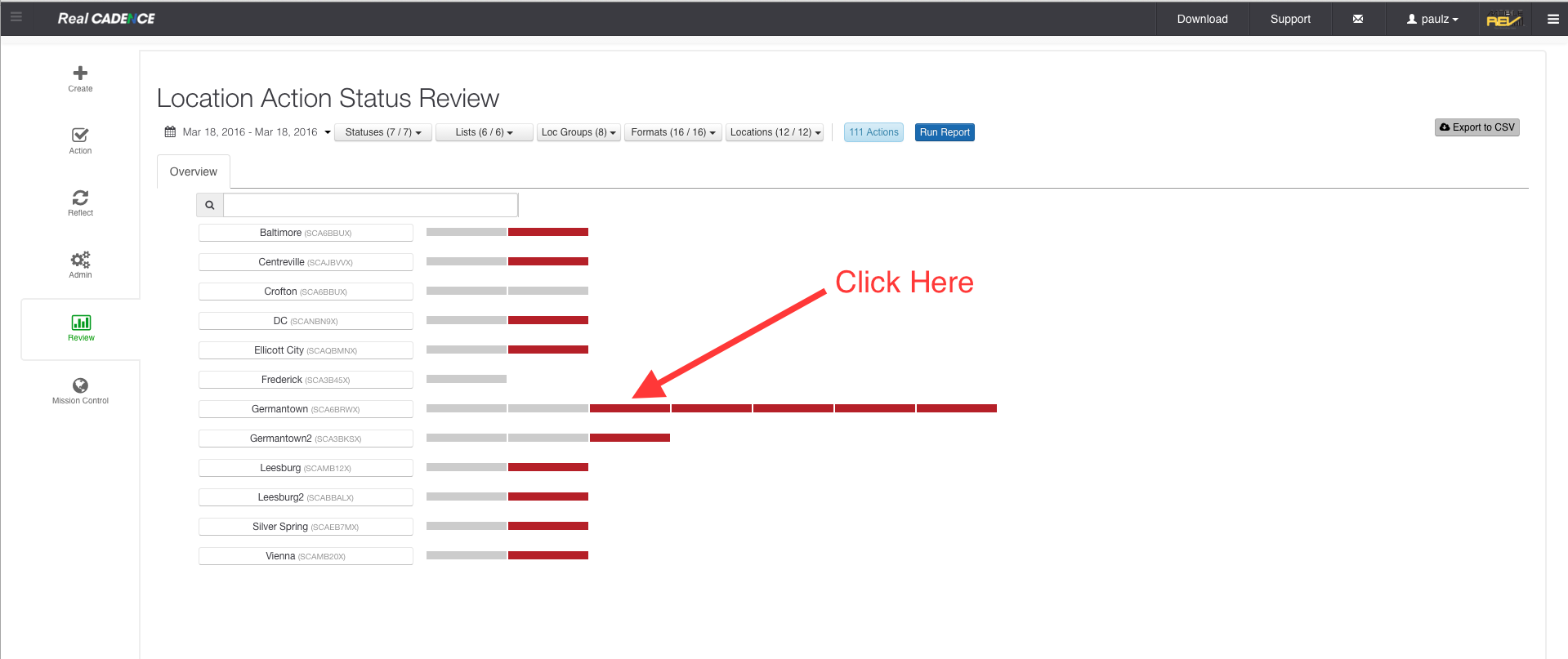
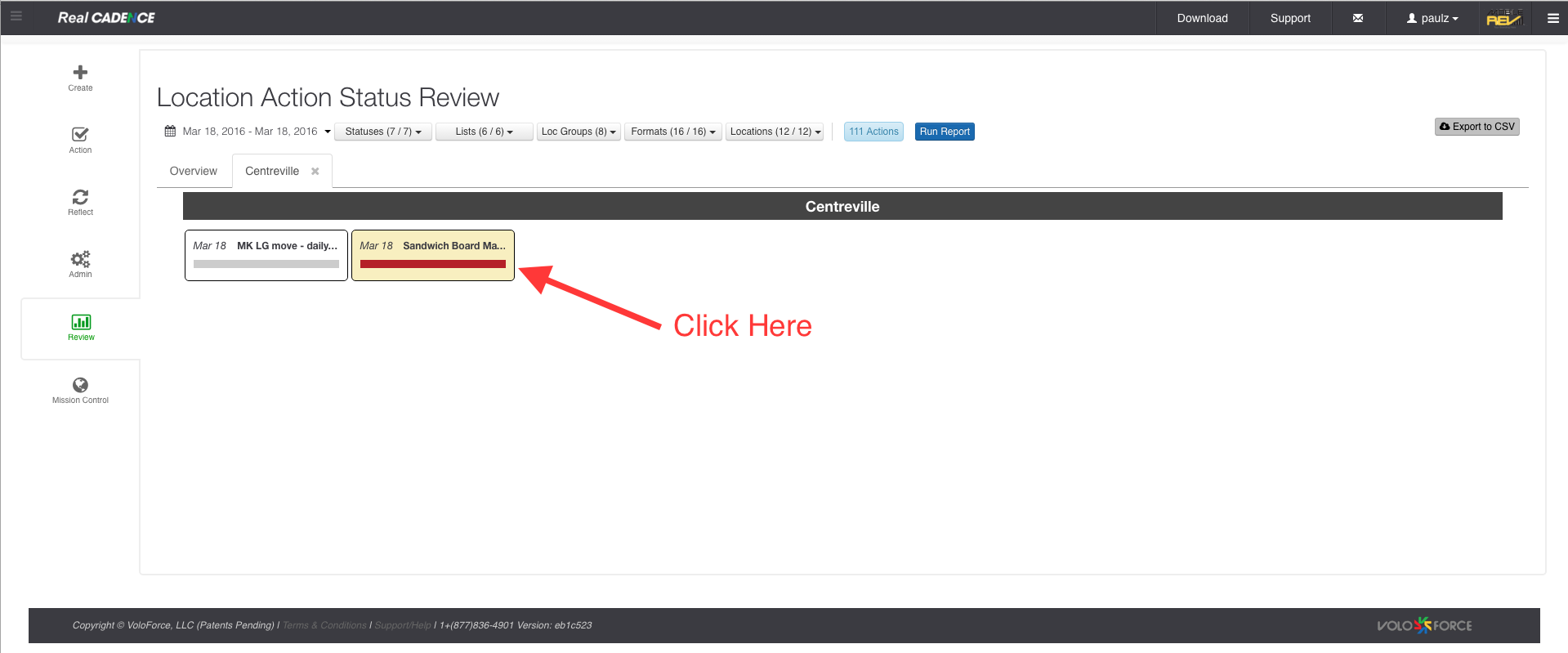
    • Click the cell representing an action list for a location to review the actions for that location. The Export to CSV button lets you export the current selection into a csv file and you can download the file.

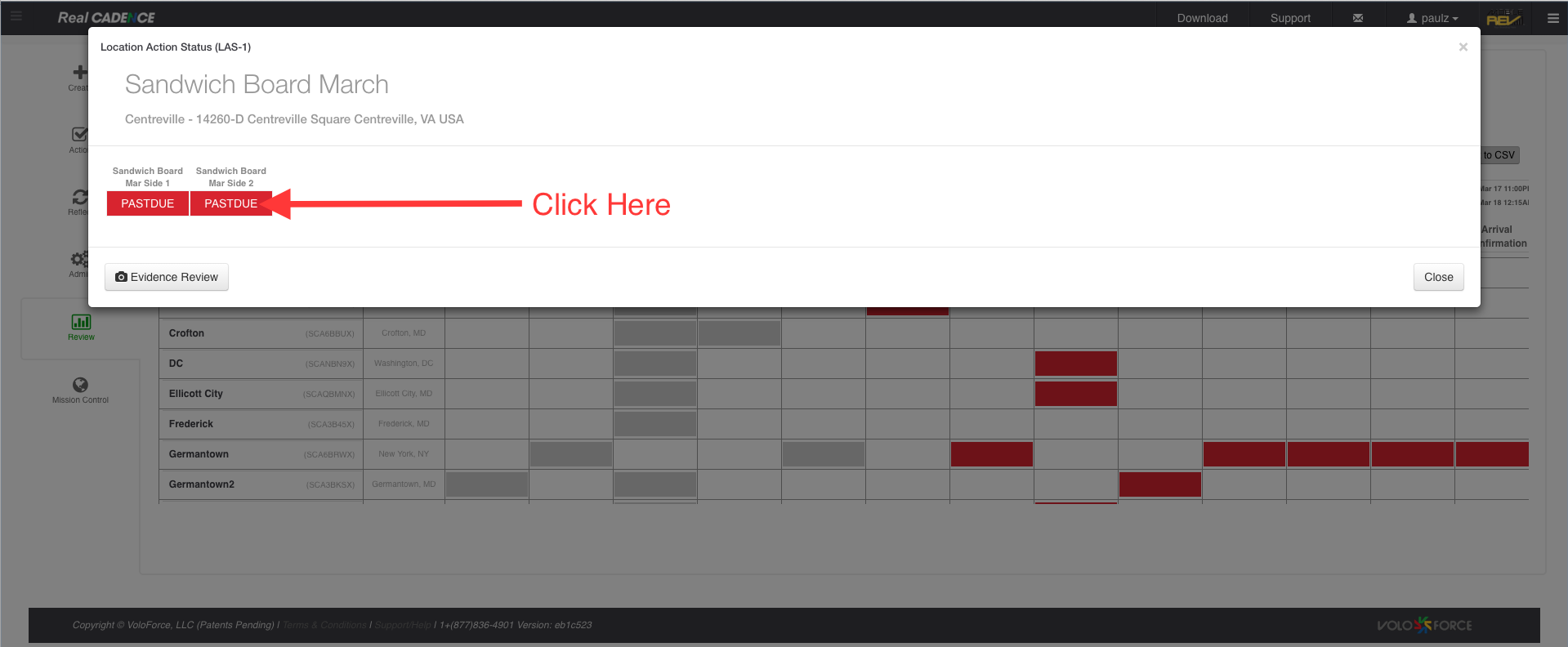
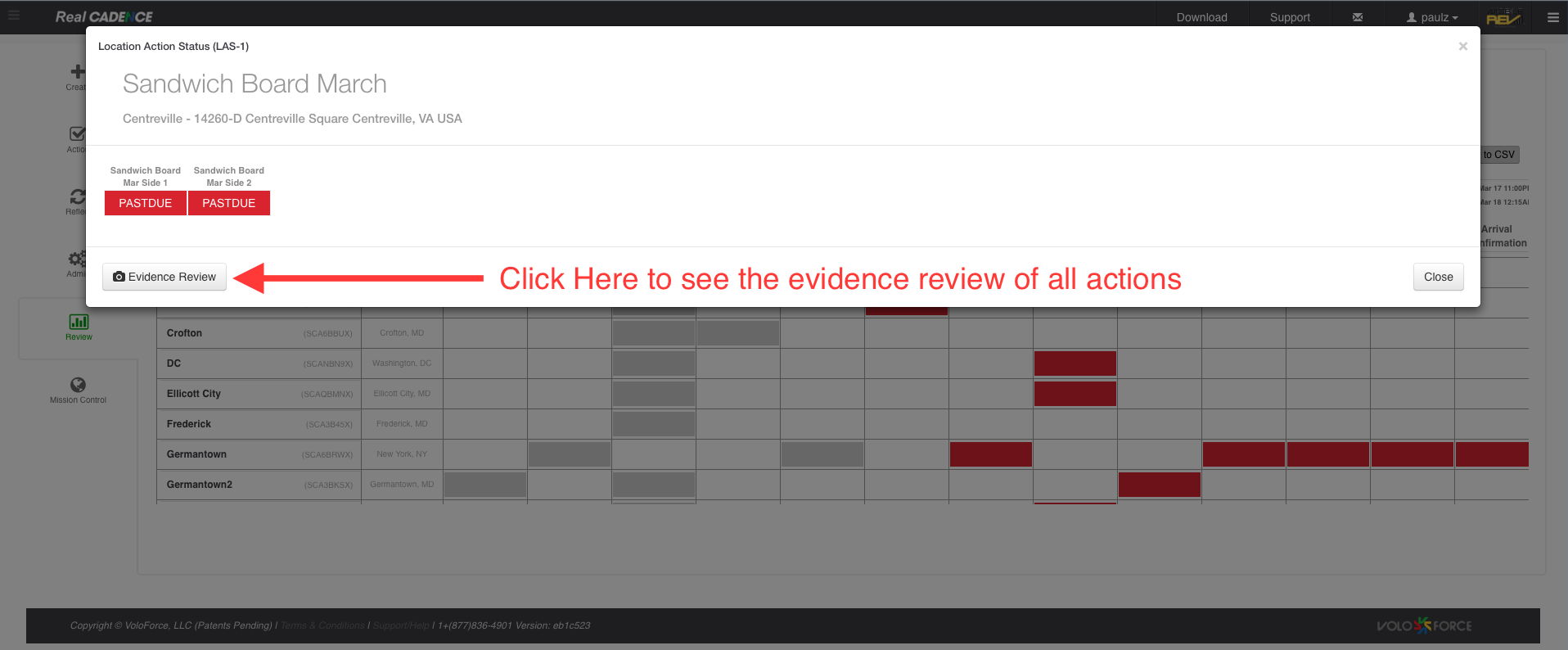
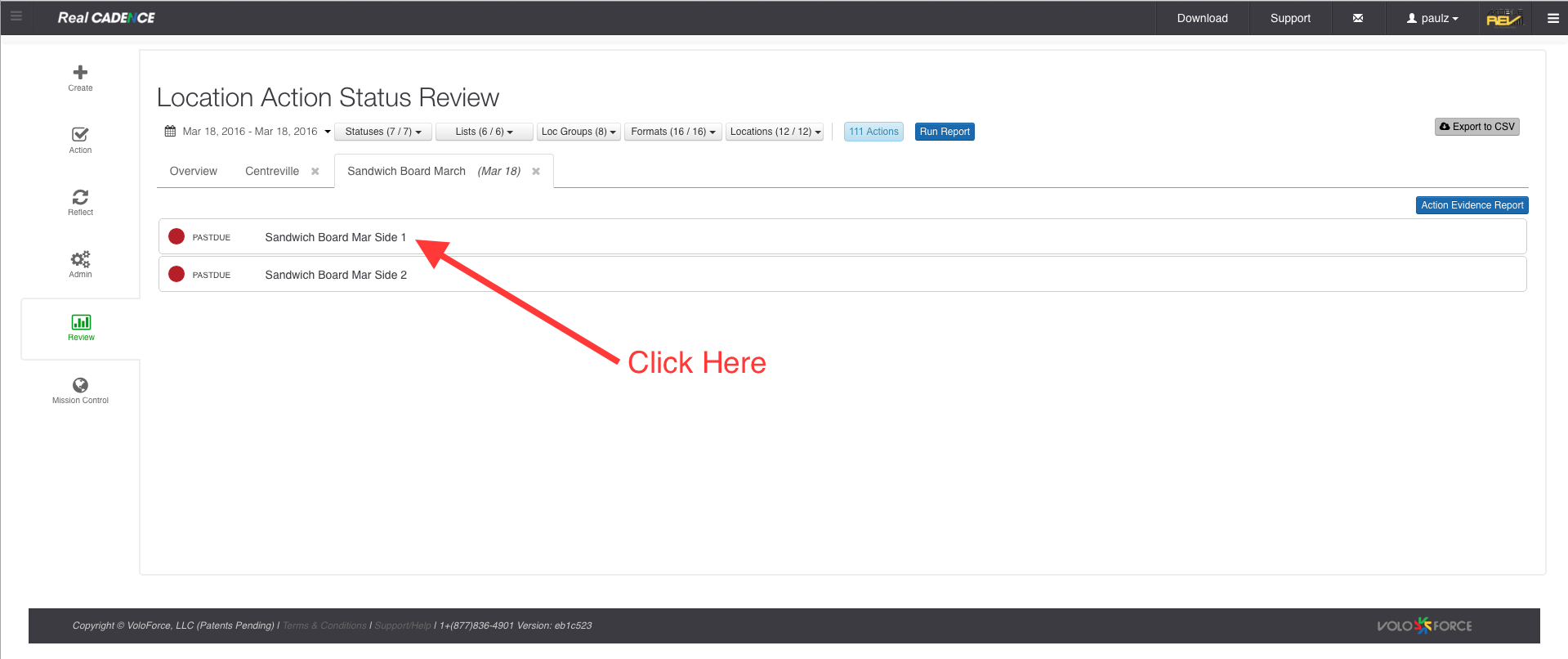
    • This will Open a modal dialog displaying all the actions for the action list.

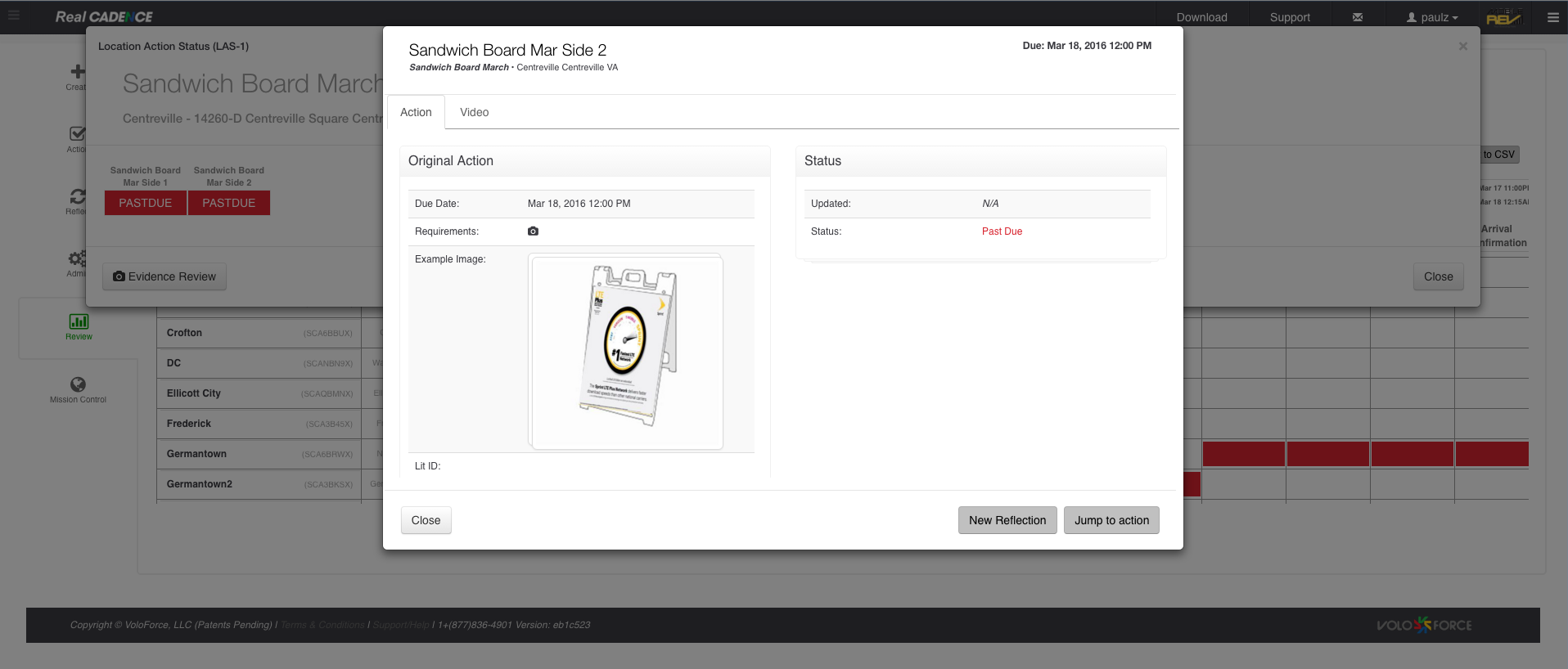
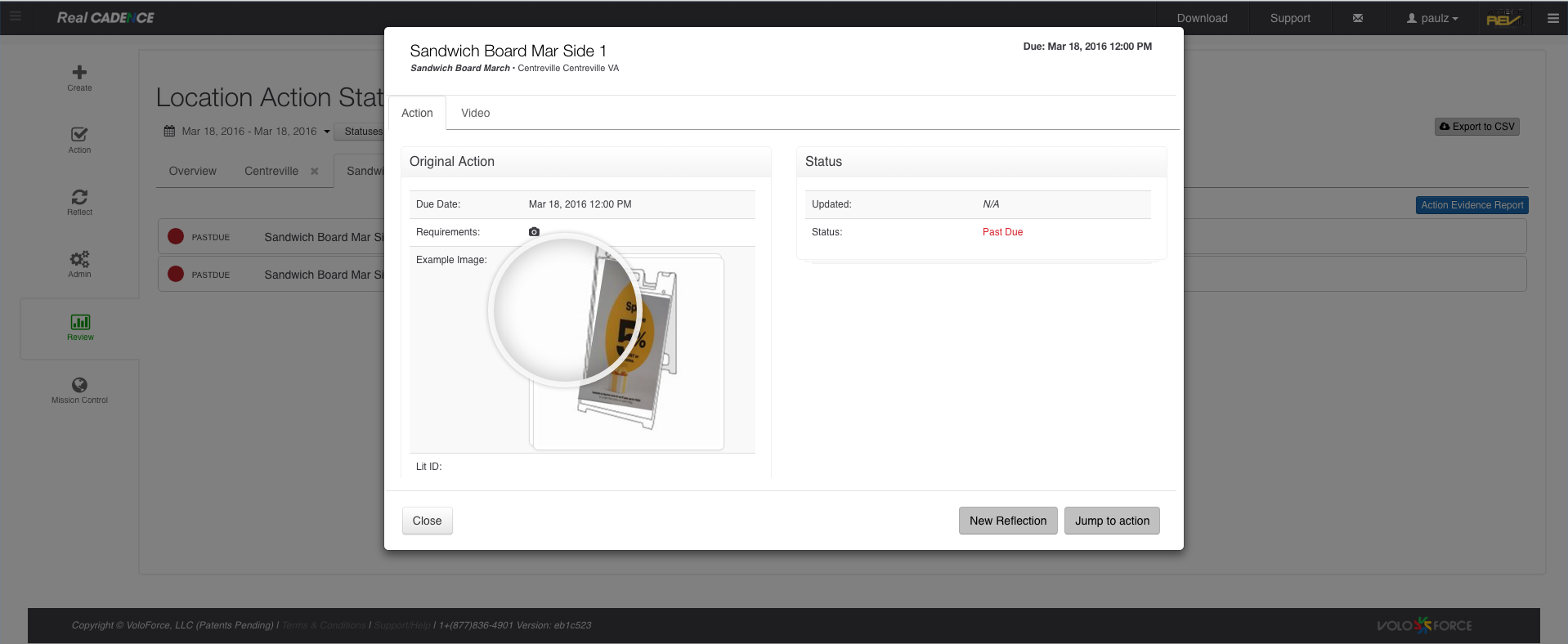
    • When you click on the action cell it will open another modal dialog where you can do the action workflow.

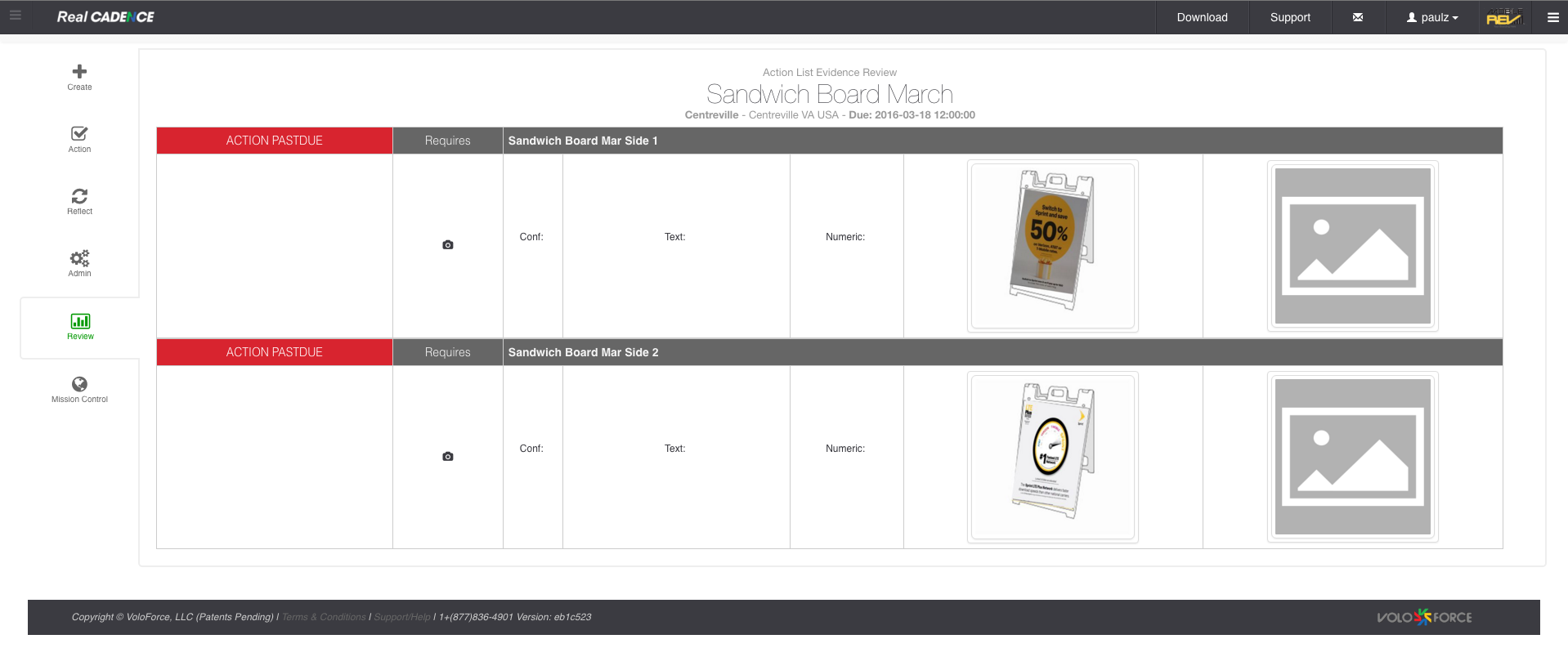
    • Click the evidence Review Button on the Location Action Status modal dialog.

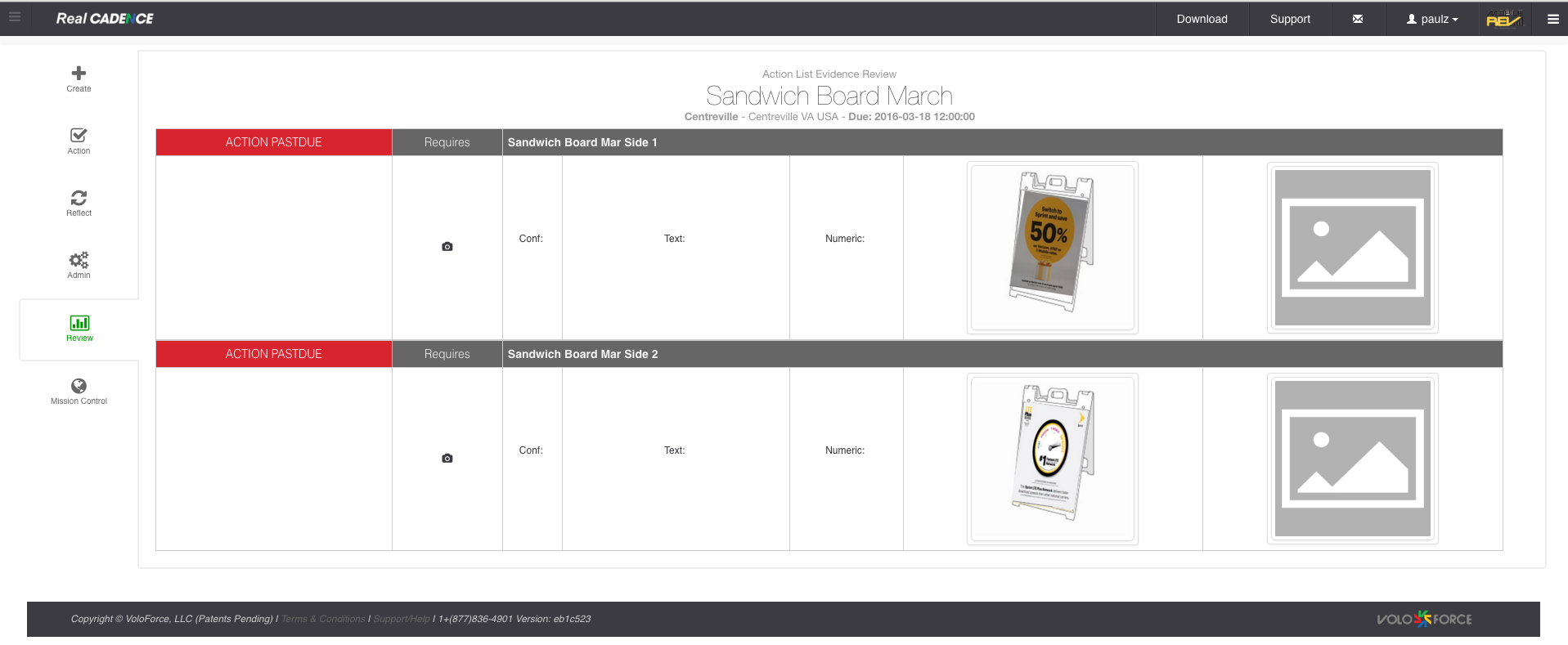
    • When you click on the evidence review button it will open the evidence review button which will display the evidence for all the actions in the action list. This is just a read only report.

    How-to: Use Location action status report

    • Login into WebCADENCE™.
    • Click the Review in the left navigation bar.

    • Click On Action Status By date range link.

    • Select a date range for which you want to review actions.

    • Select the statuses you want to work on. By default all are selected.

    • Select the lists for which you want to do the review.

    • Select the location group and click Apply Button.

    • Select Formats.

    • Select the locations for which you want to review the actions.

    • Click View Run Report Button.

    • Click the cell representing an action list for a location to review the actions for that location. The Export to CSV button lets you export the current selection into a csv file and you can download the file.

    • This will Open a new tab displaying all the action lists for the location

    • When you click on the action list cell it will open anothertab where you can do see all the actions for the selected action list

    • When you click the action it will open to modal dialog where you can do the action workflow.

    • When you click on the action evidence report button it will open the evidence report which will display the evidence for all the actions in the action list. This is just a read only report.